Limit YouTube Shorts Remixing: Video, Audio and AI
Limit YouTube Shorts video remixing, understand why audio may stay available, and check older uploads without confusing remix permissions with AI training.
- youtube-shorts
- creator-safety
- content-reuse
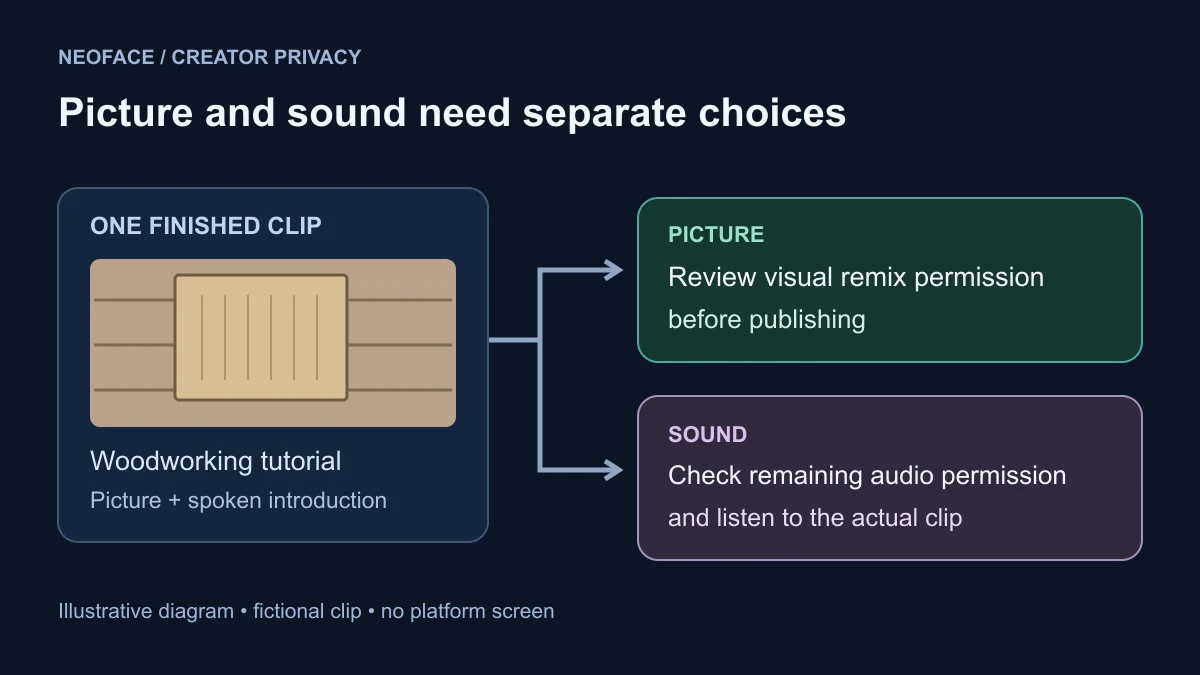
To limit remixing of a YouTube Short, open its details in YouTube Studio, find Shorts remixing, choose the restriction available to your channel, and save. Check whether audio remains allowed. Ordinary Shorts creators can opt out of video remixing; the audio-and-video opt-out requires partner access to YouTube Studio Content Manager. Choose the video's visibility separately if you don't want people watching the source.
For a creator keeping a personal identity separate, that audio distinction matters. For example, a woodworking tutorial might show only hands and tools while its introduction contains a recognizable voice. Preventing visual reuse wouldn't make that spoken introduction suitable for a public creator account.
Illustrative diagram: one creator clip has separate picture and sound paths. A decision about visual reuse still needs a decision about the audio.
Change one upload first
Start with a video you can identify easily. Confirm you're in the intended creator channel, then follow YouTube's Shorts remixing instructions:
- Open YouTube Studio → Content.
- Select the video's title or thumbnail.
- Open Show more, then find Shorts remixing.
- Choose the available restriction and Save.
Reopen the same video's details and read the saved choice. Write down its title or URL and the permission it now shows. This gives you something definite to check before working through older uploads.
Read the words beside the selected option. If they allow audio, plan around that remaining permission. Don't translate “audio only” into “nobody can reuse this.” You also don't need access to a partner dashboard to use the ordinary per-video controls.
If the available choice doesn't meet your needs, pause publication while you decide whether to change the content or its audience. Repeatedly saving the same setting won't resolve a mismatch between the permission offered and the restriction you need.
Decide what is acceptable to reuse
Think about the picture and sound independently before choosing a setting. Your answer can differ between uploads: a silent overhead demonstration and a spoken personal update don't present the same material.
| What concerns you | What to review | A useful next decision |
|---|---|---|
| Your filmed appearance being used in another scene | Visual remix permission and the picture you publish | Restrict visual reuse; prepare footage suitable for public viewing |
| Your spoken introduction being reused | Remaining audio permission and the actual soundtrack | Remove or re-record private speech, or restrict the source audience |
| A personal detail in the original upload | The source video itself | Correct it rather than relying on a reuse setting |
| Outside companies using videos for AI training | Third-party training permission | Review that separate channel setting |
| Someone sharing a YouTube Clip | Clips settings and source visibility | Check Clips separately from Shorts remixing |
For the woodworking example, first decide whether the spoken introduction belongs on the creator channel at all. If it names a local workshop or includes your surname, edit that passage out. The video-audio correction guide explains when to mute, cut or re-record identifying speech. A familiar voice needs a broader decision than removing a name.
If the sound is approved for public release but you simply prefer less visual reuse, the available visual restriction may fit. If any audio reuse is unacceptable, don't publish a Short on the assumption that a picture-only restriction also covers sound.
Keep AI remixing and AI training separate
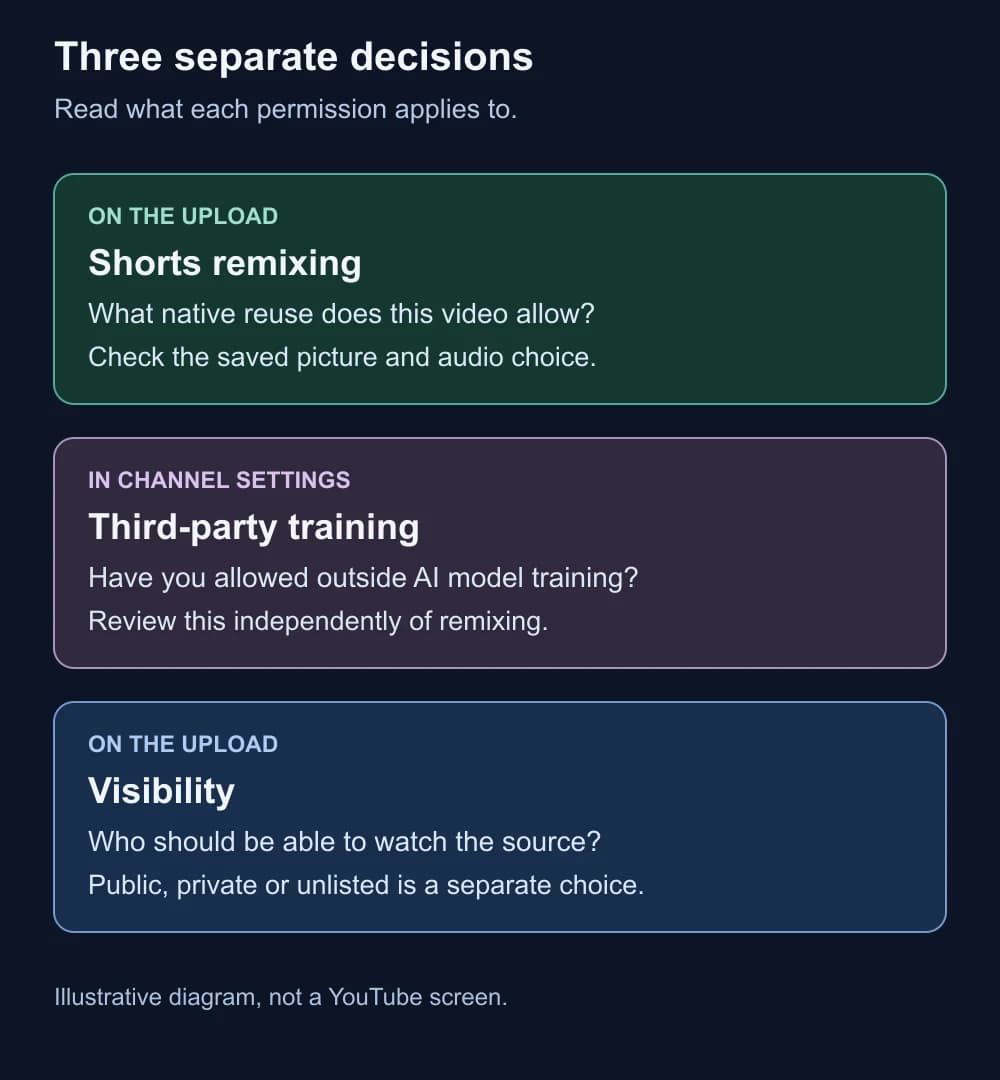
YouTube's AI remix announcement describes transforming eligible Shorts with prompts and images, with a visual-remixing opt-out for creators. If your concern is someone transforming your filmed appearance, review visual remix permission on that upload.
Third-party training is a different permission. It concerns outside companies training AI models with eligible videos. YouTube says it is off by default and channel owners can review it in Studio's channel settings. Its training-permission help explains that scope.
Read these as two separate questions: “May someone make a visual remix here?” and “Have I allowed outside model training?” Checking one doesn't answer the other. Neither choice is a reason to upload an untreated original you wouldn't otherwise make public.
Work through older uploads in small groups
Once you've checked a single upload, use a short list for the rest. Start with clips containing a visible presenter or spoken introduction, then continue through the videos you want to restrict. Keep unchecked titles on the list rather than assuming a change covered your whole channel.
YouTube's bulk-editing instructions describe selecting videos in Content, choosing Edit, selecting the change and using Update videos. The available bulk changes include Shorts sampling. Select only the uploads you intend to change and read the choice before confirming it.
After the update finishes, inspect the completion message and reopen a video from that group. If some changes failed, keep those uploads on your list. If the saved permission differs from what you intended, deal with that difference before marking the group complete.
Bulk editing is useful for reducing repeated work. It doesn't establish that your channel has a permission unavailable in the individual video's controls. Keep your notes specific: “these six uploads checked” is more useful than “remixing sorted.”
You can use the same list when preparing a new upload: title, saved reuse permission and intended visibility. That keeps a future clip from being overlooked after you've reviewed the older collection.
Review remixes already made from your video
A settings change and an already-published reuse need separate attention. Where a restriction applies, YouTube's remix rules say video remixes are deleted; affected audio remixes are muted, made unlisted and scheduled for deletion after 30 days. Those are YouTube's linked-remix effects, not a way to retrieve independent copies elsewhere.
Before changing a source that a collaborator has remixed with your agreement, tell them which upload you're changing. They may need to prepare their own edit differently. Keep the source link and any known remix links together so you can review the affected work afterwards.
If you find an unrelated repost, record its address separately. Don't assume that it is linked to the original through YouTube's remix tools, or that changing your upload will remove it. The practical question is whether the reuse you are looking at depends on the permission you changed.
Use visibility when the source itself needs restricting
If the original contains a detail you want out of public view, start with who can watch it. YouTube's visibility settings let you change Public, Private or Unlisted from the video's Visibility control in Studio. Save the choice and verify it on the intended upload.
Unlisted allows anyone with the link to watch and reshare it. Use Private when you need selected viewers rather than a freely forwarded link. Choose according to who should see the file while you prepare a correction.
Clips need their own attention. YouTube's Clips help says Clips from an unlisted video remain available; making the source private or deleting it removes its Clips. Don't use an unlisted switch as evidence that existing Clips have disappeared.
If you need to fix a face already visible in an upload, the YouTube face-blur guide covers that editing task. Reuse permission can't conceal the face in the source video.
Prepare the version you intend people to watch
Choose your face treatment before uploading. A hands-only demonstration may work better with a tighter shot. If you want a filmed presenter, the NeoFace face-anonymization workflow covers selecting a synthetic face, uploading a photo or prerecorded video, reviewing the result and downloading it. Review the downloaded clip before selecting it for YouTube; that preparation doesn't set YouTube permissions or change its audio.
Use the exported-video privacy checklist for the file itself. Once the picture and sound are ready, return to the upload's reuse and visibility choices. This avoids trying to solve a missed personal detail through a permission that leaves the source watchable.
If you publish the same clip on TikTok, make a separate decision there using its download, Duet and Stitch controls. A YouTube change doesn't configure the other copy.
Finish with a saved-setting check
- The intended creator channel and video are selected.
- The saved remix permission has been reopened and read.
- Any remaining audio permission is acceptable for this soundtrack.
- Bulk-edit results have been checked, with failed or unchecked uploads still listed.
- Known existing remixes and unrelated reposts have been considered separately.
- Visibility matches who should be able to watch the source.
- Third-party training and Clips have been reviewed separately if they concern you.
- The uploaded file is the reviewed version, including its audio.
Frequently asked questions
- Why can I only choose audio remixing on my Short?
- YouTube distinguishes video remixing from audio remixing on Shorts. Its ordinary creator controls let you opt out of video remixing; the combined audio and video opt-out is available to partners with YouTube Studio Content Manager access. Do not assume a bulk edit gives an ordinary channel that partner permission.
- Does turning off third-party AI training also stop Shorts remixes?
- No. Third-party training concerns permission for outside companies to train AI models using eligible videos. Review Shorts remixing separately. A setting with AI in its description does not cover every AI feature on YouTube.
- Is a YouTube Clip the same as a remixed Short?
- No. Clips share a short portion of an original video and depend on access to that source. Shorts remixing creates a Short using eligible source material. YouTube has separate help and controls for Clips; changing remix permission should not be your only check if clipping also matters.
- Will these settings stop someone recording my public video?
- Do not rely on them for that. Prepare public footage on the assumption that a viewer may retain a copy. If a private detail must not be visible or audible, correct the file or restrict who can watch it.
Create with
a face you choose.
Join thousands of creators building faceless brands with Neoface. Private by default, lifelike by design.
No credit card required · Instant access · Free plan available
- High-fidelity models
- Private and secure
- 24/7 support