Share Edited Videos Without Sending the Project or Originals
Send the finished creator video without sharing its editable project or source clips. Check export choices, project links and the files an editor really needs.
- video-export
- creator-safety
- file-sharing
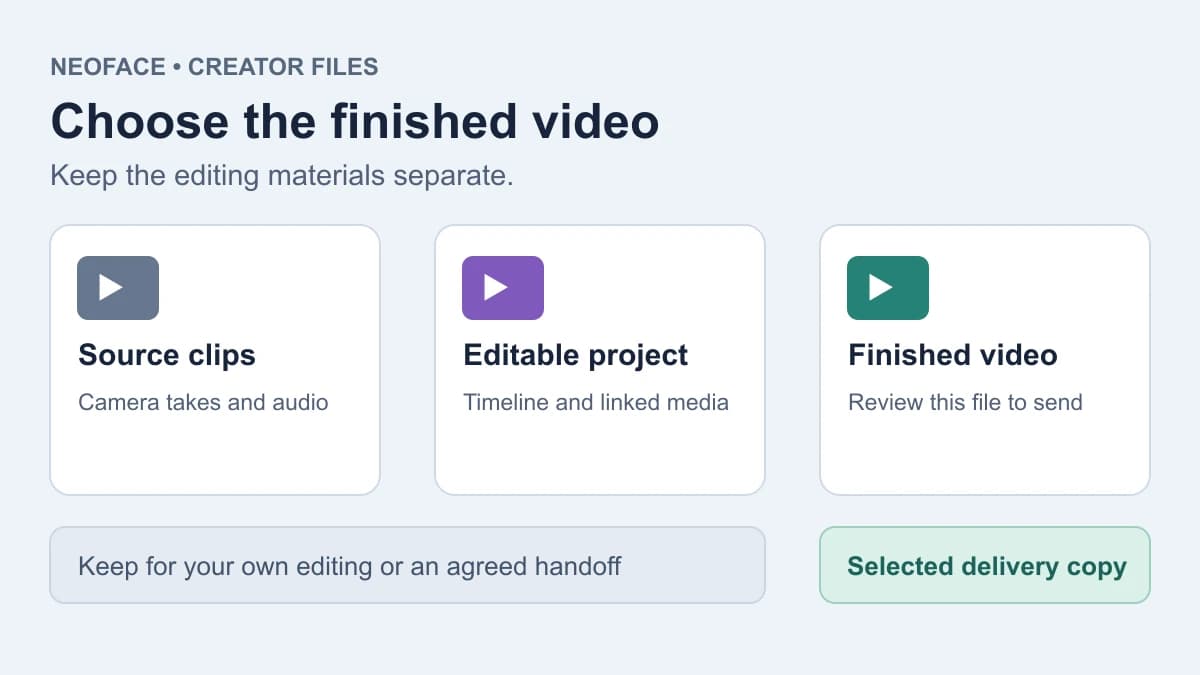
To share an edited video without sending its project or originals, export a finished video file, open that saved file, and send only the approved copy. Use the editor's video export, rather than a project-sharing link or a package of source media. If someone needs to continue editing, agree on the material they need before giving them access to the project.
A video that looks right in the editor can sit beside clips you never intended to share. For example, a candle-making tutorial might use a cropped shot of your hands, while the project also holds an earlier setup take showing your face. The person adding an end card needs the tutorial, not necessarily that setup take.
Illustrative diagram: source clips and an editable project stay separate from the finished video chosen for delivery.
Decide whether they need to watch or edit
Start with the recipient's task. Someone reviewing the pacing, approving a caption or publishing your finished clip can usually use an exported video. They don't need your whole editing workspace just because they work on the same project.
An editing project records how an editor should assemble material: which clips to use, where to cut, and which effects or titles to apply. Its source media may be stored separately or included in a shared folder. A rendered video is the finished picture and sound produced by exporting that edit.
Microsoft makes this distinction in its Clipchamp sharing instructions: sharing a completed MP4 and sharing an editing project are separate operations. Read what a sharing control applies to before using it.
| What you send | When it fits | What to inspect |
|---|---|---|
| Exported video file | Watching, approval or publishing | The saved clip, its sound and the exact selected file |
| Link to that exported video | Viewing through a file-sharing service | That the link opens the finished video, plus its recipient permissions |
| Editable project or project-folder link | Continuing the edit | Included source media, project contents and who may access them |
| Collected project package | Moving an edit with its media | Every included clip, rather than just the finished sequence |
If the task is simply “check the last title,” send a review export and ask for the correction by timestamp. If the collaborator needs to change the timing themselves, ask whether an already-treated clip will give them enough material. That keeps the file choice tied to the work.
Export the finished sequence in Premiere
Adobe's current video and audio export instructions give this route:
- Select the timeline or source clip you intend to export. For a completed edit, select the finished timeline.
- Choose File → Export → Media.
- Choose the format required for delivery, such as H.264 for MP4 or QuickTime for MOV. Set the output name and location deliberately.
- Confirm the video and audio settings, then choose Export. If you send the job to Media Encoder instead, wait for its render to complete.
Use a separate delivery location so the exported video is easy to identify. A name such as candle-tutorial-v3.mp4 is more useful than several files called final, especially if yesterday's version still contains an unwanted shot.
Project Manager prepares a different kind of handoff
Premiere's Project Manager copy procedure can collect footage from selected sequences into a new location and create a project linked to that media. That is useful when someone needs the edit and its sources. It is more material than an ordinary finished-video delivery.
Exclude Unused Clips excludes media not used in the project. It doesn't promise to conceal private details inside a source clip you did use. A clip may be necessary for the candle tutorial while also containing a face-visible setup at another point in the recording.
Don't use “unused” as a privacy judgment. If the recipient must not see an untreated take, prepare an appropriate treated input or complete that part of the edit yourself before making a handoff.
In Clipchamp, share the exported file rather than the project folder
In Clipchamp, use Export to create the finished video. For a personal account, locate the saved MP4 in your downloads or the destination you chose. For work and school accounts, Microsoft's sharing help describes an Exports folder in OneDrive or SharePoint and a Save to your computer option after export.
The distinction matters when you're copying a link. In the work and school editor, the Share dropdown beside Export concerns the editing project. A completed video's player-page link is a separate option after export. Organization settings can affect which sharing choices are available.
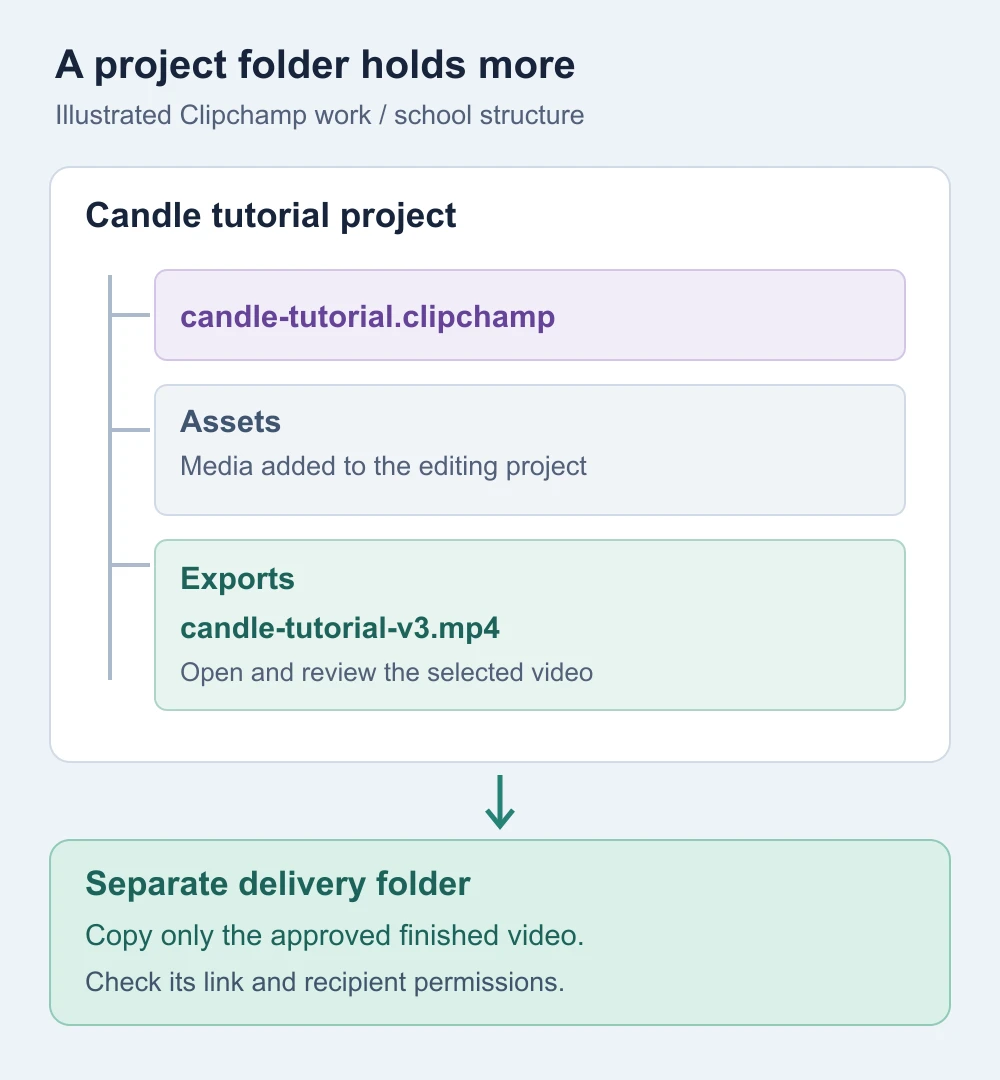
Microsoft's project-storage explanation describes a work or school project folder containing:
- a
.clipchampfile with the editing-project structure; - an Assets folder containing media added to the project; and
- an Exports folder containing completed videos.
Share the selected finished video when that's all the recipient needs. A view-only link to a project folder still concerns that folder; the permission label doesn't turn its contents into a rendered clip.
If you use another editor, find its local video export
Look for a command that creates a playable video, rather than one that shares the ongoing project. Button names alone can be ambiguous, so read the destination and the item being shared.
For example, CapCut's sharing help describes downloading the video in its web version and using Export to save a local file on desktop when direct sharing fails. A saved copy gives you a file to inspect before uploading it elsewhere.
Don't rename an editor's project file to .mp4 to make it uploadable. A new extension doesn't render the edit. Return to the editor and use its video-export route.
If you're preparing a still photo rather than a clip, use the edited-photo delivery guide. Photo original-data options and edit history need their own checks.
Give an editor only the inputs their next task needs
Sometimes another person does need to edit. Make that a deliberate handoff rather than sending the old project by default.
For the candle tutorial, you could supply the reviewed video and a separate end-card graphic. The collaborator can build a new finishing edit from those items. If they need extra seconds before a cut, ask whether you can export a longer reviewed version. Don't send the camera take merely to avoid a small revision.
When you want a visible presenter, the NeoFace face-anonymization workflow covers selecting a synthetic face, uploading a photo or prerecorded video, reviewing the result and downloading it. Use a reviewed download as the input to the finishing edit when it suits the task. Adding an anonymized version to an existing project doesn't inspect or remove the other source clips in that project.
Ask the collaborator what they need to change: framing, captions, sound or timing. If you can't provide enough material without exposing something private, do that edit yourself or record a new shot. A finished clip gives them less freedom than the original project; that may be an acceptable trade when their task is limited.
Build the handoff in a separate location and inspect every included file. Keep your working originals where you can still make corrections, with access suited to those files. You don't need to delete your source archive to send a smaller, deliberate package.
Open the file you will send
Close the editor preview and open the exported file from its saved location. Confirm the expected duration, opening and ending, picture and sound. Then use the exported-video privacy checklist for the full review; choosing the right file type doesn't check its contents.
Embedded file information is another separate check. The video-metadata guide explains inspecting MP4 and MOV delivery copies. An MP4 filename is not evidence that identifying information is absent.
For a link, verify that it opens the specific approved video, not the parent project folder. The creator file-sharing guide covers sender names, recipient access and checking what the recipient can see. A video player opening is useful confirmation of the item; it doesn't establish that unrelated folders are inaccessible.
If you change the edit after review, export and check the revised file before replacing the delivery copy. Give the recipient the new version clearly so they don't publish the old one while you inspect the correction.
Before sending the clip
- The recipient's task is clear: watching, publishing or continuing the edit.
- The finished timeline was exported to a playable video file.
- The saved file has been opened and reviewed outside the editor.
- The attachment or link selects that approved file, rather than the project or source folder.
- Any editing handoff contains only the agreed, reviewed inputs.
- The recipient permissions and visible sender details match the intended delivery.
Frequently asked questions
- Can someone undo my video crop if I send an MP4?
- A normal rendered video contains the exported picture, rather than an editable crop instruction and its source clip. That does not make every MP4 private: inspect the actual file for missed frames, sound and other details. Sending a project or source package is a different choice.
- Is a view-only project link the same as sending the finished video?
- No. View-only describes permission on the item you shared. It does not turn an editing project or its folder into a finished video. Export the clip and share that specific file when the recipient only needs to watch it.
- Can I rename a project file to .mp4?
- No. Renaming changes the filename, not the contents. Open the project in its editor and export a video file.
- What if my collaborator needs to add captions or an end card?
- Ask whether they can work from the reviewed finished clip. If they need separate elements, provide only the already-treated video, audio or graphics needed for that task. Agree separately before sharing an untreated original.
Create with
a face you choose.
Join thousands of creators building faceless brands with Neoface. Private by default, lifelike by design.
No credit card required · Instant access · Free plan available
- High-fidelity models
- Private and secure
- 24/7 support