Remove Video Metadata Before Sharing Creator Clips
Remove location, name and project tags from MP4 or MOV creator videos. Make a separate copy, check remaining metadata, and confirm picture and sound still work.
- video-metadata
- creator-privacy
- mp4
- mov

To remove metadata from a creator video, inspect the finished MP4 or MOV locally, make a separate copy without unwanted descriptive tags, then inspect and play that copy. Keep the editing original, and share the checked copy. Renaming a file or watching a clip that looks fine won't tell you whether it still contains a location, name or private project title.
Illustrative scene: a camera aimed at a bowl and blue cloth, with a blank film slate and loose paper labels nearby. Review the recorded content and the information stored with the file separately.
Start with the video you're about to send
Use the finished export from your editor or the reviewed download from your face-anonymization tool. Checking an earlier camera recording won't tell you what a later export contains.
For example, you might approve the picture in a pottery tutorial but discover that its file title still names a private project. The title doesn't appear during playback. It needs a file-level change, while a spoken name would need an audio edit.
Choose the original you need to keep for editing, then put a copy in a private working folder. Give the eventual delivery file a neutral name such as pottery-014-publish.mp4. Avoid names that include your address, legal name or an unpublished client project.
If your concern is a still image, use the photo metadata checker and removal guide. Its browser checker supports JPEG, PNG and WebP, not video. A result from that tool can't approve an MP4 or MOV.
Know which information you want to remove
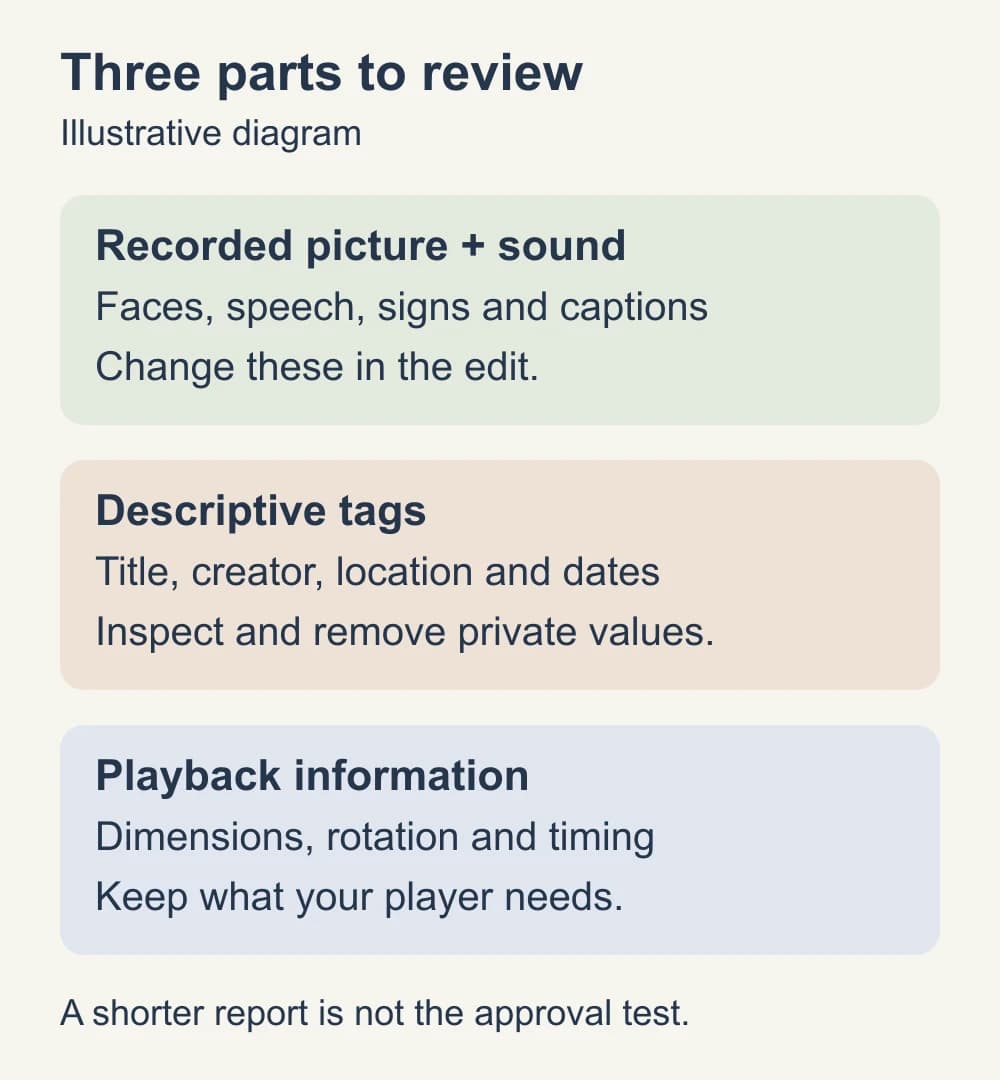
A video file holds encoded picture and sound, plus information about how to display them. It can also hold descriptive tags. In MP4 and MOV, those tags may appear at the whole-file level or inside individual tracks. A track is a separate component, such as the video or an audio recording.
ExifTool's QuickTime tag reference describes standard and camera-specific fields in MOV and MP4. A format-aware reader can show information that a gallery's details panel leaves out.
| What the reader finds | What to do with it |
|---|---|
| GPS coordinates or a location string | Remove it from the delivery copy if the recording place should stay private |
| Title, artist, author, description or comment | Read the value; remove names and private project details |
| Capture, creation or modification time inside the video | Decide whether that time is meant to be public; check the output if you remove it |
| Camera model, device information or serial number | Review it as an equipment clue, especially a unique identifier |
| Audio-track labels or chapter titles | Check for private names even when the whole-file title is empty |
| Rotation, dimensions, codec and timing | Preserve what playback needs; these fields aren't interchangeable with a personal name or GPS tag |
| Filename, folder path and computer file dates | Review separately; changing an embedded tag doesn't rename the delivery file |
An empty title isn't enough if the location is elsewhere. Read the values, rather than approving a file because one familiar field disappeared.
Inspect the file on your computer
ExifTool reads metadata locally. Install it from its official distribution, then open a terminal in the folder containing your review copy. Replace review.mp4 below with your filename, keeping the quotation marks if the name contains spaces.
exiftool -a -G1 -s -ee "review.mp4"
Here, -a includes duplicate tags, -G1 shows their groups, and -s shows tag names. -ee asks ExifTool to extract supported embedded information too. Expect more than a short list: video reports can include many technical fields. This is an inspection command; it doesn't change the file.
Look for location values, names, comments and meaningful dates. Then check the group beside each finding. A label under a video track may need attention even if the global tags look clear. Keep the report private if it contains coordinates or personal information.
FFprobe, included with FFmpeg, is useful for seeing the tracks and chapters before making a new copy:
ffprobe -v error -show_format -show_streams -show_chapters "review.mp4"
Find the main video track and any audio tracks. If the file also has separate subtitles, an attached cover image, additional video angles or special camera data, stop before applying the simple command below. Decide which components the recipient needs. A fresh, ordinary export from your editor may be easier to manage than changing a complex camera original.
If you'd rather use an app, choose one whose documentation explicitly covers your video format and shows how to inspect the downloaded result. Try a harmless clip first. A button labeled “remove metadata” doesn't explain which fields the app understands or what happens to the output.
Make a separate MP4 or MOV delivery copy
For a finished clip with one main video track and optional audio, FFmpeg can copy the encoded picture and sound into a new container. This is called remuxing. Its stream-copy documentation explains that copying the streams avoids decoding and re-encoding them, so you don't add another picture-compression pass.
The example below keeps the first video track and all audio tracks. It excludes separate subtitle, data and attachment streams, and removes chapters. If you need embedded subtitle tracks or other components, use an export or mapping tailored to those requirements instead. Burned-in captions remain part of the picture.
With FFmpeg installed from an official download, run:
ffmpeg -i "review.mp4" -map 0:v:0 -map "0:a?" -c copy -map_metadata -1 -map_metadata:s -1 -map_chapters -1 "publish.mp4"
Use a new output name. If FFmpeg asks to overwrite an existing file, stop and choose another name so you can compare copies.
The arguments make three separate choices:
-map 0:v:0keeps the first video track;-map "0:a?"keeps audio if present.-c copycopies those encoded streams without re-encoding them.-map_metadata -1,-map_metadata:s -1and-map_chapters -1disable automatic copying of global tags, stream tags and chapters respectively.
FFmpeg's metadata and chapter mapping instructions explain why these are separate scopes. The command is a starting point for this simple clip, not a promise to erase every kind of data in every video.
For a MOV review copy, keep the MOV container:
ffmpeg -i "review.mov" -map 0:v:0 -map "0:a?" -c copy -map_metadata -1 -map_metadata:s -1 -map_chapters -1 "publish.mov"
Don't change the output extension to force an unsupported codec into another format. If FFmpeg reports a compatibility error, return to your editor and export a supported delivery file. Inspect that new export too.
Read the output report before approving it
Run ExifTool and FFprobe again, this time on publish.mp4 or publish.mov. Compare the fields you flagged in the review copy. Confirm that the location, private title, name or track label you meant to remove no longer appears.
You'll still see information. A usable video needs dimensions, timing and other structure. The new container may also have a software tag written by the tool that created it. Read that value rather than assuming every remaining row is a failure or that every technical-looking field is harmless.
Dates deserve a closer look. ExifTool distinguishes computer filesystem dates from embedded dates. A [System] FileModifyDate describes the file on your computer. A [QuickTime] CreateDate describes a field inside the video. Some header dates may read 0000:00:00 00:00:00 after cleanup; that isn't the original recording time. Check the whole group and value before deciding what survived.
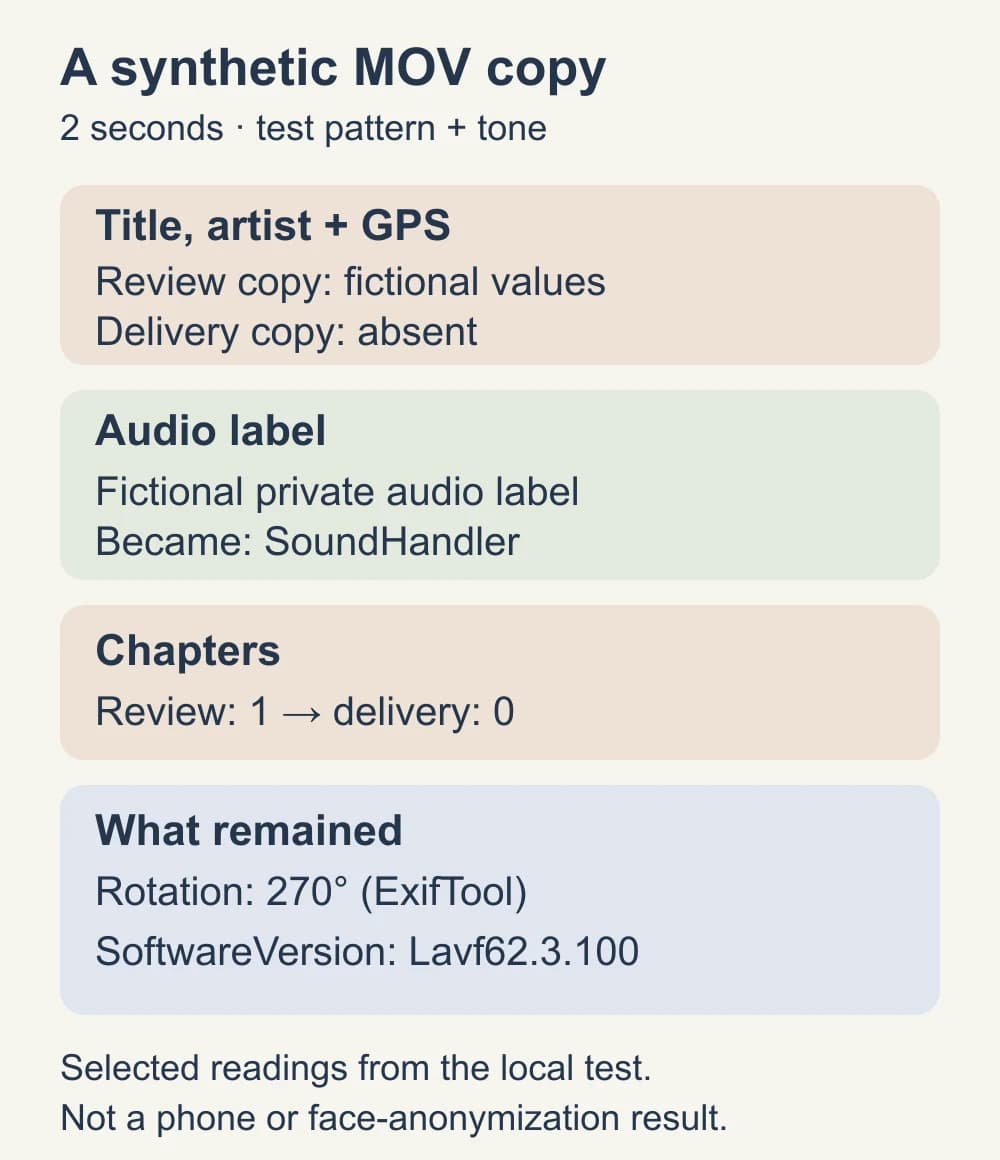
If an identifying value remains, keep the file out of the posting folder. Consult the tool's format-specific instructions or make a controlled export from the editor and inspect again. A camera can store information in proprietary fields or encoded data that a general tag-removal command doesn't cover.
Check playback and choose the file to share
Open the new copy in the player or editor you normally use. Check the start, end, orientation, sound, caption delivery and seeking. Play the full clip before approving it; a shorter file or missing audio track is a delivery problem even if the unwanted tags are gone.
Rotation information can be necessary for a portrait clip to appear upright. Don't delete it just to get a shorter report. If orientation, color or playback changes, return to a controlled editor export and repeat the metadata check on that result.
Removing tags doesn't edit a face, a reflection, spoken details or text burned into the picture. If a face-forward photo or prerecorded clip fits your idea, the NeoFace face-anonymization walkthrough explains selecting a synthetic face, uploading, reviewing and downloading the result. Inspect the actual download before choosing it as your delivery file; face treatment and metadata removal are separate checks.
Use the spoken-detail editing guide if the sound includes a private name. For the full picture, sound and file-package review, use the final-video privacy checklist. Metadata cleanup answers only the hidden-file-information part of that review.
Move the approved copy into your posting or delivery folder. When sharing a link or attachment, confirm you selected that copy and check the sender details and access with the creator file-sharing guide. Keeping the original beside it in the upload picker makes a wrong-file selection easier.
Reduce location tags in future recordings
If you don't need the iPhone Camera app to record locations, Apple's camera-location instructions say to open Settings → Privacy & Security → Location Services → Camera → Never. The guidance covers location collection for photos and videos.
That changes future capture; it doesn't clean yesterday's clip. Other camera apps have their own permissions, and an editor may add descriptive information later. Keep checking the finished file you intend to send.
Before the clip leaves your working folder
- You're checking the finished export or download you intend to deliver.
- The editing original remains separate from the new copy.
- Location, name, title, comment and meaningful date values have been reviewed.
- Track labels and chapters have been checked, not just the global tags.
- The new copy no longer shows the identifying fields you flagged.
- Remaining technical fields have been read and playback works as intended.
- Needed audio and caption components are present in the delivery package.
- The attachment or shared link points to the checked copy with a neutral filename.
Frequently asked questions
- Does renaming a video remove its metadata?
- No. Renaming changes the filename, while embedded location, title, creator and other tags can remain inside the file. Give the delivery copy a neutral name, then inspect its contents with a tool that supports the video format.
- Can I remove video metadata without reducing picture quality?
- A compatible stream-copy workflow can rebuild the video container without re-encoding its picture and sound. That avoids another compression pass. Check the new file for remaining tags, correct orientation, sound and playback; copied streams do not establish complete metadata removal or compatibility with every player.
- Does FFmpeg map_metadata remove everything from a video?
- No. Global tags, stream tags and chapters require separate choices. A new file can still contain technical fields, newly written software tags or information inside encoded streams. Inspect the output rather than treating one flag as proof that all identifying information is gone.
- Why does ExifTool still show dates after cleanup?
- Check the group beside the date. System dates describe the file on your computer; video-container dates are separate. Some QuickTime headers show zero date values after cleanup. Read the remaining values and their groups before deciding whether the old capture time survived.
- Should I delete video rotation metadata?
- Do not remove it just to make an inspection report shorter. A player may need rotation information to display a portrait recording correctly. Check the cleaned copy in your intended player, and use a controlled editor export if orientation changes.
- Does turning off camera location clean videos I already recorded?
- No. Changing the camera permission affects future capture. Inspect existing recordings and make checked delivery copies separately. Other camera apps have their own access settings, and location can also appear in the picture or sound.
Stand out while
staying anonymous.
Join thousands of creators building faceless brands with Neoface. Private by default, lifelike by design.
No credit card required · Instant access · Free plan available
- High-fidelity models
- Private and secure
- 24/7 support