Hide Creator Photos on iPhone and Android
Keep creator originals out of everyday photo browsing. Use iPhone Hidden or Google Photos Locked Folder, check backup, and track copies made for editing or posting.
- creator-privacy
- photo-storage
- source-files
To hide creator photos on your phone, use the Hidden album in Apple Photos or Locked Folder in Google Photos, then check that opening the collection requires authentication. Decide whether the originals should also be backed up, and review any copies made while editing. Keep finished files for posting easy to identify so you don't have to browse unedited takes during every upload.
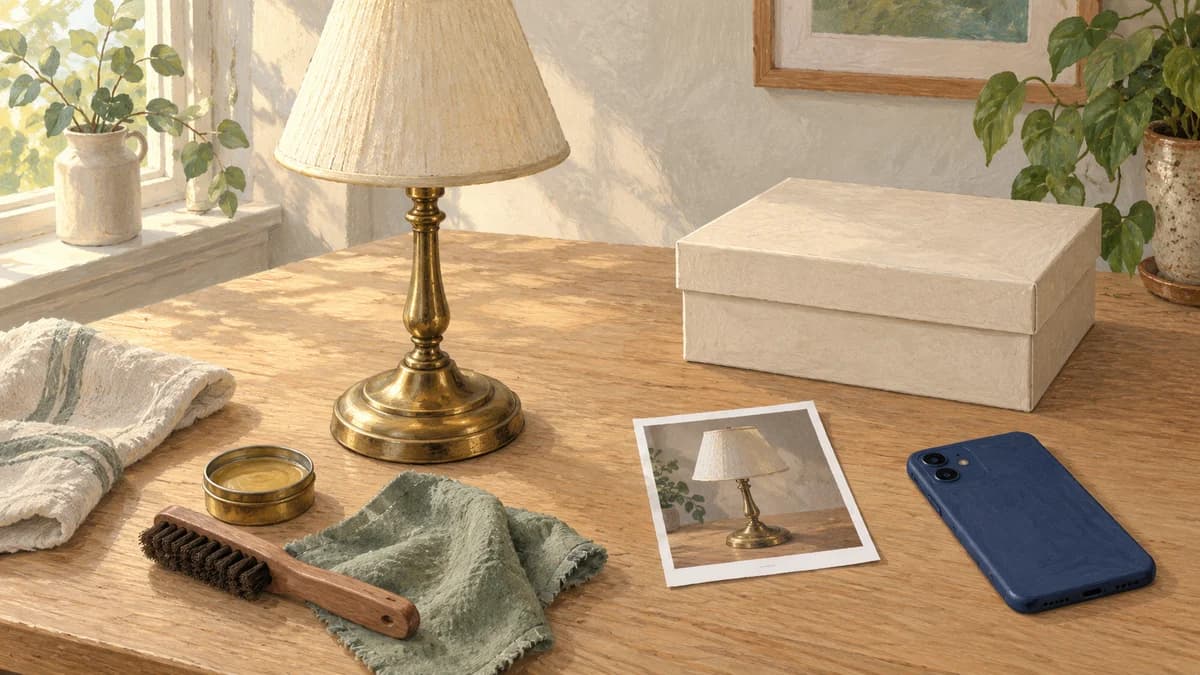
Illustrative scene: a brass table lamp, a closed photo box, a face-down phone and a print of the lamp. Decide which files to set aside before choosing what to post.
Choose which photos you need to keep out of everyday browsing
Start with the files you wouldn't want someone to see while you're showing them a photo on your phone. That might include face-visible introductions, reference portraits or outtakes with personal details in the background. Put those originals on your list even if the final post will be faceless.
For example, imagine making a table-lamp restoration video. The camera records your face during the introduction, but your finished cut shows only your hands and the lamp. The finished video and the original recording need different treatment: one is ready for a posting review, while the other still contains your face.
Think about who uses the device before choosing where to keep that original. If another person can unlock the protected collection, it won't provide the separation you need from that person. A device or storage location they don't use may fit better. Check this directly rather than relying on the folder's name or a lock symbol.
| What you need | Where to start | What to check next |
|---|---|---|
| Keep originals out of ordinary iPhone photo browsing | Apple Photos Hidden album | The unlock requirement and your iCloud use |
| Set aside originals in Google Photos | Locked Folder | The account, backup choice and how you'll retrieve a working file |
| Find approved posts quickly | A clearly named collection of finished exports | Open each file to confirm it's the reviewed version |
| Keep files away from someone who can open your protected collection | Another device or storage location with separate access | Whether that person can also open its account or backup |
A creator album can help you find files, but organization and access are separate decisions. If your concern is what an editing or posting app may read, use the app photo-permission guide as well.
Put iPhone originals in the Hidden album
Apple's Hidden-album instructions say hidden items leave ordinary Photos views, including other albums and the Photos widget. The album requires authentication by default on iOS 16 and later.
- In Photos, press and hold the photo or video.
- Choose Hide and confirm.
- Find Hidden under Utilities in Collections. Open View Album and check the unlock prompt.
To conceal the collection itself, turn off Settings → Apps → Photos → Show Hidden Album. That visibility switch is separate from hiding individual photos.
If the controls differ, follow Apple's instructions for your software version before moving a large set. Confirm that you can reopen the collection and find the item you just hid.
Using iCloud Photos also carries the hidden status to your other devices. Check those devices if you use the same library on a tablet or computer. Hiding on your phone doesn't mean you've chosen device-only storage.
Use Locked Folder in Google Photos on Android
In Google Photos, open Collections → Locked → Set up Locked Folder and follow the unlock instructions. Select a photo under Photos, then choose Add to → Move to Locked Folder → Move. Google's Android instructions use the device screen lock; anyone who can use it can open the folder.
If the option is missing, consult the linked eligibility guidance before choosing where to keep your originals.
Google explains that Locked Folder items stay out of the photo grid and search, including when they're backed up. Archive serves a different purpose: archived photos remain available in search and albums. Archive is useful for tidying. Choose Locked Folder when you need the unlock requirement.
Choose backup before moving important originals
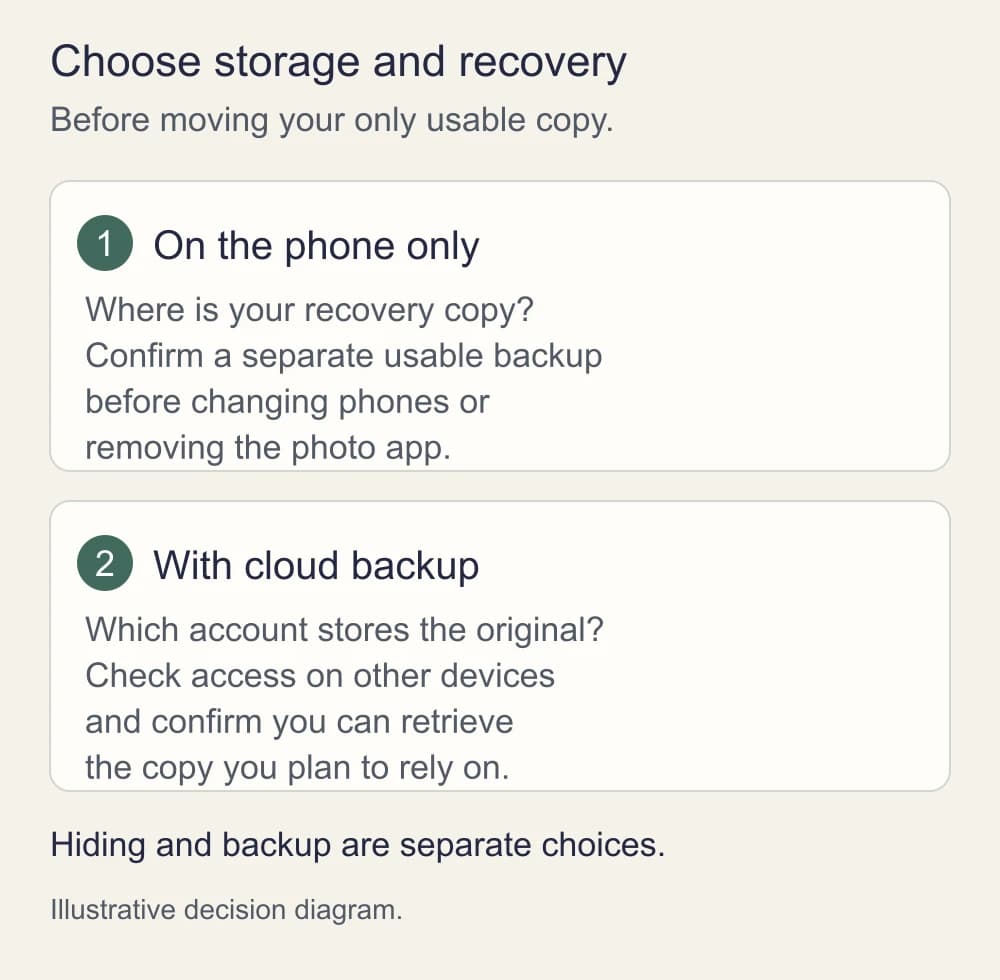
Before moving your only copy, decide where you'd get it back if the phone stopped working. Check backup separately from the setting that hides the photo.
Google's Locked Folder backup explanation describes optional cloud backup and access from other signed-in devices. If you choose that route, review the account and devices you intend to use for recovery. If you prefer to keep an original off that cloud account, plan another backup you're comfortable with.
In Google Photos, review Photos settings → Backup → Back up Locked Folder. Moving an item there with this backup off removes its Google Photos backup. Unbacked items can be lost when you uninstall Photos, clear its data, reset the phone or lose the device. Don't use those actions to troubleshoot a missing file before checking where another usable copy exists.
Write a practical recovery note without including passwords: “Originals are on this phone; the backup I checked is on my own external drive.” Or, if you choose Google backup: “Locked Folder backup is on in my creator account; I checked access on my other device.” Only record a check after you've done it.
If originals have already reached a household collection, review that sharing separately with the shared-library guide. A backup decision made today doesn't settle who already received yesterday's recording.
Look for copies that haven't been hidden
Moving one file doesn't account for every version. Google says related copies and earlier edits stay where they were; a recipient's saved copy is separate too. Check likely destinations rather than moving the same item repeatedly and assuming the whole set followed it.
For the lamp video, your list might include the camera recording, a trimmed introduction, a reference still and an editor project. Look in the places you used: the phone's gallery, Downloads, the editor's imports and any folder used for a handoff. Include a duplicate you made to try a different crop.
There's a specific iCloud sharing limit to know. Apple says hiding an item in an iCloud Shared Photo Library puts it in the Hidden album for all participants, who can view or unhide it. If it was contributed to that shared collection, hiding isn't a way to withdraw participant access.
Use a short note for files you still need to resolve: “Trimmed introduction remains in editor imports.” That tells you where to return after finishing the edit. Avoid deleting uncertain files just to make the list shorter; first confirm which copy you need to keep.
Retrieve only the file needed for the edit
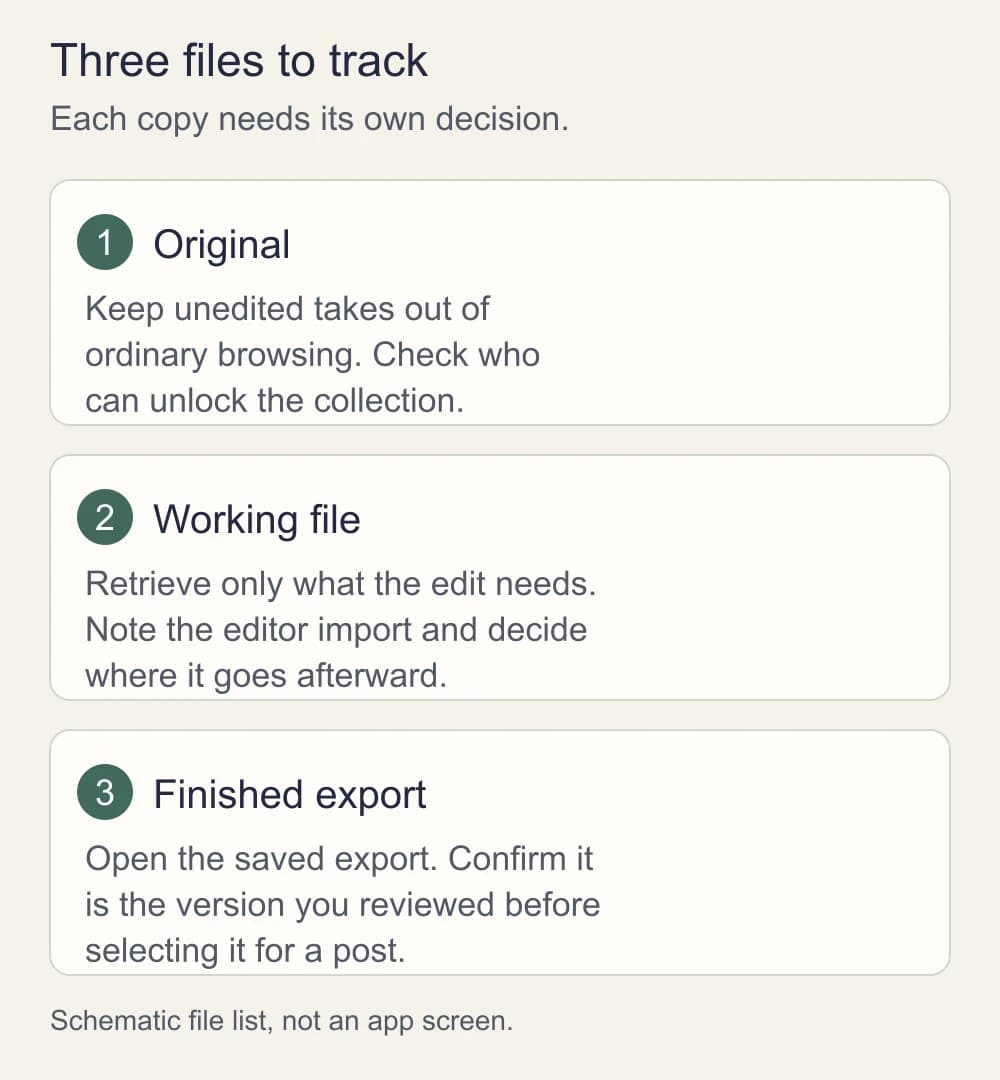
Google Photos requires moving a Locked Folder item out before editing or sharing it. Plan that step when you have time to finish the task, rather than retrieving an entire shoot to find one clip.
On iPhone, use Unhide for the selected item when your chosen import route needs it back in the library. Check the destination in your editor before continuing. For either phone, note any new copy created by the import and return the original to your protected collection when you no longer need it available there.
For face-forward material, the NeoFace photo and prerecorded-video walkthrough explains selecting a synthetic face, uploading content, reviewing the result and downloading it. Keep the original and reviewed download distinct. Anonymizing the face in a download doesn't hide the camera original on your phone.
Before posting, open the finished export from its saved location. Use the finished-photo delivery guide if you're unsure whether a photo is a separate export or still carries the original editing data.
Afterward, review the temporary import, any project and extra exports you made. Keep what you need in a location with the access you intend, and remove unneeded copies using the relevant app's controls. Check the result rather than assuming one folder change handled all of them.
Try the full route with a harmless sample
Use a photo of an empty cup or a spare clip of the lamp with no personal details. Put it in the protected collection, close that view and reopen it through the unlock step. Then retrieve it, import it into your normal editor and save a finished version.
Find the files afterward. Which item returned to the ordinary gallery? Did the editor save another copy? Where did the export land? If you're using a backup, confirm that the sample you expect to recover is available through that route.
This exercise helps you find the controls and file destinations on your own setup. Repeat it after a phone change or a major change to your editing route. If you can't account for a sample, resolve that before using a face-visible original.
Before setting aside the next shoot
- You've chosen the originals that should stay out of everyday browsing.
- You've checked who can unlock the protected collection.
- You know the account and devices involved in storage or backup.
- You've confirmed a recovery copy before a phone change or app removal.
- Shared-library items and recipients' copies have been reviewed separately.
- Earlier edits, reference stills and editor imports are accounted for.
- Temporary working files have a destination after the edit.
- You've opened the finished export you intend to post.
Frequently asked questions
- Does hiding a photo make it safe to publish?
- Hiding changes where you keep the photo, not what a viewer can see in the image. Before publishing, open the finished file and check its face treatment, background and other identifying details. Keep that review separate from deciding where to store the original.
- Do I need a separate photo-vault app for creator work?
- Start by checking whether your phone’s built-in protected collection meets your needs. If it does not, compare another app’s unlock method, backup, recovery and export options before importing sensitive files. Use harmless samples to check how you would retrieve your work.
- Why can’t my editor find a photo in Locked Folder?
- Google Photos requires you to move a Locked Folder item out before using it in another app. Retrieve only what you need, then keep track of the working file, editor project and finished export separately.
- Is a hidden or locked collection also a backup?
- Check backup separately. Google Photos offers a Locked Folder backup choice; hiding in Apple Photos can sync through iCloud Photos. Decide where you want originals stored and how you would recover them before relying on either collection.
- Can I hide a photo that other people already have?
- Treat their access separately. Hiding a photo in an iCloud Shared Photo Library leaves it available in the participants’ Hidden album. A recipient’s saved copy also needs its own attention. Review the original sharing instead of assuming a change on your phone withdraws it.
Stand out while
staying anonymous.
Join thousands of creators building faceless brands with Neoface. Private by default, lifelike by design.
No credit card required · Instant access · Free plan available
- High-fidelity models
- Private and secure
- 24/7 support