Share Edited Photos Without Sending the Original
Share the edited photo you approved, rather than its camera original or editable project. Check iPhone sharing options, export a finished copy, and test delivery.
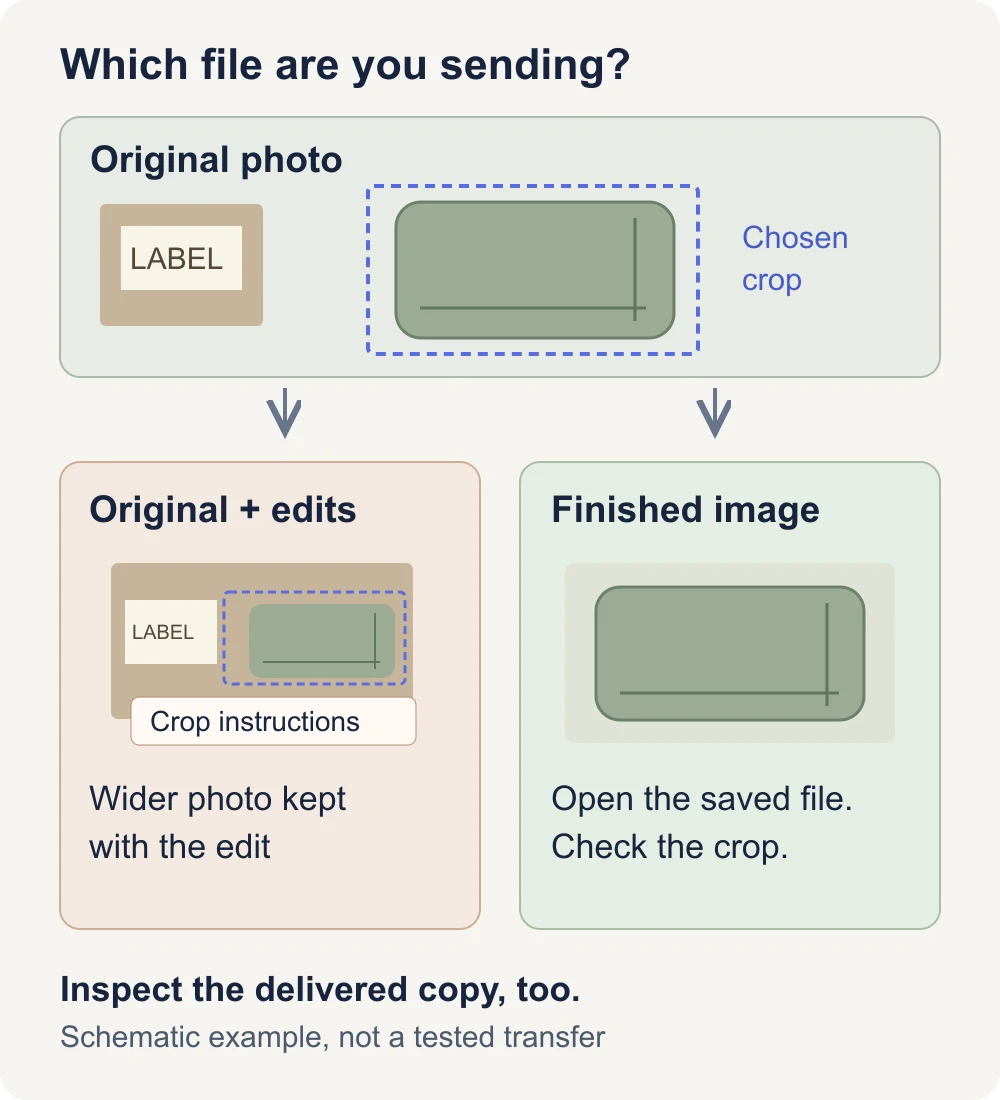
To share an edited photo without sending the original, export a separate finished image and open that saved copy before sending it. Choose the edited-image export rather than an original or project-file option. Check the delivered copy, too, especially when you use a new sharing method.
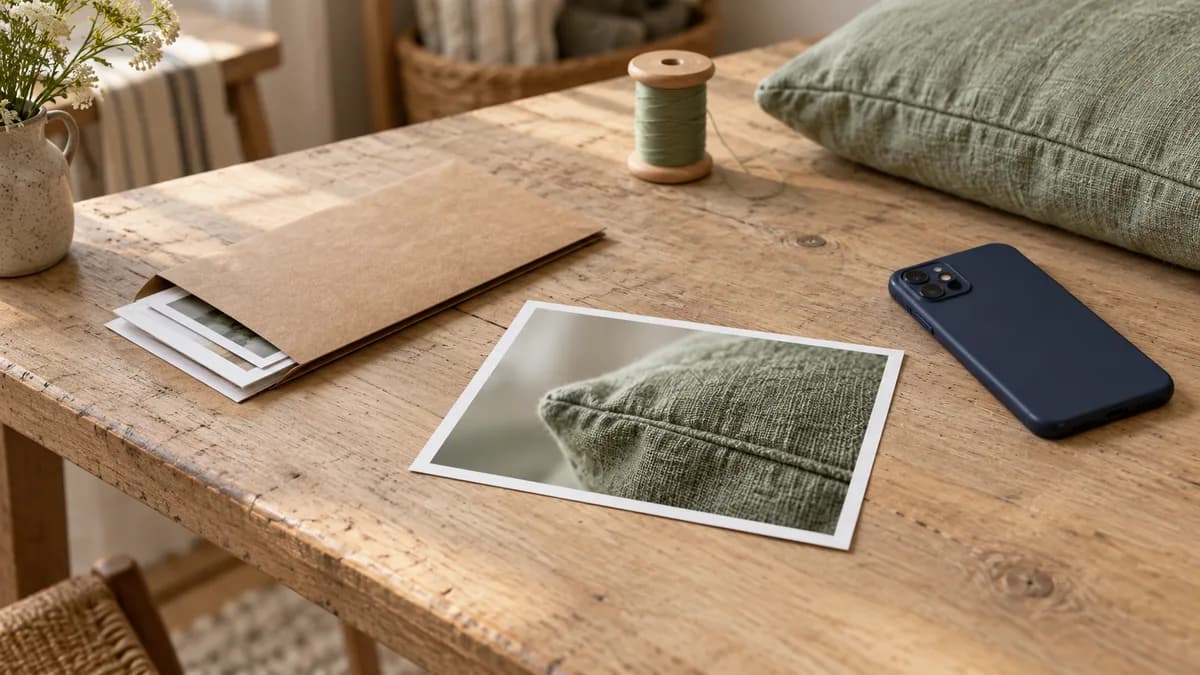
Illustrative scene: one cushion-detail print sits apart from an envelope of other photos. Keep the copy you've chosen to share separate from the photos you're still working on.
An edited thumbnail can look exactly right while you've selected the wrong kind of file to deliver. The useful question is: does this person need the finished picture, or the material you used to make it?
For example, you might crop a parcel label out of a cushion photo for your creator account. You want to send the tighter picture to a designer. They don't need the wider photo containing the label, even if that original helps you adjust the composition later.
Why your editor can still show the original
Many photo editors let you change your mind without destroying the source. Apple Photos, for instance, lets you revert a saved edit to the original. That's useful when you dislike a crop or want a different color adjustment.
It also means saving the edit in your library is a different action from preparing a file for someone else. Your own ability to recover the wider photo doesn't prove that every recipient can do the same. What matters is whether the transfer includes that original or an editable document, rather than only the finished picture.
The same distinction applies to a covered label. If a working document retains the photo beneath a separate cover layer, someone with that document may be able to hide the cover. Before sending it, decide whether they need that editing access at all.
For the cushion example, a designer choosing a font for a promotional card can usually work from the cropped picture. If they want to change the crop, first ask whether you can make the requested version yourself. You don't have to provide the wider original just to try another layout.
| What you're about to send | When it fits | What to check |
|---|---|---|
| Finished JPEG or PNG export | The recipient needs the approved picture | Open the saved file and confirm the edit appears |
| Camera original or “Unmodified Original” | Someone deliberately needs the source | The full picture may include what you cropped out |
| Original with edit history or settings | Someone needs to continue the original edit | They may receive both the source and instructions for your current appearance |
| Editable project, such as PSD or PXD | A collaborator needs layers and further editing | Inspect the contents, including material hidden beneath covers |
Check All Photos Data before an iPhone AirDrop
Apple's iPhone photo-sharing instructions say All Photos Data sends the original file together with edit history and metadata. The recipient can view and modify the current version. Don't enable that option simply because “all” sounds like better image quality.
For a finished-photo handoff from Photos:
- Open the edited photo you intend to send.
- Tap Share, then Options.
- Check that All Photos Data is off before using AirDrop.
- Return to the share sheet, confirm the selected photo, and choose the intended recipient.
The format choices in the same panel answer another question. Most Compatible may convert a photo to JPEG; Current prevents format conversion. Neither label, by itself, tells you that every private detail has been removed.
If your screen or sharing destination doesn't offer the same controls, use the instructions for your software version and test the route with a harmless photo. Don't assume a transfer started from another app behaves like one started from Photos.
Live Photos need an additional decision about motion and sound. Use the still-only Live Photo guide when you want a single image. Turning off original-data sharing and choosing a still address different parts of the file.
Export a finished photo from your editing app
For photos you'll reuse, a separate export is easier to identify than a library item whose appearance depends on saved edits. Give it a neutral, useful name such as cushion-detail-v2.jpg, and save it somewhere you can open directly.
Check the crop, cover or anonymized face in the exported copy. If you later change the edit, export another version and replace the candidate in your delivery folder. Keeping two nearly identical candidates there makes the next upload harder to check.
In Photos on a Mac
Follow Apple's export instructions: select the photo, then choose File > Export > Export [number] Photos. Pick a suitable image format, choose the size and filename, and save it to your delivery folder.
For ordinary photo delivery, JPEG is a practical starting point when the destination accepts it. Use the dimensions required for the post or assignment rather than making the file tiny just to simplify sharing.
Avoid Export Unmodified Original when your purpose is to send the edited appearance. That option exports the original imported file. It also offers a separate XMP file for assigned metadata and keywords. Those extra files belong in a deliberate source handoff, rather than a routine finished-photo delivery.
Open the exported image from Finder afterward. In the cushion example, all four edges should match the intended composition, with the parcel label outside the picture. If the label is still visible, return to the edit and make a new export.
In Lightroom
Adobe's Lightroom desktop export guide describes exports that create new images with your edits, alongside an Original option. For a finished picture, choose File > Export, select JPG, and set the dimensions and quality you need.
Check the options each time you establish a new delivery preset. Original is a source choice, and Export with Previous reuses earlier settings, including the destination. A setting that suited yesterday's archive may not suit today's cropped creator image.
Once you've exported, open the saved JPG. The library preview and the exported file are separate things you can inspect; checking the latter confirms what you've prepared to send.
In Photoshop or another editor with layers
Adobe's Save a Copy instructions let you create a flattened JPEG or PNG while keeping the working document. “Flattened” means the visible layers are combined into one picture, so the recipient isn't receiving those layers separately in that image.
Save the finished copy to your delivery folder and keep the project elsewhere. Before exporting, make sure the visible result hides the entire private detail. Flattening a faint or incomplete cover doesn't improve the cover itself.
Other editors may offer both kinds of file in one menu. Pixelmator Pro's export menu, for example, includes JPEG and PNG alongside editable PXD and PSD documents. Choose based on what the person needs to receive, then inspect the saved result.
If the picture still needs a background repair, follow the background anonymization guide before making the delivery copy. File selection can't correct a label that's still in the finished picture.
Keep the face-anonymized download separate, too
When a creator photo needs face anonymization, the NeoFace walkthrough describes selecting a synthetic face, uploading a photo or prerecorded video, reviewing the processed result, and downloading it. Use the reviewed download as your photo-editing or delivery candidate, rather than selecting the camera original again.
A downloaded result still needs the other checks relevant to your image. A parcel label, reflection or body mark may need its own correction. If you crop or edit the download afterward, inspect the new export before approving it.
Cropping or reshooting is often simpler when you don't need a face in the composition. Choose face anonymization when a face belongs in the picture you want to make, and review the result rather than treating the processing step as approval.
Try the transfer with a harmless photo first
Before sending a sensitive image through an unfamiliar route, make a sample with no personal information. For example, photograph a cushion with a card reading SAMPLE at the edge. Crop the card out, then use the same export settings and sharing method you plan to use for the real photo.
Receive it on another device or account you control and open the downloaded item. Compare the picture's edges with your intended crop. Look at every file delivered, rather than only the preview in the message. If an original or project arrived alongside the finished photo, find the setting or selection that added it before trying again.
If the receiving editor offers a way to restore the wider picture, check it on this harmless sample. A reappearing card is a clear reason to stop. The absence of a Revert button isn't a complete privacy check, though: you still need to examine the received image and its metadata.
Use the metadata inspection guide for embedded location, names and other fields. Exporting the right visible picture and removing unwanted metadata are separate tasks.
The test is most useful when you change phones, editors, export presets or delivery apps. For an established route, still confirm the actual photo and selected version before each send. A successful sample doesn't prevent selecting the wrong file next time.
Before you send the real photo
- The recipient needs a finished image, or source access has been explicitly agreed.
- The crop or cover hides the whole detail you intended to exclude.
- You opened the actual exported file outside the working document.
- The export option produces the finished picture rather than the original or project.
- All Photos Data is off for an AirDrop intended to deliver only the finished version.
- Live Photo motion and sound have been handled when relevant.
- The filename and embedded metadata have been reviewed.
- The selected delivery contains only the intended files and versions.
After choosing the right file, check the account and permissions used to send it. The creator file-sharing guide covers what the recipient sees about the sender and which other files they can access.
Frequently asked questions
- Can someone undo the crop in a photo I send?
- It depends on what you send. An original with edit history or an editable project can retain material outside the crop. Export a finished image, inspect that saved file, and check your sharing options instead of assuming the editor preview describes the whole delivery.
- Should All Photos Data be on when I AirDrop an edited photo?
- Leave it off when the recipient should receive only the finished version. Apple says this option sends the original file with edit history and metadata. Check the received copy using a harmless sample before relying on the route for private creator photos.
- Does converting a photo to JPEG remove all private information?
- No. A JPEG can still show identifying details and contain metadata. Export the approved edit, open the actual JPEG, and review its embedded information separately. Changing a filename to end in .jpg is not an image conversion.
- Can I keep the original so I can edit it again later?
- Yes. Keep the original and working project in a separate location with appropriate access. Put only reviewed finished copies in the folder you use for uploads and delivery.
- What if my collaborator needs the editable photo?
- Agree on what they need before sending it. If the original contains something they should not see, make that correction yourself and give them a finished image to work from, or take a new photo. Sending a project can give them more than the visible preview.
Stand Out While Staying Anonymous
Join thousands of creators building faceless brands with Neoface. Private by default, lifelike by design.
No credit card required · Instant access · Free plan available