Separate Browser Profiles for Creator and Personal Accounts
Set up a separate desktop browser profile for creator work. Choose sync deliberately, check website logins, and keep personal photos out of your upload choices.
- browser-profiles
- creator-safety
- account-separation
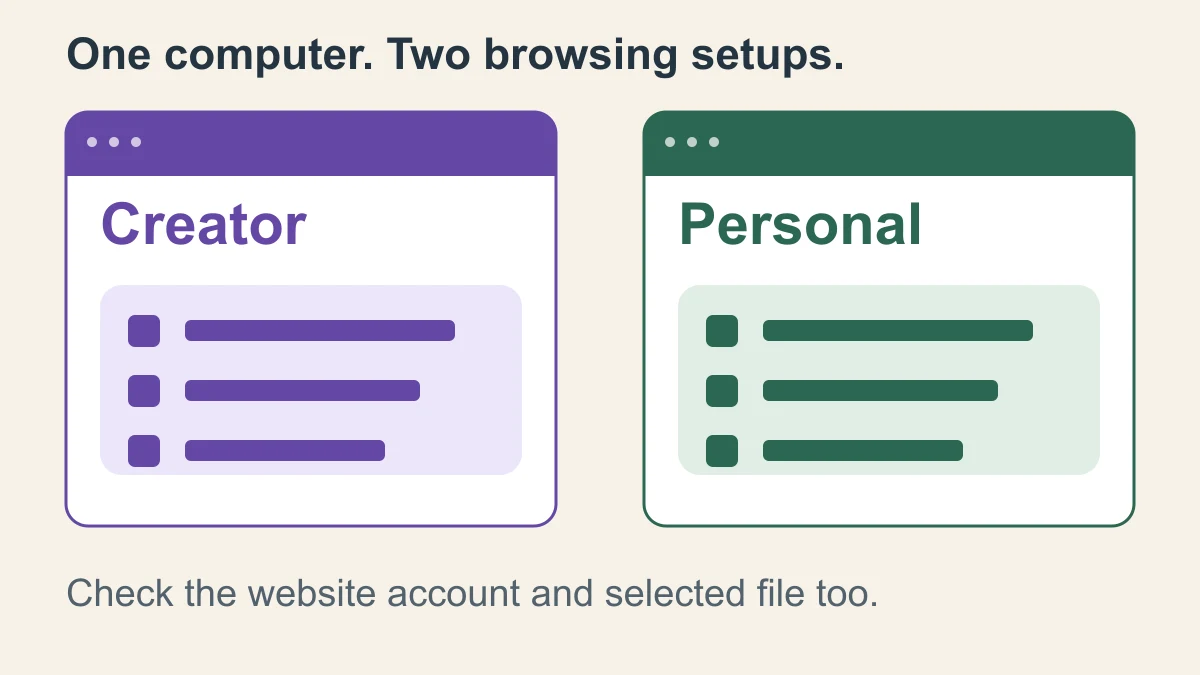
Create a separate desktop browser profile for creator work, give it a name and color you can recognize, and keep personal website logins out of it. Decide whether to save browser data to an account before turning on sync or importing anything. Before each upload, check the account inside the website and the selected photo or video as well as the browser window.
A profile helps you keep a repeatable browsing setup. It doesn't make the media you select private or change the identity of an account you sign into.
Illustrative diagram: the purple creator window and green personal window have separate sets of saved browsing items. These are schematic windows, not browser screenshots.
Choose a persistent profile for everyday creator work
A browser profile keeps a collection of browsing information together. Google's Chrome profile guidance describes separate bookmarks, history, passwords and settings. For creator work, that gives you a place to keep the sites and logins you use repeatedly without adding them to your personal browsing routine.
Start with the browser you already know, if its desktop profiles meet the task. You don't need to move every account to a new browser just to make this separation useful. Open the intended profile before you sign in, edit or post.
| Option | When it fits | What to check |
|---|---|---|
| A dedicated desktop profile | Regular creator work with saved sites and settings | Which browser account, website accounts and extensions you add |
| A different browser for creator work | You find two applications easier to distinguish than two profile windows | Its own sign-ins, saved data and download destination still need setup |
| Incognito or Guest | A temporary browsing task rather than your permanent creator setup | Website identity and downloaded files still matter |
Chrome's Incognito help explains that the temporary session ends when all Incognito windows close, while downloaded files remain. Its Guest guidance also treats Guest as temporary browsing. Neither is a convenient substitute for a persistent collection of creator bookmarks and settings.
If your concern is another person using the same unlocked computer, a profile isn't enough. Google warns that someone with your device can switch to another Chrome profile and see information such as its browsing history. Secure access to the computer itself before storing sensitive creator work there.
Create the profile without copying your personal setup
These instructions concern desktop browsers. Use the help linked for your browser if your menus differ.
Chrome
- Open Chrome and select the profile icon at the top right.
- Select Add Chrome profile.
- Choose a recognizable name, picture and color scheme.
- Make any browser sign-in choice deliberately, using the guidance below.
The Chrome instructions also explain switching profiles. Open the new one and confirm its name before adding creator sites. Use a neutral label if you don't want the profile picker itself to announce the kind of work you do.
Edge
Microsoft's current Edge profile instructions use the profile icon, then Set up a new profile. Choose Personal or Work or school as appropriate, then choose between signing in to sync data and Start without your data. Select Confirm and start browsing. The profile opens in a separate window.
For an independent creator setup, don't select a work or school identity just because you're doing work. Use the account you intend to associate with this browsing setup.
Firefox
Mozilla's Firefox profile guide gives account icon → Profiles → + New profile, followed by setup prompts. The new menu is rolling out gradually; if it's missing, the guide links to the original manager at about:profiles.
Create a fresh profile rather than copying your personal one. Firefox's copy option includes existing settings and browsing data. Its profiles and Multi-Account Containers also do different jobs: profiles separate items such as bookmarks, settings and add-ons, while containers separate cookies, logins and site data within one profile. Use a full profile when you want a distinct overall setup.
Choose browser sign-in before adding saved data
There are two sign-in questions: which account a website uses, and which account the browser uses to save information across devices.
In Chrome, signing into a Google website such as Gmail may prompt you to sign into Chrome too. Google says browser sign-in is optional. Read that choice instead of accepting it just to reach your inbox.
For a simple initial setup, leave browser sign-in off until you know what you want to save and where. You can still make a deliberate website login. If you want browser data available on another computer, choose the intended account and review the categories being saved. Google's saved-data controls are under Settings → You and Google → your account name; history and tabs have their own control there.
Keep personal saved information out of the setup you've created for another identity. Avoid broad imports from your personal browser for the same reason. Add the few creator bookmarks you need yourself.
Firefox profiles start locally without automatically signing into a Mozilla account. Mozilla also says its current system prevents multiple profiles on one device from using the same Mozilla account to sync. Follow the current prompts rather than relying on an old tutorial about sharing one sync account between profiles.
Treat extensions as another setup choice. Install the ones this work needs and check which account each uses. If you use a password-manager extension, inspect the signed-in account and available entries instead of assuming the profile's name selected the right vault. Dashlane's profile guidance illustrates this distinction with separate extension sign-ins. Use your own manager's instructions to check this.
Check the website account before you publish
The browser's colored border is a useful reminder. The account menu inside the posting site is the next thing to inspect.
Imagine you open the creator-colored window, then sign into a personal Google account to find a reference. That personal account is now part of what you've opened in the window. The color hasn't prevented the login, and it doesn't tell you which YouTube channel or other website identity is selected.
Before composing a post, open the website's account menu and check the name, handle or email that identifies the intended account. Where a service has another channel or workspace selector, check that too. Read what is shown; a familiar avatar alone can be easy to mistake.
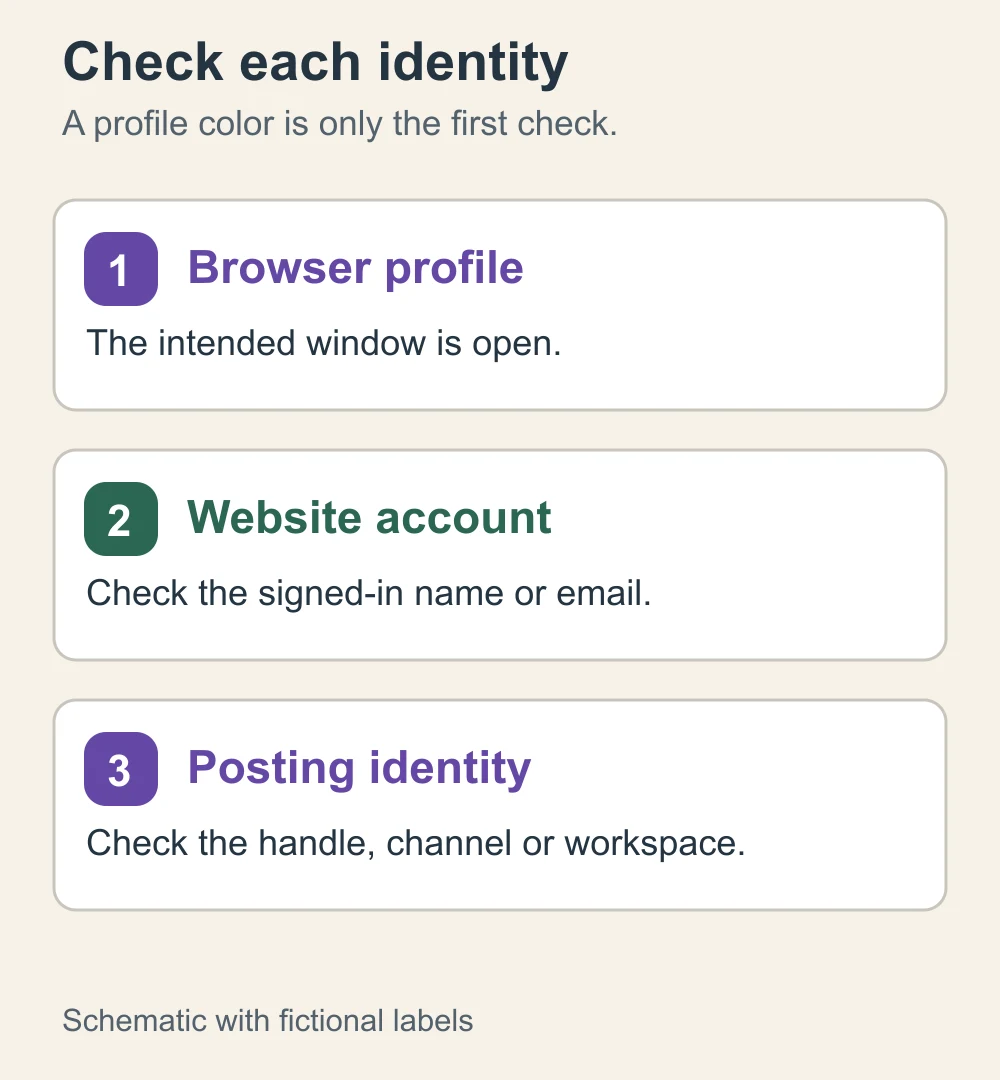
Keep creator sites bookmarked in this profile so you can open them directly. When a link arrives in email or a message, check which browser window it opened before acting. If it's the wrong one, open the destination in the intended profile and confirm the website identity again.
Use the separate-email guide for choosing creator contact and recovery details. A browser profile doesn't change the address, name or recovery information already attached to a website account.
Give media downloads a clear destination
Set a download location you can recognize. In Chrome, download settings are under Settings → Downloads. You can change the default location or enable Ask where to save each file before downloading.
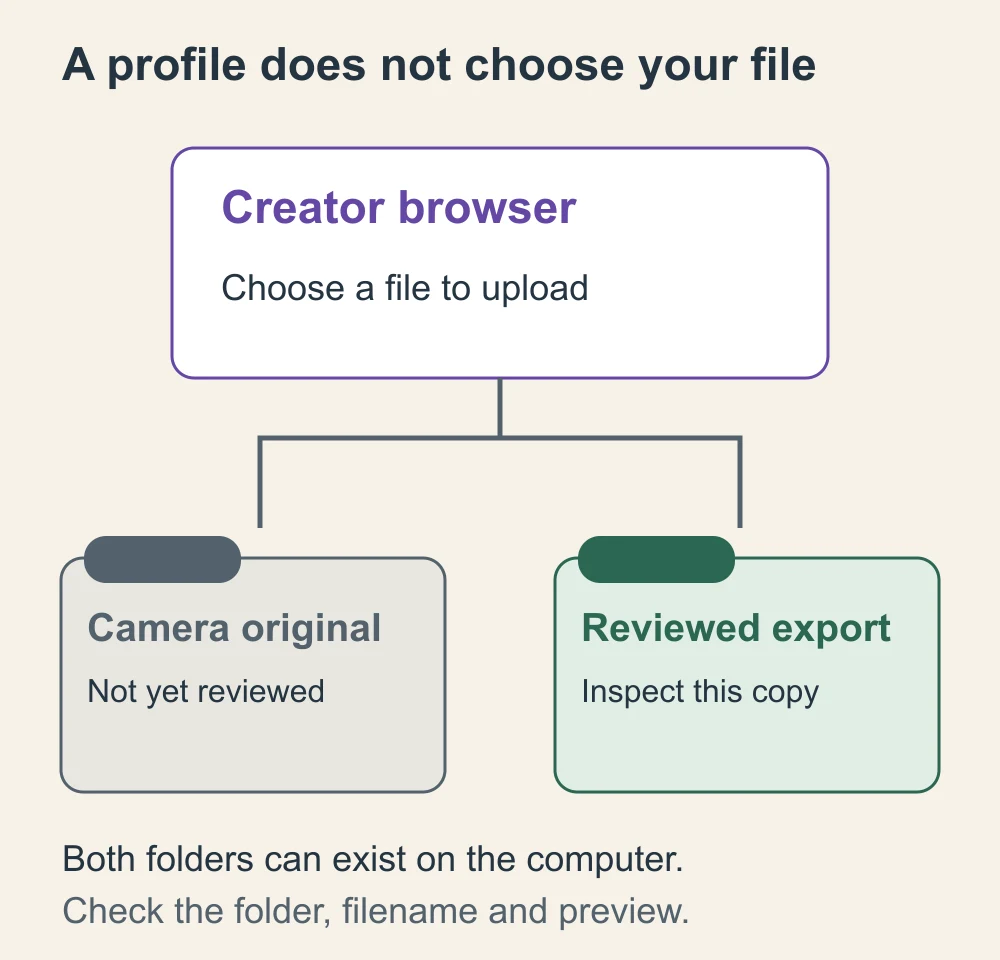
A creator folder helps you find the right file. It isn't a lock around your personal folders. When an upload dialog opens, navigate to the intended folder and inspect the selected filename and preview.
For example, your computer might hold a camera original and a reviewed version with similar names. You still need to choose between them in the upload dialog. Put finished media in a clearly named delivery folder so the choice is easier, and open the file before attaching it when you're unsure.
If the file needs face anonymization, the NeoFace workflow covers selecting a synthetic face, uploading a photo or prerecorded video, reviewing the result and downloading it. Keep that work in the intended creator account, then check the downloaded result before choosing it for a post. The browser setup doesn't perform the face treatment or review the file.
The finished-photo delivery guide explains how to distinguish an edited image from an original or editable project. Recipient-visible names and folder permissions need a separate check when you share files with another person.
Rehearse the tasks you normally do
Before using sensitive media, try the setup with a harmless image, such as a photo of a blank notebook. Use an existing draft feature where available; stop before publishing.
Open the creator profile from a closed browser. Visit a bookmarked creator site, check its account menu, and start a draft. Open the file chooser and confirm you can find the test image without confusing it with another copy. Cancel the draft or leave it clearly marked as a test.
Also try opening a normal link from your email or messaging app. Notice the window it uses. If that route is easy to misread, make opening the creator profile directly your usual starting point.
This rehearsal can reveal a missing login, an unexpected account choice or an unclear file location while the stakes are low. It doesn't prove that a platform can't connect accounts or that your media is anonymous.
If you record tutorials, the screen-recording privacy guide covers the additional job of preparing everything viewers might see. Keep that capture review separate from testing which account receives a post.
If you notice a personal account in the creator window
Pause before uploading or posting. Check whether you merely opened the account, saved browser data to it, or published something from it. Those are different corrections.
If it's only an unwanted website login, sign out of that website in this profile and reopen the intended account. If personal information was imported or saved through browser sign-in, review those settings before continuing. When you're unsure what the profile contains, a fresh profile may be easier to inspect than a long cleanup. Preserve needed access and saved information before removing the old one.
If something was already published or shared, correct the post or sharing permissions at that service and check what was exposed. Creating a cleaner browser profile won't change an existing public post. Deal with the published item first, then fix the setup that led to it.
Before the next creator upload
- The intended desktop browser profile is open and recognizable.
- Browser sign-in, saved-data choices and extensions use the intended accounts.
- The website's account and any channel or workspace are correct.
- The link you opened hasn't moved the task into a personal window.
- The selected media is the reviewed export, with its filename and preview checked.
- Any recipient-visible sender details and sharing permissions have been reviewed.
- You can open a draft and select the intended file using harmless material.
Frequently asked questions
- Is a Chrome profile the same as a Google Account?
- No. A browser profile is a browsing setup on your computer. A Google Account is an account you can use on websites and optionally sign into Chrome with. Check both the browser profile and the account shown inside the website before publishing.
- Can someone else using my computer open my creator profile?
- Yes. Someone with your device can switch Chrome profiles and see information such as browsing history. Profile names and colors help you recognize windows; they do not lock them.
- Can I use Incognito instead of a creator profile?
- Incognito can provide a temporary session, but it is awkward for ongoing creator work that needs saved settings and repeated logins. Signing into a website still identifies that account to the site, and downloaded files remain after you close Incognito.
- Do these profile instructions work on my phone?
- These steps are for desktop browsers. Firefox profiles currently are not supported on Android or iOS. Check the controls in your phone browser and the account inside each posting app.
Create with
a face you choose.
Join thousands of creators building faceless brands with Neoface. Private by default, lifelike by design.
No credit card required · Instant access · Free plan available
- High-fidelity models
- Private and secure
- 24/7 support