Instagram Tags and Mentions: Keep Creator Accounts Separate
Control Instagram tags and mentions, review tagged posts, and correct unwanted account links. Agree on creator credits without exposing your personal profile.
- creator-privacy
- tags-and-mentions
To control Instagram tags and mentions, open Tags and mentions in the account's settings and choose who can use each one. If you allow tags, turn on manual approval for posts appearing on your profile. Then review existing posts: hiding a tagged photo from your profile and removing its account tag are different actions, and neither edits a name inside the picture or caption.
For a creator keeping personal and public accounts separate, the important question is which identity a post connects to. For example, a collaborator could share your face-free sewing tutorial and credit your personal Instagram handle. The video can follow your face rules while the credit links directly to the account you meant to keep private.
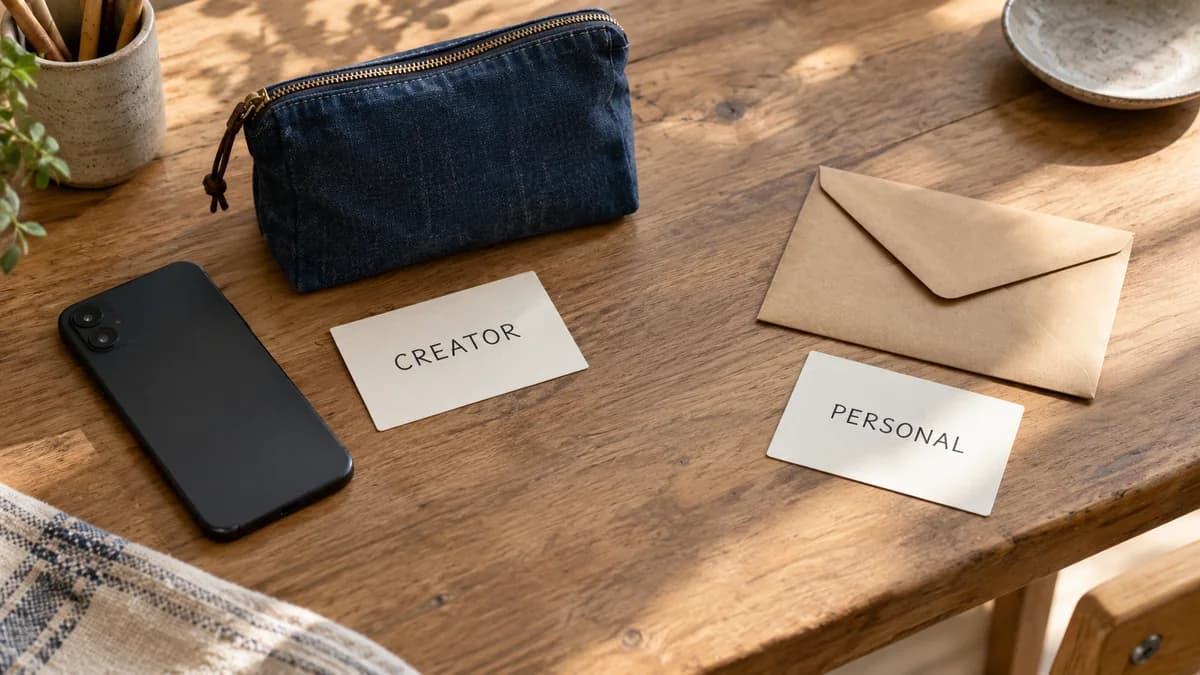
Illustrative scene: separate Creator and Personal cards sit beside a fabric pouch, face-down phone and closed envelope. Agree on the public credit before sharing the finished work.
Check whether the link is a tag, mention or ordinary text
A tag attaches an Instagram account to a photo or video. A mention uses an account's username to link it in places such as a caption, comment or Story. A typed name can identify someone without using either feature.
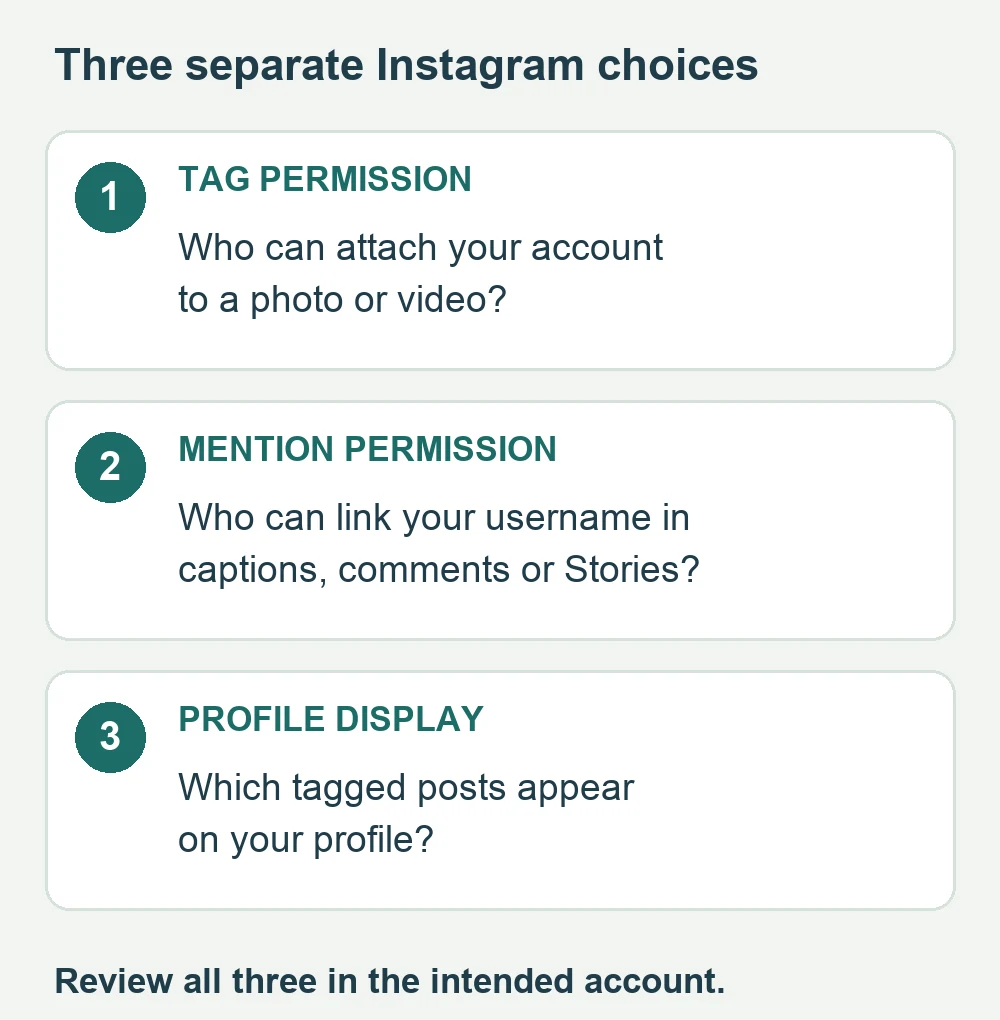
Instagram's tag and mention controls let you choose an audience for each feature separately. Don't assume changing one also changes the other.
| What you see | What to check | What needs changing |
|---|---|---|
| Your account attached to a photo or video | The tag on the original post | Remove an unwanted tag; review future tag permissions |
| A linked username in a caption, comment or Story | The mention and the account it opens | Ask the publisher to correct the mention; review mention permissions |
| A tagged post displayed on your profile | Your tagged-post display and the original post | Hide it from your profile or remove the tag, according to your goal |
| Your name written in the picture or spoken in a clip | The actual media | Ask for a corrected version or removal of that content |
| A place attached to a post | Its location field or sticker | Use the separate location controls |
Open the original post before choosing a correction. A notification or profile thumbnail may not show the caption, all carousel slides or the account linked by a tag. Look at those details privately; you don't need to comment publicly to investigate them.
If the link is a location rather than a person, follow the Instagram location-sharing guide. A place tag needs a different correction from an account tag.
Choose who can tag and mention the creator account
First check the username of the profile you're changing. If you switch between accounts in the same app, it's easy to adjust your personal profile and assume the creator profile now has the same settings.
On Instagram's website, the current Help Center places these choices at More → Settings → How others can interact with you → Tags and mentions. In the app, find Tags and mentions in the profile's settings; use the linked help's device selector if the menu differs.
Review both groups:
- Under Who can tag you, choose everyone, people you follow, or Don't allow tags.
- Under Who can @mention you, choose everyone, people you follow, or Don't allow mentions.
If the creator account doesn't need public tags or mentions, disallowing both is a practical starting point. You can still agree on how a collaborator describes the work, including whether any public credit is appropriate.
If credit is part of your work, consider allowing people you follow. That choice depends on your follow list. Following a personal friend from the creator account gives that person the same tagging or mention permission as a creator collaborator. Review whom you follow before relying on this option.
Allowing everyone may suit a creator who deliberately welcomes audience tags and mentions. It also leaves you reviewing links from people you haven't selected. Choose it because you want that interaction, rather than because a collaboration feels impossible without it.
After making your choices, leave the settings and reopen them to check what's selected. Repeat the review for your personal account if you also want to limit tags there. Choose settings for each account deliberately.
Use manual approval to manage your profile
When you keep tags available, open Manually approve tags and enable the approval control. Instagram's manual-approval help explains that tagged posts then appear on your profile only after you approve them.
That review concerns your profile. It doesn't give you approval over the other person's original publication. Someone can publish a post while you're still deciding whether to display it among your tagged posts.
Before approving one, open the full post and check the credit as well as the photo. Does the tag point to the creator account you agreed to use? Does the caption add a personal name, workplace or relationship you meant to leave out? A correct handle doesn't make those other details appropriate.
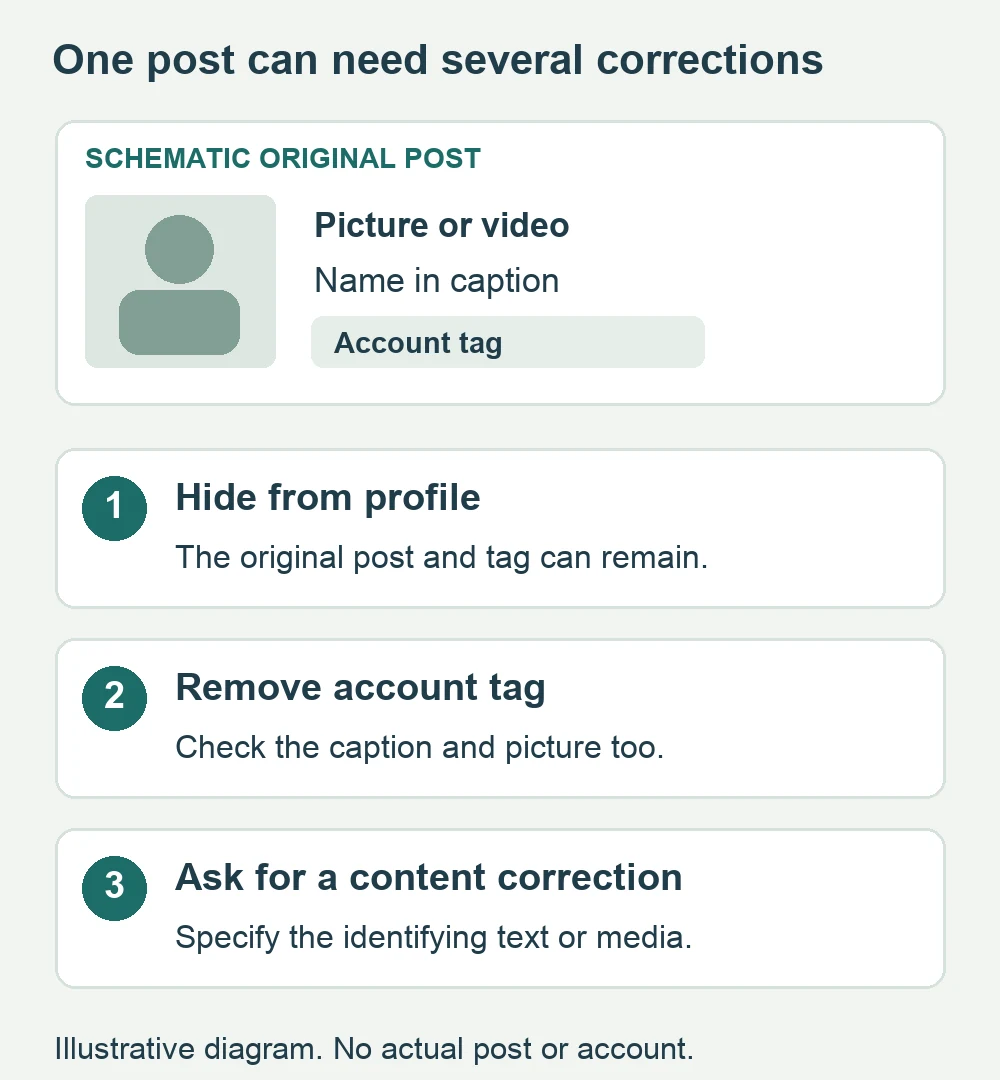
Keep a post off your profile when you don't want it displayed there. If the account link itself is unwanted, remove the tag too. Those choices solve different parts of the problem.
Remove an existing account tag when hiding isn't enough
Start with the post that creates the unwanted connection. Instagram's current iPhone instructions for removing a tag are:
- Tap the post.
- Tap your username.
- Tap Remove Me From Post.
Open the post again and check the account tag. Also inspect the caption and the media: removing the tag doesn't edit a personal name the author typed or a face visible in the photo.
For a larger review, the same help gives Profile → Menu → Your activity → Tags → Select. Select the posts, choose Remove, then confirm the removal. Review your selection carefully so you retain the creator credits you intended to keep. Use the Help Center's device selector for another device's instructions.
If your goal is only to keep a post off your profile, Instagram separately documents Options → Tag Options → Hide From My Profile. Its hiding instructions explicitly distinguish hiding from removing yourself from the post.
For example, an appropriate creator credit might belong on the collaborator's post but not among the work you display on your profile. Hiding can fit that choice. A personal handle attached to a creator tutorial needs the stronger correction of removing the unwanted tag and checking the remaining content.
Correct mentions and identifying names at the original post
Don't look for Remove Me From Post to fix every use of your name. That control addresses an account tag. A linked mention in a caption, a comment using your name and a name printed inside the image are different things to correct.
For a post someone else controls, contact the publisher privately when that is appropriate. Identify the exact post and detail, then state the correction you need. You can keep the request short:
Please remove the personal account mention and my name from that caption. For this project, please use only the creator credit we agreed on. Please check the Story version too.
That's sample wording you can adapt. It doesn't require explaining your personal circumstances or posting a public reply that repeats the connection.
If you control the text or post, correct it through the available editing or removal controls. When a name is part of the photo or video itself, prepare corrected media rather than assuming a caption edit changes the file. If the content must come down, ask for that specifically instead of requesting only an untag.
Keep a private note of the post link and the correction requested. After the publisher responds, reopen the original and look at the precise detail again. A change on your profile doesn't confirm a change on their post, and one corrected post doesn't cover a separate Story or repost. These actions also can't undo information someone already saw or saved.
If a publisher won't cooperate and the content breaks Instagram's rules, use its reporting options for the relevant post or account. Describe the actual issue; don't assume an unwanted mention automatically qualifies for removal.
Give collaborators the exact credit before they publish
Send the approved credit with the finished file. Include the creator handle if you want it linked, the name you want written, and any personal details that should be omitted. Ask to review both the media and its accompanying caption before publication.
For a shared craft tutorial, that could mean crediting the creator identity while leaving out a personal account, surname and private filming address. Explain whether behind-the-scenes photos or Stories are included in your agreement. A collaborator may otherwise assume an informal photo deserves the same credit as the finished tutorial.
If you want a visible presenter, the NeoFace face-anonymization workflow covers selecting a synthetic face, uploading a photo or prerecorded video, reviewing the result and downloading it. Give the collaborator the reviewed file. Face anonymization doesn't correct the account they tag, the name they write or an original photo they publish separately.
For a scene with several people, the multiple-face guide helps you agree on each person's appearance. The creator-file sharing guide covers the sender details and files visible during delivery. Neither agreement is complete until everyone knows which public credit to use.
After publication, check the actual post once: media, caption, account tags and any planned Story version. If everything matches, keep that approved credit with the project notes so the next post doesn't require reconstructing the agreement.
Finish the account-link check
- I've confirmed which Instagram account I'm changing.
- Tag and mention audiences each match the interactions I want.
- If I allow tags, I've chosen whether to approve profile display manually.
- I've reviewed existing tags and removed unwanted personal-account links.
- I've checked captions, comments, pictures and sound for identifying names separately.
- Collaborators have the approved creator credit and finished media.
- Corrections have been checked at the original post and any separate versions.
- I've reopened the saved settings and checked the next published credit.
If people you know are finding the account without an explicit tag or mention, use the Instagram account-suggestion guide. Contact matching and recommendations require their own review.
Frequently asked questions
- What is the difference between an Instagram tag and a mention?
- A tag attaches an account to a photo or video. A mention links an account through its username in places such as captions, comments and Stories. Instagram has separate audience controls for tags and mentions, so review both.
- Does manually approving tags stop the original post from being published?
- No. Manual approval controls whether a tagged post appears on your profile. It does not approve the other person’s publication or edit their photo, caption or account tag. Review the original post separately.
- Does hiding a tagged photo remove my tag?
- No. Hiding changes what appears on your profile. To remove the account tag, use Remove Me From Post. If the photo, caption or comments also identify you, those details need a separate correction.
- Can someone still write my name when mentions are turned off?
- Yes. A mention setting controls account links through Instagram’s mention feature. It does not erase ordinary text, a name written into a picture or speech in a video. Ask the publisher to correct the identifying content too.
- Should I allow mentions from people I follow on a separate creator account?
- That can fit an account that follows only people you deliberately want to credit or hear from. If you also follow personal friends, it gives them the same permission. Choose no mentions when public credit is unnecessary, and agree on the wording of any collaboration separately.
Stand out while
staying anonymous.
Join thousands of creators building faceless brands with Neoface. Private by default, lifelike by design.
No credit card required · Instant access · Free plan available
- High-fidelity models
- Private and secure
- 24/7 support