Turn Off Instagram Map Location Sharing: Creator Guide
Turn off Instagram Map sharing, review iPhone and Android location permissions, and remove place tags from creator posts without confusing these separate controls.
- creator-privacy
- location-sharing
To stop sharing your last active location on Instagram Map, open Messages → Map → Settings, choose to share with no one, and save the change. If you don't need Instagram to access your phone's location, deny that permission in the phone's settings too. Then review location tags on your posts, Reels, and Stories: a tagged place can appear on the map separately from your location-sharing setting.
Illustrative scene: a face-down phone, camera, knitting project, and unlabelled paper map sit on a wooden desk. Review the account's location choices as well as the media you're preparing to post.
Why a post can appear on the map when sharing is off
Instagram Map combines information that can look similar but comes from different choices. Last active location describes the location shared through the Map feature. A location tag names a place you've attached to content, such as a studio, café, or city.
Meta's explanation of Instagram Map says location sharing requires opting in. It also says location-tagged content can appear on the map. A post placed at a venue doesn't, by itself, prove that the account is broadcasting the phone's current location.
For example, you might film a knitting tutorial with your face out of view, then add the studio's location to the Reel. You've kept your face out of the video while choosing to name the venue. Turning Map sharing off won't complete the separate task of removing that tag.
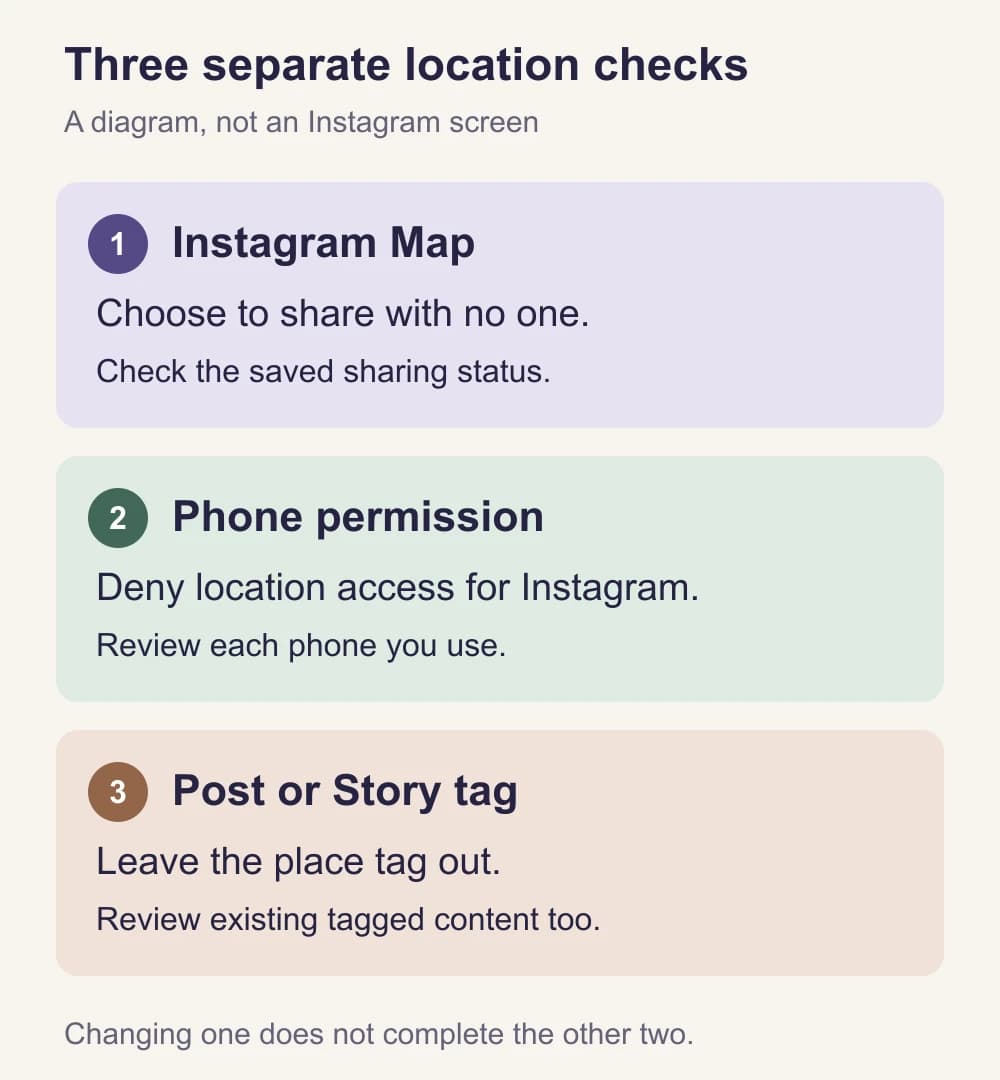
Use these three checks to match the change to your goal:
| Your goal | Where to make the change | What to review separately |
|---|---|---|
| Stop sharing your last active location | Instagram Map settings | Location tags attached to content |
| Deny device location access | Instagram's permission in phone settings | The saved Map choice and existing tags |
| Stop naming a place on a post | That post's location field or Story sticker | Place names in the picture and caption |
Turn off sharing in the creator account
Start by checking the profile's username. If you switch between a personal account and a creator account, make sure you're changing the one you intend to use for publishing.
Follow Instagram's current Map instructions:
- Open Messages in the app. The current help places it at the bottom.
- Open Map at the top of your inbox.
- Open Settings in the map's top-right corner.
- Choose the option to share your location with no one, rather than friends or a selected audience.
- Save the choice using the button at the bottom, then check the sharing status again.
Instagram's help describes a blue arrow as sharing with your selected audience, a red dot as not sharing, and an orange triangle as needing device permission to share. Read the status alongside the symbol so you know which condition applies.
You don't need to enable location access just to investigate a Map shortcut. If a permission request prevents you from opening the feature, you can decline it and review Instagram's permission in your phone settings. Continue with the post-tag checks below.
If the feature or menu differs in your app, use the linked help and select your device. The setting you want controls sharing your location. Hiding somebody else's activity, seeing other people's locations, or leaving the map visible in the inbox doesn't answer that question.
Choose no sharing when the creator account doesn't need it
Instagram also offers selected audiences and hidden places. Those can fit an account you deliberately use to coordinate with people you know. For a creator identity you want to keep apart from personal routines, sharing with no one is a clearer choice than maintaining exceptions for home, work, or particular followers.
Treat location requests with the same intention. You can discuss a shoot without sharing your phone's location from the creator account. If you need to give a collaborator a venue, agree on the specific place and communication method rather than accepting a location-sharing request automatically.
Deny Instagram location access on your phone
The Map switch and the phone permission are separate. Turning Map sharing off can leave Instagram's device location access enabled. If your creator work doesn't need location features, deny access for Instagram specifically.
On iPhone, follow Apple's per-app Location Services settings:
- Open Settings → Privacy & Security → Location Services.
- Find Instagram.
- Choose Never.
Turning off Precise Location alone allows approximate location access when permission remains granted. Use Never when your decision is to deny the app access, rather than reduce its precision.
On Android, follow Google's app location-permission instructions:
- Touch and hold the Instagram app icon.
- Open App info → Permissions → Location.
- Choose Don't allow.
Phone makers can use different menu labels. You can also find Instagram under Apps in the phone's settings and open its permissions there. If Location isn't listed, Google says the app hasn't requested that permission.
Repeat this on each phone or tablet you use for the account. The permission belongs to the device, so checking your filming phone doesn't tell you how the posting phone is configured. Location-based features may be unavailable after you deny access; if you later decide to use one, review the permission and Map audience again.
Leave place tags out of new posts and Stories
Before publishing, check the location field on the actual post. Leave it empty when naming a venue or area would reveal more than you want. For a Story, review the stickers as well as the picture and text.
Meta's Map clarification explains that adding a location tag to a Story, Reel, or post can put that content on the map. Denied device permission doesn't remove a place name you've chosen to publish.
Don't add a false location to make the post look private. Omit the tag when the place doesn't need to be part of the story. If the venue matters to the tutorial, decide whether naming it is compatible with the separation you want before adding it.
Check the caption too. A sentence such as “filming in the upstairs room at the café beside my office” can give away information without using a location sticker. You can explain the useful part instead: “the window light made it easier to show the stitches.”
Delaying publication may help you avoid announcing where you are at that moment, but it doesn't remove the venue from the content. If the place itself is private, leave it out even when posting later.
Remove a location from a post you've already shared
Make a short list of posts with place labels you no longer want attached to the creator account. Start with home, work, or a frequently used private filming space, then review the rest of the posts you intended to keep location-free.
Instagram's existing-post location guide documents this iPhone sequence:
- Open the post and tap Options above the photo or video.
- Tap Edit.
- Tap the location name, then Edit location.
- Choose Remove Location.
- Tap Done to save.
On Instagram's website, the same help describes Options → Edit, removing the location, then Done. Select Android in the help page for that app's current instructions.
Reopen the post and check that the label is gone. Keep “tag removed” separate from “picture corrected”: editing the location field doesn't change a café sign, street name, or spoken venue name inside the media.
For a Story with a location sticker, don't assume the existing-post procedure lets you edit that published sticker. If it reveals a place you need to keep private, use Instagram's Story removal controls. If you shared it to Facebook too, check whether you're removing it from both destinations. Prepare a new version without the sticker or other identifying detail, and review any copy you plan to keep in a Highlight.
These changes address content on your account. They don't undo a location somebody already saw or saved, and the post reopening check isn't a guarantee about when every map view refreshes.
Check the media and any location shared in a chat
Before your next upload, look for place information in the file as well as the post. A location tag is different from GPS coordinates embedded in a photo. Use the EXIF metadata guide for the file, and the background-anonymization guide for signs, windows, or recognisable surroundings.
If the video needs a visible presenter, the NeoFace face-anonymization workflow covers choosing a synthetic face, uploading a photo or prerecorded video, reviewing the result, and downloading it. That face treatment doesn't change Instagram's Map settings or the place tag on a post. Choose the reviewed file and location settings separately.
For a longer clip, use the final-video privacy checklist to review the complete version you're publishing, including sound and reflections.
Also review any chat where you've deliberately shared a location. Meta describes live location in DMs as a separate chat feature, with a sharing indicator and an option to stop. Stop an active share there if you no longer intend to provide it. A place or address you've already sent in a message needs its own decision; changing Map settings doesn't retract the conversation.
If your concern is people you know finding the creator account, use the Instagram account-suggestion guide. Contact matching and account recommendations need different controls from Map sharing.
Finish the location check
- I've confirmed the creator account's username before changing settings.
- Map is set to share with no one, and I've checked the saved status where available.
- I've reviewed Instagram's location permission on every device I use for that account.
- I've used Never or Don't allow if the app doesn't need device location access.
- New posts have no unnecessary place tag, and Stories have no unwanted location sticker.
- I've checked captions and the media for place names that aren't part of a tag.
- I've reopened older posts after removing location labels and reviewed any affected Stories or Highlights.
- I've checked any active location share in a chat separately.
- I've selected the reviewed photo or video for the next upload.
Frequently asked questions
- Is Instagram Map location sharing on automatically?
- Instagram says Map location sharing is off when you first access it. If you previously enabled it, open the Map settings and choose to share with no one. Check the saved status rather than assuming the original default still applies.
- Why can a tagged post appear on Instagram Map when location sharing is off?
- A place tag on a post, Reel, or Story is separate from sharing your last active location. Tagged content can appear on the map even when you have not enabled location sharing. Remove the tag or publish without it if you do not want to associate that content with a place.
- Does turning off Precise Location stop all location access?
- No. Apple and Android distinguish precise access from approximate access. If you want to deny Instagram device location access, choose Never on iPhone or Don’t allow on Android. Review post tags separately.
- Can I still see other people on the map when my sharing is off?
- Yes. Instagram says you can still view locations other people share with you without sharing your own. Seeing their locations or a Map shortcut in your inbox does not establish that your location is being shared.
- Does removing photo metadata remove an Instagram location tag?
- No. Embedded photo metadata and a location tag added to an Instagram post are different information. Review the file before uploading, then leave the post’s location field empty or remove its existing tag. One action does not complete the other.
- Can I remove the location from an Instagram post I already published?
- Yes. Instagram documents location editing for existing posts. On iPhone, open the post’s Options menu, choose Edit, tap the location name, choose Edit location, then Remove Location and Done. Reopen the post to check that the label is gone. This does not undo information someone already saw.
Stand out while
staying anonymous.
Join thousands of creators building faceless brands with Neoface. Private by default, lifelike by design.
No credit card required · Instant access · Free plan available
- High-fidelity models
- Private and secure
- 24/7 support