Stop Instagram Sharing to Your Personal Facebook Profile
Keep creator posts off your personal Facebook profile. Turn off Instagram automatic sharing, check each upload and scheduler, and review existing Facebook copies.
- creator-privacy
- crossposting
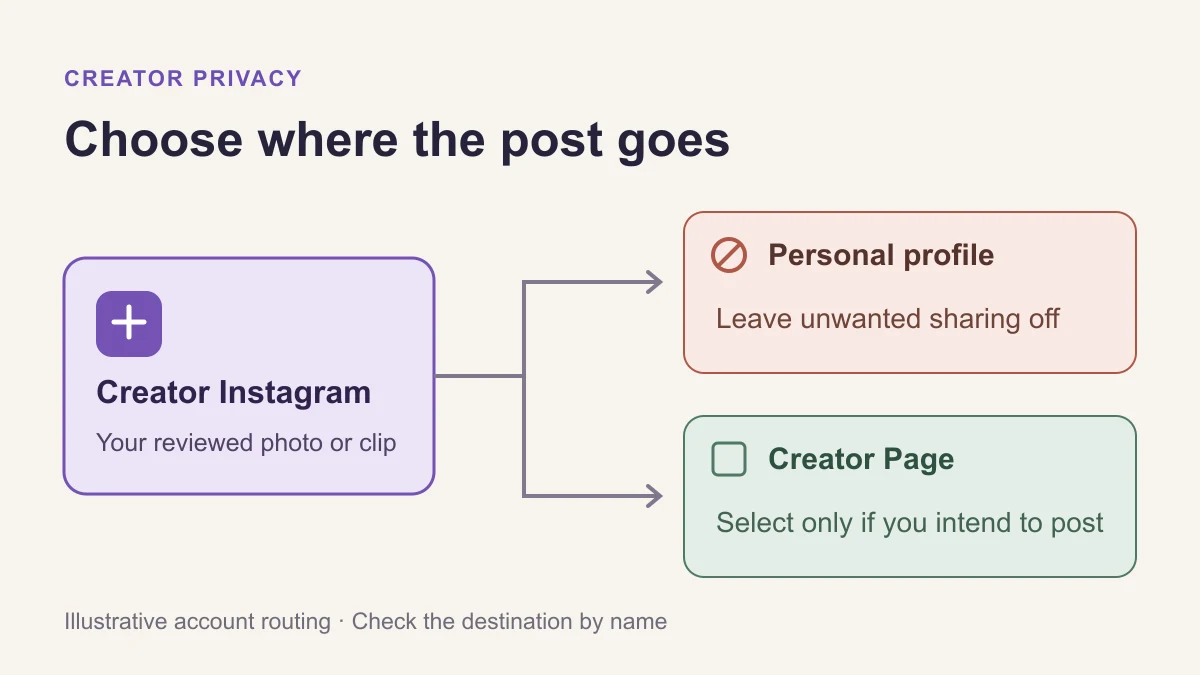
To stop Instagram sending creator posts to your personal Facebook profile, turn off automatic sharing for that Instagram-to-Facebook connection. Check posts, stories and reels separately, then inspect the Facebook destination before each upload. If something has already reached Facebook, review that copy there; changing a future-sharing setting isn't a check of existing posts.
For example, you might publish a sewing tutorial under a studio name on Instagram, then find the same clip beside your personal name on Facebook. The finished video may be exactly the one you approved. The problem is where it was published and whose account accompanies it.
Illustrative diagram: creator Instagram, a personal Facebook profile and a creator Facebook Page are separate publishing destinations. Check the selected destination by name.
Identify the Instagram source and Facebook destination
Open the Instagram profile you use for creator work and read its username. Then look at the Facebook profile or Page selected for sharing. A familiar profile picture isn't enough when several accounts use similar artwork.
Write the intended choice plainly: “Instagram only,” or “Instagram and the studio's Facebook Page.” If your goal is to keep creator work away from your personal Facebook identity, that personal profile shouldn't be a selected destination.
A Facebook Page and a personal Facebook profile are different destinations. Read the name shown in the sharing controls even when you use your personal login to manage a Page. Don't assume the presence of a business or creator account means the Page you intended has been selected.
Meta's Instagram-to-Facebook sharing instructions explain that shared Instagram posts can appear in Facebook Feed and on the profile. They also warn that the Facebook audience can differ from the Instagram audience. A post approved for one group of people still needs a deliberate destination on the other service.
Turn off future automatic shares
In the Instagram app for iPhone or Android, use the route in Meta's post-sharing help:
- Open your creator profile, then Menu at the top right.
- Open Accounts Center → Connected experiences → Sharing across profiles.
- Select the Instagram account under Share from, then the Facebook destination under Share to.
- Turn off Your Instagram posts for that connection.
- Review the available automatic-sharing controls for stories and reels too. Leave each unwanted format off.
Don't stop after checking a single switch. Use this small record to make the intended result explicit:
| Content | If you want Instagram only | What to inspect before publishing |
|---|---|---|
| Photo or feed post | Automatic post sharing off | Facebook selection under the upload's sharing options |
| Story | Automatic Story sharing off | Story sharing options and any Facebook destination |
| Reel | Automatic Reel sharing off | Facebook destination and the choice for this Reel |
Meta is gradually moving people to Meta Account settings, so you may see that label instead of Accounts Center. Follow the sharing controls shown for your account and confirm the source and destination names. If your screen doesn't match the help page, pause before posting sensitive material rather than accepting a suggested connection just to continue.
If you have a professional Instagram account
Meta's current professional-account sharing instructions also describe profile → Menu → Crossposting. Under Share to Facebook as, opening Meta Account leads to Sharing across profiles. Check the selected Page and turn off the automatic-sharing controls you don't want.
That help page distinguishes posts, stories and reels, and says you can disable Facebook sharing for an individual item even when automatic sharing is enabled. This gives you two useful checks: the default for future content and the destination of the item you're preparing now.
You don't need to remove an account just to use these controls. If you also want to separate personal and creator accounts more broadly, the Instagram account-discovery guide covers that decision. Preserve the login and recovery access you need before changing account connections.
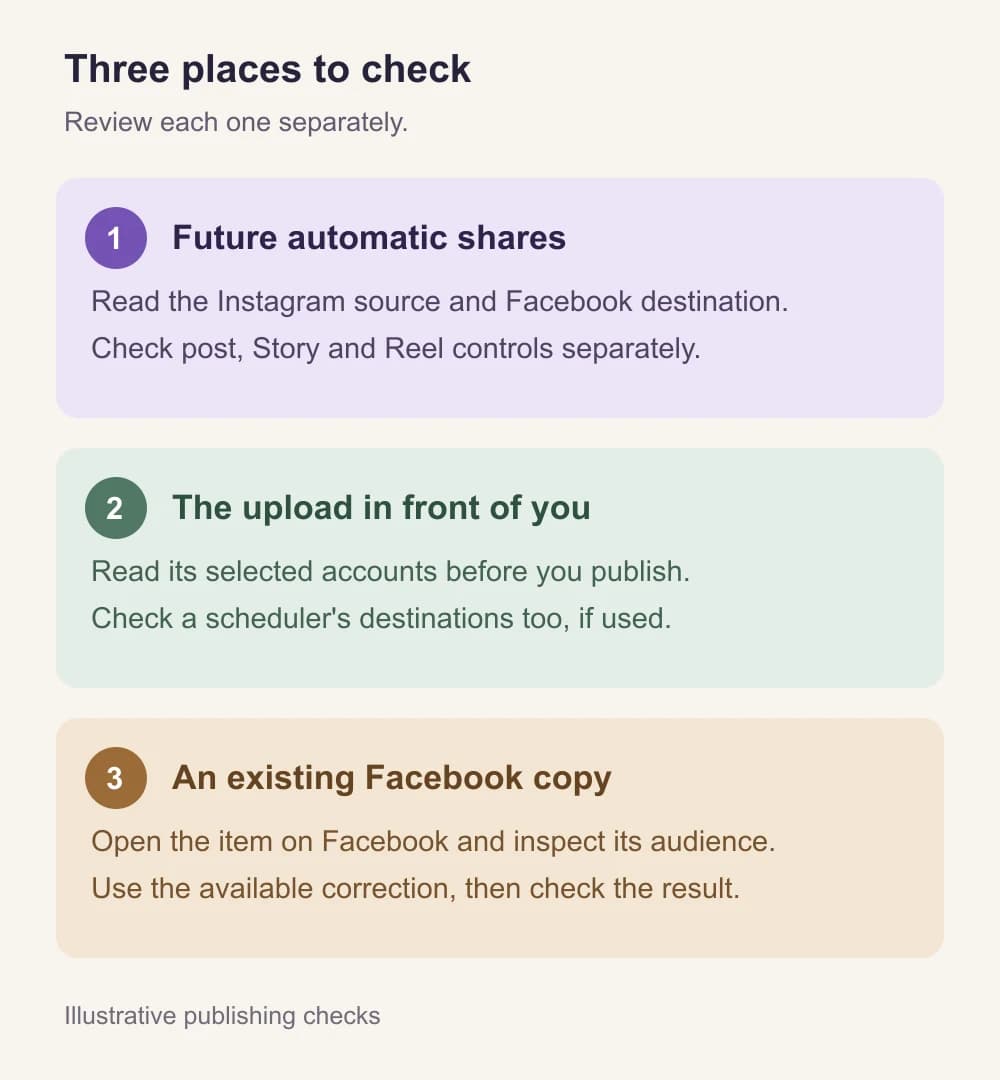
Inspect the item you're about to publish
For a post or Reel, inspect Also share on… before the final Share action. Read the selected Facebook name, and leave its toggle off when the item belongs only on Instagram. Meta documents this individual-item control separately from automatic sharing.
For a Story, inspect its Sharing options and any Facebook choice. On the professional-account route, Meta also documents a post-publication Share to Facebook story action with Share once and Always share stories choices. Read a prompt before accepting it: a choice about future Stories has a different effect from sharing one item.
Make this check after switching Instagram accounts or changing the selected destination. You don't need to publish a sensitive test. Use an ordinary, non-identifying image to inspect the compose screen, then leave without sharing if you only need to check the controls. A compose-screen check shows the selection; it doesn't demonstrate what a completed post will do.
If you deliberately keep sharing to a Facebook profile, check its audience there too. Facebook's Reel audience guidance says its default applies to future Reels, including those shared from Instagram. If you haven't selected a Facebook default, a Reel shared from public Instagram defaults to Public; one shared from private Instagram defaults to Friends.
“Friends” can include the personal contacts you're trying to keep separate from creator work. Turning Instagram private is therefore no substitute for checking the Facebook destination and audience.
Check schedulers and pending posts separately
If you publish through another tool, open its pending items and read the selected social profiles. Remove an unwanted Facebook destination from the relevant scheduled item before it publishes. Turning off a native Instagram setting doesn't inspect that queue for you.
The publishing route matters. Buffer's Instagram help says Instagram posts sent through Buffer don't trigger Instagram's automatic Facebook publishing. Later's sharing help similarly distinguishes Auto Publishing from notification publishing, where you finish in Instagram and can choose Facebook there.
Use the instructions for the tool and route you use. A post sent directly by a scheduler and a post you finish after a phone notification don't necessarily follow the same controls. Check the scheduler's destinations and, when it opens Instagram for you, the final in-app sharing choices too.
If a collaborator schedules your work, give them the exact approved account or Page name. “Put it on Facebook too” leaves the most important decision unstated. Ask them to flag an unavailable destination rather than substitute another profile.
Review anything already published on Facebook
If you found an unwanted copy, open Facebook and locate that item first. Check the account name, the content and its audience. If necessary, restrict or remove it using the available controls before returning to the setup that caused the mistake.
On a computer, Meta's Activity Log instructions give profile picture → Settings & Privacy → Activity Log. Filter by date and activity type to find the relevant posts, photos or videos. Open the item's options and choose the correction suited to it. The available choices depend on the content.
Be careful with Hide from profile. Meta says hidden content can remain visible to its audience elsewhere, including Feed and Search. Hiding the item from the profile isn't the same as restricting its audience or removing it. Read the actual option and any confirmation before proceeding.
Check Stories and Reels as well as feed posts. Return to the affected item after the correction and verify the audience or removal state it now shows. Don't assume a change on Instagram also corrected Facebook, or that correcting Facebook changed the Instagram version you wanted to keep.
If someone already saw or saved the unwanted post, an account-setting change can't undo that. Keep the response focused on the material that was exposed and the sharing choice that needs correction.
Keep media review and destination review together
A file can pass a visual check and still be sent to the wrong account. Review the finished image or clip first, then check the selected posting identity and destinations immediately before publishing.
When you want to keep a visible presenter, the NeoFace face-anonymization workflow covers selecting a synthetic face, uploading a photo or prerecorded video, reviewing the result and downloading it. Use the reviewed download for posting. Face anonymization doesn't change the Facebook name beside a post or select its audience.
The finished-photo delivery guide helps distinguish an edited image from its original. For a clip, use the exported-video privacy checklist before selecting the file. Those checks concern the media; the sharing controls decide where you send it.
Stopping automatic crossposting addresses this publishing route. It doesn't promise that public creator content will never appear elsewhere on Facebook or that the platforms won't suggest your account. Use the account-discovery guide for those separate controls.
Before your next creator post
- The active Instagram username is the creator account you intended.
- The Facebook destination is identified by name as a personal profile or a Page.
- Unwanted automatic sharing is off for posts, stories and reels where available.
- The current upload's Facebook sharing choice is correct.
- Scheduler destinations and pending posts have been checked separately.
- Any unwanted existing Facebook copies have been reviewed and corrected there.
- The selected photo or video is the reviewed export, and each intended destination has an appropriate audience.
Frequently asked questions
- How do I stop Instagram automatically posting to Facebook?
- In Instagram, open the sharing settings, select the Instagram source and Facebook destination, and turn off automatic sharing for the available content types. Review posts, stories and reels separately. Check the Facebook destination again on each upload.
- Do I have to unlink Facebook to turn off automatic sharing?
- No. Automatic-sharing controls can be turned off without removing an account. Broader account separation is a separate decision because it can affect shared login and other connected features.
- Will turning off automatic sharing remove older Facebook posts?
- Do not rely on that setting to correct existing content. Open Facebook and review the actual copies, including their audience. Use the options available for each item to restrict, archive or remove it, then check the result.
- Does a private Instagram account keep shared Facebook Reels private?
- Facebook has its own Reel audience controls. If no Facebook default has been chosen, Meta says a Reel shared from private Instagram defaults to Friends, not Only me. Choose the Facebook destination and audience deliberately.
- Why should I check my scheduling tool separately?
- A scheduler can have its own selected destinations and pending posts. Native Instagram automatic-sharing settings do not describe that queue. Review the connected profiles and each scheduled item, especially when a phone notification sends you into Instagram to finish publishing.
Create with
a face you choose.
Join thousands of creators building faceless brands with Neoface. Private by default, lifelike by design.
No credit card required · Instant access · Free plan available
- High-fidelity models
- Private and secure
- 24/7 support