Hide Your Real Name on YouTube: A Creator Privacy Check
Keep your personal name out of a YouTube creator channel. Check the name, handle, artwork, contact links, comments and supported video-sharing settings.
- youtube
- creator-privacy
- account-identity
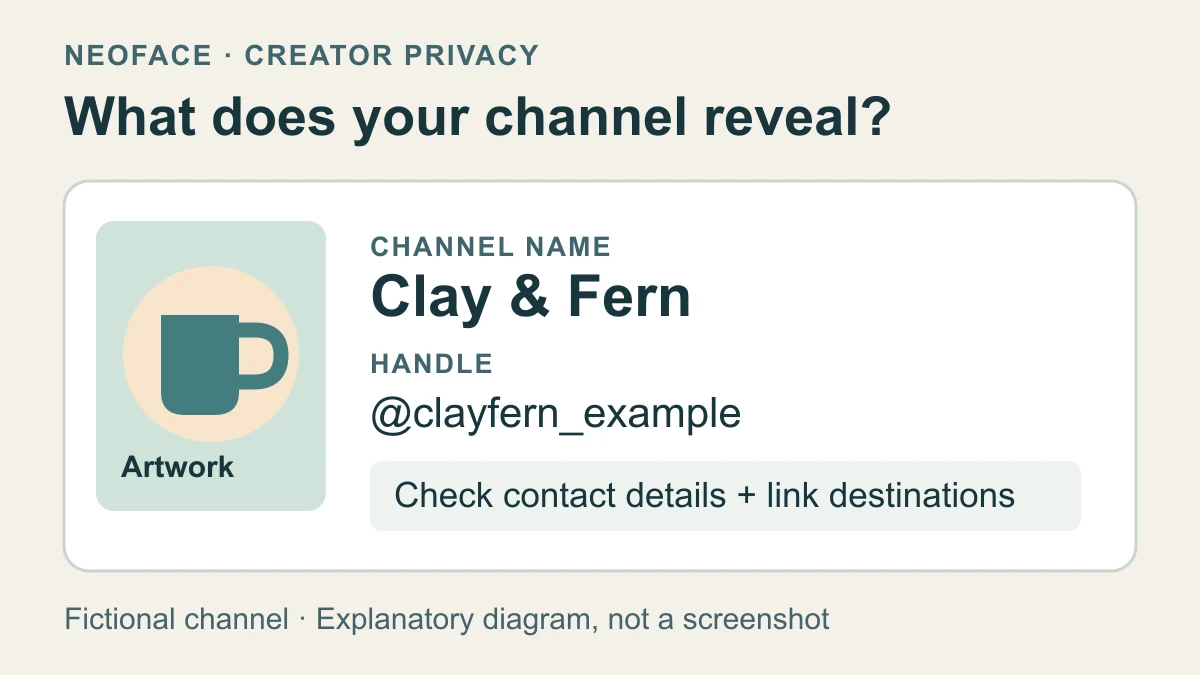
To keep your real name out of a YouTube creator channel, set a creator channel name and handle, use suitable artwork, and remove personal details from its description, contact information and links. Check which channel is active before commenting or sharing. Then open the public channel as a viewer to check the result. These changes control your public presentation; they don't make the account anonymous to Google.
The details around a face-free video can still lead viewers to a personal profile. For example, a ceramics channel could show a studio name above a handle containing the maker's surname, or link to a portfolio that introduces them by their full name.
Illustrative diagram: a fictional pottery channel has separate name, handle, artwork and contact details. Each needs its own check. This is an explanatory card, not a YouTube screenshot.
Start with the channel you're using
Open YouTube's account menu before making changes. On a computer, the channel-switching instructions give profile picture → Switch account → the intended channel. Check the name and icon after switching.
YouTube uses one channel at a time, even when one Google Account manages several. Being signed into the correct Google Account doesn't by itself tell you which channel is selected.
If you're working in a separate browser profile, keep using it, but make this check inside YouTube too. The creator browser-profile guide explains how to keep that everyday setup distinct.
Before editing, make a short list of what you intend to publish:
| Detail | A useful check | What to change if it identifies you |
|---|---|---|
| Channel name | Does it use the creator identity? | A personal name or identifying nickname |
| Handle beginning with @ | Read the whole handle, including numbers | A surname, personal username or meaningful date |
| Profile picture | Inspect the actual image | A personal photo or artwork reused from a private account |
| Banner and watermark | Read text and inspect the full image | A signature, personal website or unwanted face |
| Description | Read it as a stranger | A workplace, personal biography or identifying location |
| Contact email | Decide whether you want to publish it | A private address you would rather keep separate |
| Profile links | Open each destination | A personal profile or page displaying private details |
You don't have to invent a new persona for every field. Use the public identity you've already chosen, and keep its private background out of these details. The consistent creator-persona guide covers presentation across different shoots and platforms.
Decide whether to edit this channel or start a separate one
Editing the current channel is a reasonable choice when its existing content and activity already belong to your creator identity. You can correct the public fields without rebuilding your whole setup.
Pause if it has years of personal videos, family references or comments that identify you. Giving that channel a new name doesn't address what those posts say. A separate creator channel may be easier to keep consistent than repurposing a personal history, although it won't undo an association people already know.
For a new channel, YouTube's channel-creation instructions offer a personal channel and a business or other name route. The latter uses a Brand Account, an account arrangement that can support multiple managers. Both creation flows ask you to choose a picture, name and handle. Read those fields rather than accepting an unwanted suggestion.
If you already have a channel, don't start a transfer just because an older tutorial says a Brand Account is required to change its public name. First try the current profile controls below. Moving an established channel is a separate task.
Where a channel is connected to a Brand Account, YouTube's Brand Account check explains how to find that relationship. It also warns that having a Brand Account doesn't mean you're currently using its channel. Return to the selected-channel check before acting.
Change the channel name and handle separately
On a computer, follow YouTube's channel-profile instructions:
- Open YouTube Studio → Customization → Profile.
- Enter the intended channel name.
- Review and, if needed, change the Handle field separately.
- Click Publish to save the changes.
YouTube currently allows two channel-name changes and two handle changes within a 14-day period. A name update may take a few days to display across YouTube, and changing the name removes a verification badge. If that badge matters to your channel, consider that consequence before publishing the edit.
A handle is the unique identifier starting with @. YouTube's handle explanation distinguishes it from the channel name and says handles appear in comments, mentions, live chat and Shorts. Your handle also forms a channel address.
Read the handle in full. A studio name with a personal surname underneath it hasn't achieved the separation you wanted. Avoid reusing a handle already associated with your personal accounts when your goal is to keep those accounts apart.
Check the pictures, contact address and destinations
Choose artwork you intend to use publicly. A logo or an illustration can be enough; a profile picture doesn't need to be a portrait. If you use a photo, inspect it for a recognizable face and details around the subject. Check any lettering in the banner and watermark too.
YouTube's branding controls place profile-picture and banner changes in Studio → Customization → Profile. The profile picture accompanies public activity as well as the channel. YouTube also notes that banners display differently across devices, so inspect the crops rather than checking only the large desktop image.
If you want a visible presenter, the NeoFace face-anonymization workflow covers selecting a synthetic face, uploading a photo or prerecorded video, reviewing the result and downloading it. Prepare and inspect the media before using it on the channel. Face anonymization doesn't change your handle, remove your name from a banner or correct a personal link.
Review the description, Links and Contact info in the profile controls. Publish only the contact address you want viewers to use. Use a separate creator email if you need correspondence without offering your personal address.
Follow every profile link as a visitor. Check both the label you wrote and the page it opens. A button labeled “My work” could lead to a personal portfolio with a full-name introduction, a private social profile or a booking page displaying identifying contact details. Leaving the name out of the YouTube description wouldn't fix that destination.
Remove an unnecessary link, or prepare a suitable public destination before adding it. Don't enter private recovery details into a public contact field just because they're associated with the login you use.
Check comments and other public activity
Before posting a comment or reply, confirm the active channel again. Make this part of the action, especially after watching something from a personal account or switching channels in another session.
Then read what you're about to say. A comment posted under the correct creator handle can still identify you through its text. For example, “I work at the shop next door” may disclose something you didn't intend to add to your public biography. You can join the conversation without that detail.
For existing activity, YouTube's comment-history help lets you open public comments you've left. Follow the video link, then use More → Edit or Delete beside the comment when a correction is needed. Review the text as well as the identity displayed beside it.
Also inspect public playlists and subscriptions for personal information you don't want attached to this channel. YouTube's subscription privacy instructions give Settings → Privacy → Keep all my subscriptions private on a computer. This controls the subscription list. Participating in subscriber-only comments or live chat can still show that you're subscribed.
Check channel visibility when sharing video links
Sharing someone else's video can involve your channel identity too. Where YouTube's video-sharing and messaging feature is available, eligible people opening shared links can reply to the sharing channel. YouTube documents a separate Channel visibility for shared links setting.
In the account's settings, open Privacy and turn off Channel visibility for shared links if you want to share without connecting through that feature. The current sharing instructions say the Share panel shows your channel name at the top when visibility is on.
The feature isn't available to everyone. YouTube lists supported countries, requires users to be at least 18 and signed in to a channel, and says Brand Account access is for owners, not moderators or delegates. Check the controls in the account and app you're using.
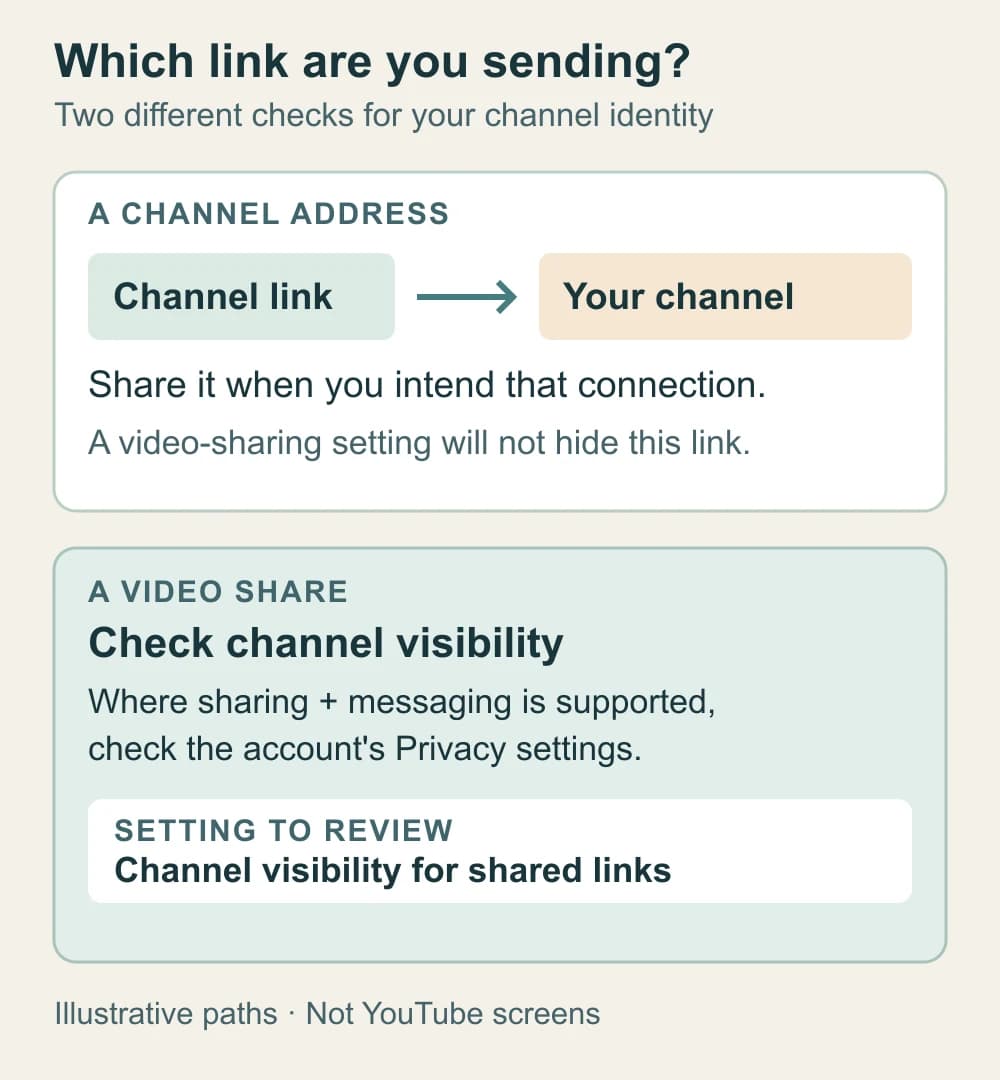
Decide which identity should accompany a link before sending it into a personal conversation. If you deliberately send your creator channel address, the recipient can follow it to the channel. Turning off the video-sharing connection doesn't hide that address or erase information someone already saw.
Open the public channel after saving
Check the channel in a signed-out browser window where the page is accessible. Inspect the name, handle, artwork, description and available links. This helps you review the public page without confusing it with account-management information shown only while signed in.
Check on your phone too, particularly the small profile image and banner crop. If a name update hasn't appeared yet, allow for YouTube's stated update delay and return to the affected public page. Don't use up repeated name changes simply to test whether a refresh worked.
If you find an unwanted detail, correct the place that contains it. A personal handle needs a handle edit; an old comment needs a comment correction; a face in a video needs a media correction. Renaming the channel won't perform those other edits.
Before your next upload, use the finished-video privacy checklist for the file itself. If it contains a realistic AI-anonymized face, review the separate TikTok and YouTube AI-label guidance too. Public account identity, media content and disclosure settings each need the appropriate check.
Before you use the creator channel
- The selected YouTube channel is the one I intend to use.
- Its name and full handle contain only the public identity I've chosen.
- The profile image, banner and watermark are suitable for public use.
- The description and contact address omit private details.
- Every profile link opens a destination I've checked as a visitor.
- I've reviewed relevant old comments and other public activity.
- I've checked shared-link channel visibility where that feature is available.
- I've reopened the public channel after saving and reviewed the next upload separately.
Frequently asked questions
- Can my YouTube channel have a different name from my Google Account?
- Yes. YouTube lets you change the channel name independently of your Google Account name. Check the handle and profile picture separately, then review the public channel. A different channel name does not make your account anonymous to Google.
- Is my YouTube handle the same as my channel name?
- No. The channel name is the display name, while the handle is the unique identifier beginning with @. Review both. A creator name above a handle containing your surname still publishes that surname.
- Do I need to move my channel to a Brand Account to hide my name?
- No transfer is needed just to edit a channel name. Use the profile controls in YouTube Studio.
- Can sharing a YouTube video reveal my creator channel?
- Where YouTube video sharing and messaging is available, eligible recipients can connect with the channel sharing a video. Check Channel visibility for shared links in account privacy settings. Turning it off does not hide a channel address you deliberately send.
- Will renaming a channel erase the connection to my old identity?
- A rename does not erase what people already saw or saved. Review old comments, videos, artwork and links for identifying details as well.
Create with
a face you choose.
Join thousands of creators building faceless brands with Neoface. Private by default, lifelike by design.
No credit card required · Instant access · Free plan available
- High-fidelity models
- Private and secure
- 24/7 support