Write Alt Text for Anonymous Creator Photos
Write useful alt text for creator photos without adding private names or shoot details. Match descriptions to finished images, then check Instagram and TikTok.
- alt-text
- photo-accessibility
- creator-safety
- identity-separation

Write alt text from the finished photo you plan to publish: describe the useful subject, action and details without adding private names or information from your shoot notes. Give each image its own description when the view changes. If the photo itself exposes something private, correct the picture before describing it rather than leaving that detail out of the description and sharing it anyway.
Alt text, short for alternative text, gives an image a written description that assistive technology such as a screen reader can communicate. A screen reader presents on-screen information through speech or braille. The W3C image guidance explains how descriptions should convey an image's information or purpose.
For an anonymous creator, the aim is a useful description of the public picture. You don't need to supply the private story behind it.
Illustrative scene: a blue ceramic mug rests on mustard-yellow cloth on a wooden table. Those visible details give you a useful starting point for its description.
Write from the finished image
Open the exact image you're attaching to the post. Write the description while looking at that copy, after choosing the crop, editing the background and completing any face treatment.
An early draft may describe something you later removed. A production note might also include your real name, the room where you worked or the personal account that supplied a reference. Those details don't belong in the post merely because they helped you organize the shoot.
For example, a pottery photo can show the mug's glaze and handle without saying whose kitchen table it sits on. “Blue ceramic mug on mustard-yellow cloth” tells the reader about the picture. Adding your private name and home location changes what you're publishing without explaining the pottery any better.
If you want to keep a visible face in a creator portrait, the NeoFace photo workflow covers selecting a synthetic face, uploading a photo, reviewing the result and downloading it. Finish that review before writing the description. Write from the downloaded picture and use the public creator identity you've chosen.
Keep public wording with your finished-photo notes, and keep private production information separate. When someone else writes the post, give them the selected image and approved description rather than asking them to extract publishable wording from a folder of personal notes. The anonymous-persona guide can help you agree on which creator name and presentation to use across shoots.
Keep the details that explain the photo
Start with what someone needs to understand. Is the photo showing a finished object, a technique, an outfit or a change between two stages? That purpose tells you which details matter.
For a finished mug, the blue glaze and curved handle may be enough. For a handle-making lesson, the attachment points and shape deserve more attention. A decorative wall behind it may add little in either case. W3C's informative-image examples show why the same kind of image can need a different description in a different context.
For example, these sample descriptions keep the useful information:
| Photo's purpose | Useful description | Private or unnecessary addition to leave out |
|---|---|---|
| Show a finished piece | Blue ceramic mug with a curved handle on yellow cloth. | The maker's private name and home address from shoot notes |
| Show an outfit | Creator in a green jacket, with rolled sleeves and a narrow belt. | A personal social handle that isn't part of the public credit |
| Explain hand position | Two hands press a clay coil onto the side of a mug. | Which relative owns the room where the lesson was filmed |
| Compare a repair | Two views of a jacket: a torn elbow and the finished blue patch. | A workplace or surname copied from the project folder |
| Show a public instruction card | Card reads: “Leave the glaze off the base.” | An earlier private note that was removed from the final card |
This isn't a rule to remove all names, locations or appearance details. A public creator name may be useful when identifying a collaborator you've agreed to credit. A place may be the point of a travel photo. Include information deliberately, with the people involved, rather than importing private context by habit.
You also don't need to call every person “anonymous.” Describe the relevant action or clothing. If an expression, pose or physical detail matters to the work, describe what the finished image shows without guessing a person's identity, feelings or background.
Keep the description focused. W3C's alt-text writing tips recommend putting the important information first and using a concise description. Read your draft as a sentence: does it help someone understand the photo, or is it a collection of keywords and promotional phrases?
Fix visible private text before writing its description
A photo of a packing tutorial might include a readable parcel label. A screenshot might show a personal email beside the setting you're explaining. Leaving that text out of the description doesn't conceal it in the picture.
Crop, cover or recapture the image first. The screenshot-redaction guide explains those choices for a still capture. Then describe the corrected version, including the information that remains useful.
When words are the point of an image, preserve their meaning for readers who can't see them. W3C's guidance for images of text says the text alternative should contain the same words. A short public instruction card can therefore have a direct description such as “Card reads: ‘Leave the glaze off the base.’”
If a long tutorial won't fit comfortably in the platform's alt-text field, put its complete instructions in accessible post text or an accessible linked page, and use the image description to explain what the illustration adds. Don't shorten the lesson into something that changes the instruction. Avoid publishing an image whose essential information you can't provide through the available format.
Match each carousel image and crop
An overview, a close-up and an instruction card make different contributions. Write the description beside each selected image, then check the sequence after rearranging the post.
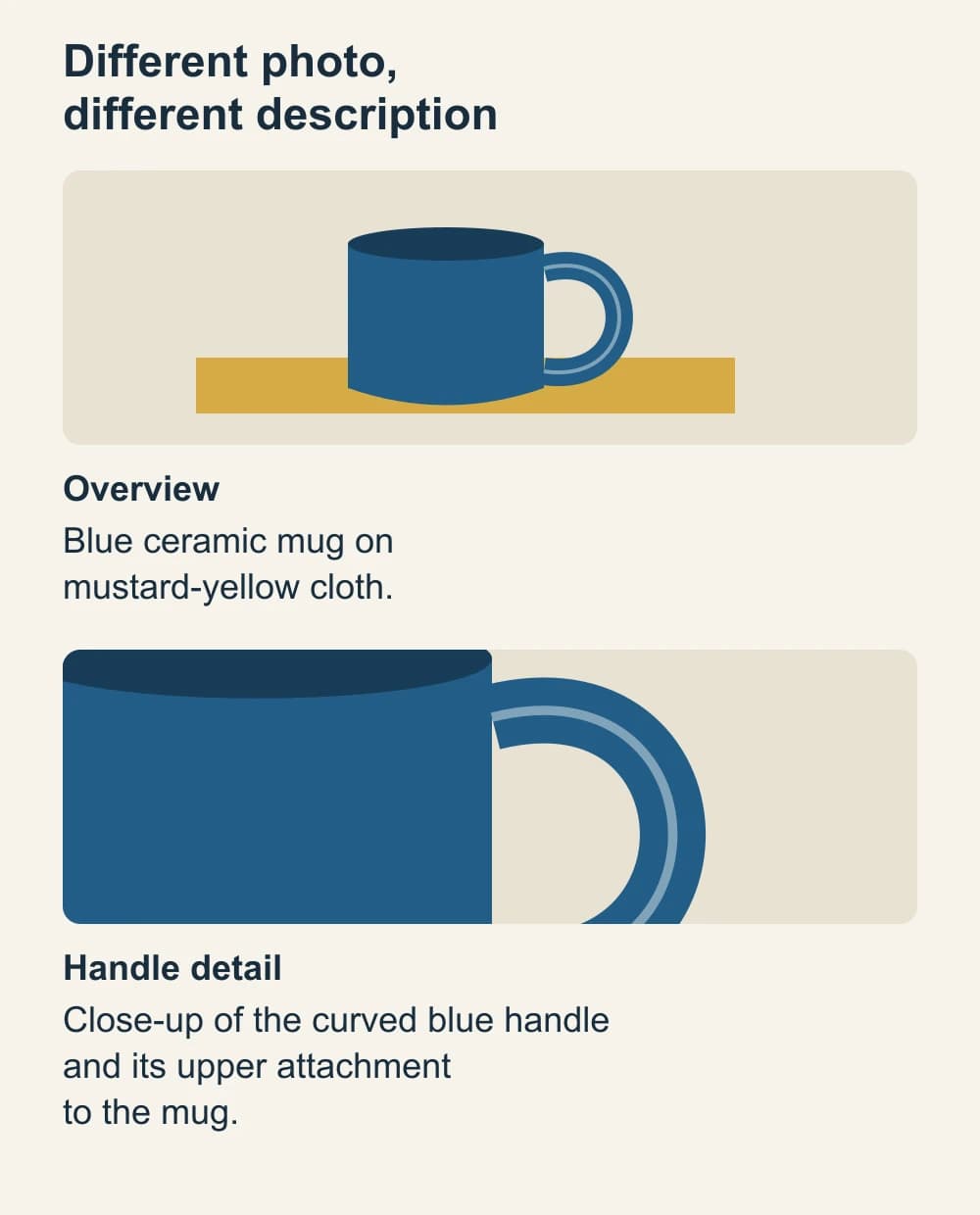
For the mug example, the overview might read “Blue ceramic mug on mustard-yellow cloth.” A detail image could read “Close-up of the curved blue handle and its upper attachment to the mug.” Neither needs the maker's private name, and the second description tells the reader what changed between the views.
Check a cross-post's crop before reusing the wording. If the handle has been cropped away, a description centered on the handle no longer matches. If the new post shows only one stage of a repair, it shouldn't retain “two views.”
Alt text is separate from spoken-video captions. For a video with names in speech or subtitles, use the caption and transcript correction guide. A photo description won't correct those tracks.
Add and review the description in the posting app
Use the alt-text field for each photo where the platform provides it. Review any suggested description against your final image before accepting it. A draft that sounds fluent can still describe the wrong crop or add an assumption you didn't intend to publish.
Instagram photos
Instagram's current iPhone alt-text instructions place Write alt text under More options after selecting and editing the photo. Enter the description and tap Done before sharing.
For a photo already posted, the same help page gives Options → Edit → Edit Alt Text, then Done. Use the help page's device selector if you're posting from another device.
Instagram explains that its automatic descriptions use object recognition and that you can supply your own description. Treat the wording as information you're sharing, even if it isn't displayed below the picture like a caption.
TikTok photo posts
TikTok's photo accessibility help gives More options → Add alternative text on the photo-post screen. Enter a description beside each photo and tap Done. It currently allows up to 300 characters per description.
For photos already published, TikTok gives More options → Edit post → Add alternative text, then Done. These instructions concern photo posts; video captions have a different job.
After saving a draft or correction, reopen the available editing field and check that the description is attached to the right photo. Where practical, check the published post with a screen reader too, rather than relying only on the compose screen. If a field is unavailable, provide a clear image description in the visible post text and check what the actual post communicates. Keep a copy of the approved wording so you can correct or re-enter it.
Before you publish
- The description matches the exact image and crop being posted.
- It communicates the useful subject, action or instruction.
- Private names, accounts and source-only location details haven't been copied from notes.
- Any private detail visible in the image has been corrected in the image itself.
- Each carousel image has wording suited to its own content and position.
- Suggested text has been checked for mistakes and unsupported guesses.
- Saved descriptions have been reopened and checked where the app allows it.
Frequently asked questions
- Can I write useful alt text without using my real name?
- Yes. Describe the relevant person, action and setting without adding a private name. Use your public creator name when it helps the reader understand the post and you have chosen to publish it. A name is often unnecessary for an outfit, craft demonstration or product photo.
- Is alt text private because it is not shown under the photo?
- Treat it as published information. Alt text is intended to communicate the image to people using assistive technology. Do not put private names, addresses or production notes there.
- Should I describe the original face after anonymizing a photo?
- Describe the finished image you are publishing. Do not copy a description of the original face or add a private identity from your notes. Explain any alteration separately when disclosure is needed; alt text should still help someone understand the visible image.
- Can the same alt text describe every image in a carousel?
- Only if it accurately communicates each image, which is unlikely when the views or steps differ. Give an overview photo, detail photo and instruction slide descriptions suited to what each contributes. Check their order again after rearranging or cropping the post.
- Does removing photo metadata also remove social-media alt text?
- Do not assume so. Metadata inside a file and a description entered into a platform are separate things to review. Check the finished file and the alt-text field in the post you are publishing.
Create with
a face you choose.
Join thousands of creators building faceless brands with Neoface. Private by default, lifelike by design.
No credit card required · Instant access · Free plan available
- High-fidelity models
- Private and secure
- 24/7 support