Remove Personal Details From Video Captions and Transcripts
Remove personal names and details from video captions, subtitle files and transcripts. Match the corrected audio, then check the text viewers can still access.
To remove personal details from video captions, find out whether the detail is only in the text or also in the audio. Correct a transcription mistake directly; if the words were spoken, edit that part of the recording and rebuild the captions from the corrected version. Then check separate subtitle files, text burned into the picture, and any transcript published with the clip.
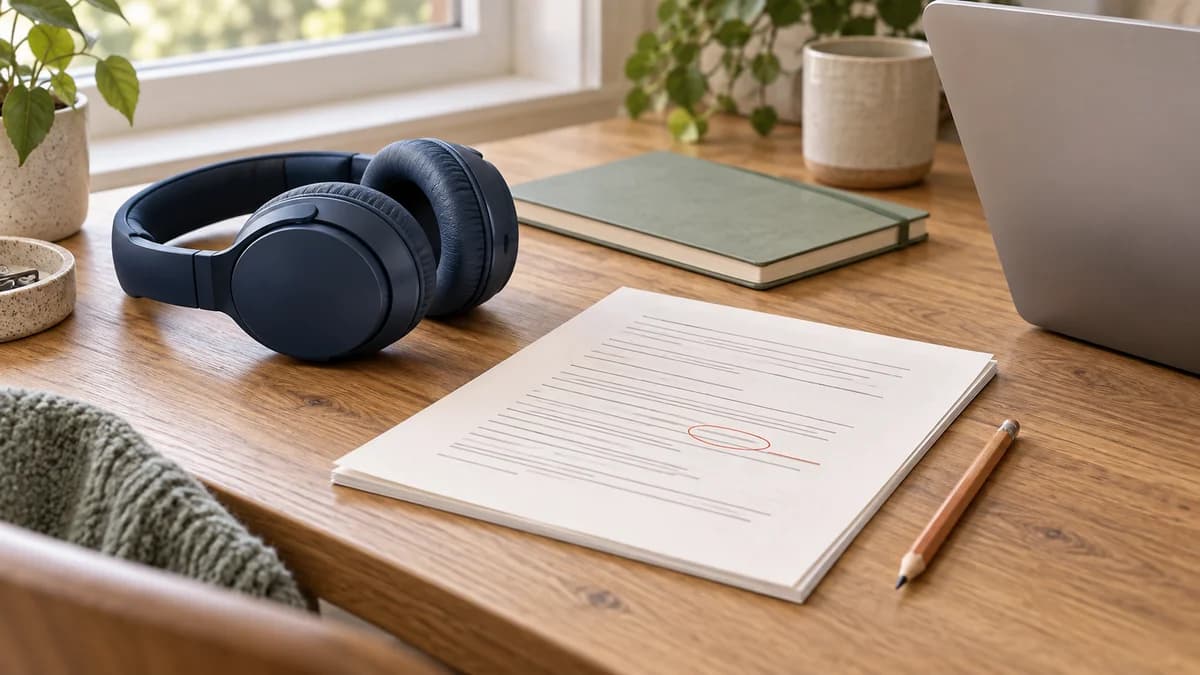
Illustrative scene: headphones, a paper script with a marked line, and a laptop on a desk. Listening to the recording and reviewing its written dialogue are separate checks.
A clip can hide your face and still display your name in a subtitle. It can also have perfectly ordinary captions while someone calls your name off camera. You want the version viewers hear and the version they read to follow the same privacy choice.
Find which version contains the detail
Start at the moment you noticed. Play it with sound, then read the text around it. Write down the time and the detail you want to remove, including any repeated mention later in the clip.
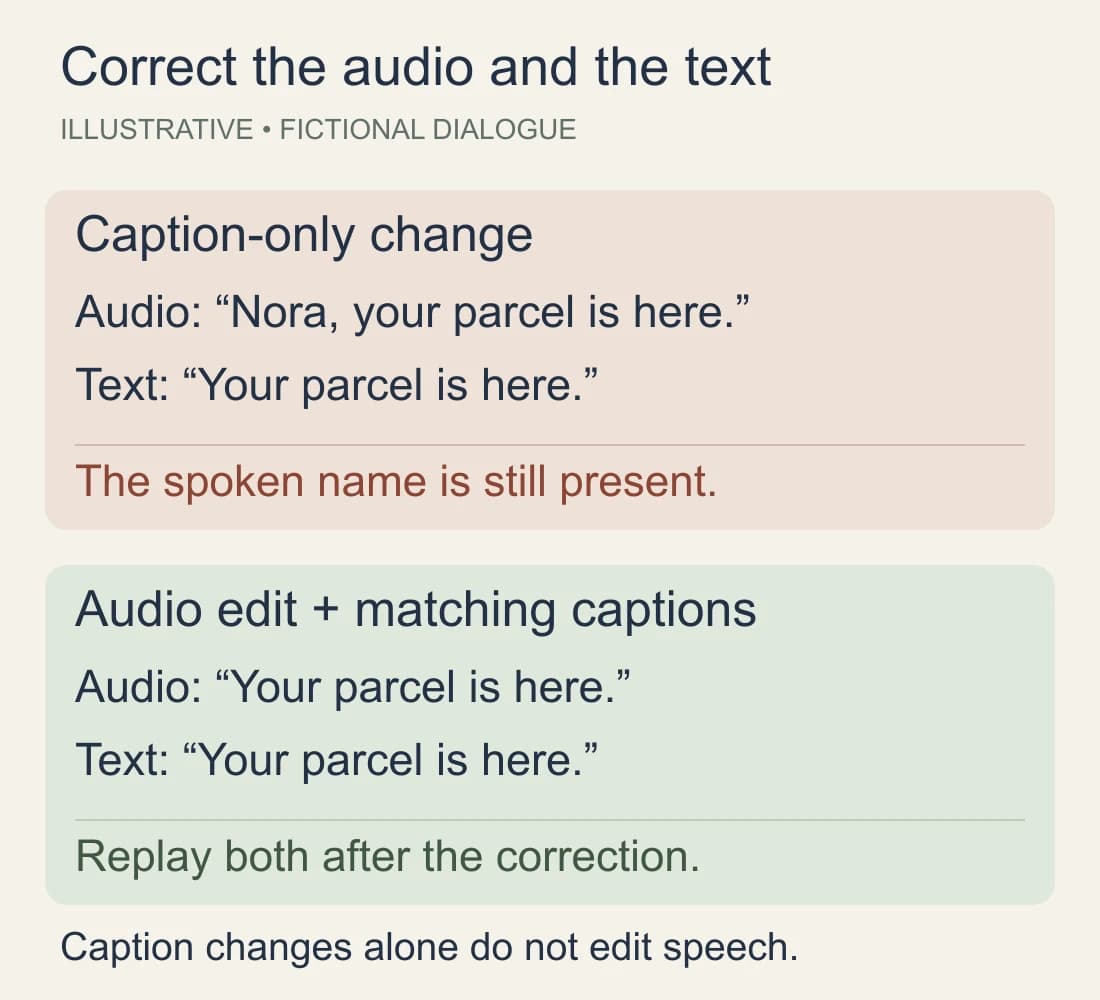
For example, imagine you're filming a sewing tutorial. At 00:12, someone outside the room calls, “Nora, your parcel is here.” Your face is out of frame, but both the recording and its automatic captions include that fictional name. Changing the caption to “Your parcel is here” leaves the original call audible.
Now imagine the caller only said “Your parcel is here,” and the caption generator added a name by mistake. That needs a text correction, not an unnecessary cut in the tutorial.
The difference determines where to edit:
| Where the detail appears | What to change | What to check afterward |
|---|---|---|
| Caption text only | Correct the caption line | It matches the actual speech |
| Speech and captions | Edit the recording, then update captions | The phrase is absent from both |
| A separate subtitle file | Edit or regenerate that file | Text and timing match the final video |
| Text permanently visible in the picture | Edit the original text layer or use a clean source | The corrected export has no old lettering |
| A published transcript or another language track | Update that version too | The viewer can no longer select the old text there |
Captions represent speech and meaningful sounds, such as a knock that explains why you turn away. A transcript presents the dialogue as readable text rather than timed lines over the video. W3C's caption guidance explains why accuracy and relevant sound information matter. Preserve that usefulness while correcting the personal detail.
If the words were spoken, edit the recording first
For the imaginary sewing clip, a short cut that removes the interruption may be enough. If the interruption overlaps an important instruction, record that instruction again or use a reviewed voiceover for the affected passage. You don't need to discard a useful tutorial because one sentence needs another take.
Choose an edit you can inspect. Listen with the captions hidden, including the moments before and after the change. Check that the name hasn't been clipped into an audible fragment and that the lesson still makes sense. If you're muting a section, confirm you're changing the exported audio rather than turning down your playback volume.
Check what your editor means by editing a transcript
Some tools use written dialogue to control video cuts; others let you correct text without changing the recording. The same-looking word can lead to a different operation.
For example, Microsoft's Clipchamp caption instructions distinguish rewriting transcript words from transcript-based deletion that cuts a video section in the work and school version. They also describe downloading captions as an SRT file. Follow the instructions for your account version and replay the affected media after an edit.
If you're correcting spelling, use the text-editing operation. If you're removing spoken information, use an operation that changes the media. A disappearing word in a panel isn't enough to approve the result.
After the audio edit, generate or revise captions for that version. If a cut changes the video's duration, review later caption timing too. Avoid pairing last week's subtitle file with today's shorter export.
Changing a voice's sound is a separate decision from removing a spoken name. If voice recognition is part of your concern, the voice-risk guide covers that choice.
Correct editable captions and subtitle files
A subtitle file such as .srt or .vtt stores text and timing separately from the picture. This is often called a sidecar file when it travels beside the video. YouTube's supported caption formats include these formats; the publishing destination determines which one you can use.
Open the file in your caption editor, or use a plain-text editor for a small correction. Work on a copy and preserve its structure. For a spelling correction, keep the existing time boundaries. For a media cut, rebuild or adjust the affected timings against the new recording.
Search for the full personal name and likely variants, then read the whole text. A search for “Nora Chen” won't find a line containing only “Nora,” a misspelling, or a workplace mentioned in another sentence. Also check speaker labels: [Nora Chen] can disclose the name even when the dialogue doesn't say it.
Use “Presenter” or “Guest” where that accurately distinguishes speakers without naming them. If the name is part of spoken dialogue, resolve it in the recording before substituting text. Captions should describe what the audience now hears.
For example, after cutting the parcel interruption, your fictional sewing clip might contain this short SRT cue:
1
00:00:08,000 --> 00:00:11,000
Fold the edge, then press it flat.
The numbers and timestamps belong to the caption file. They aren't dialogue to display. Import the revised file and play the cue against the final video; readable text with the wrong timing still needs correction.
Save the video and captions with matching version names, such as hem-tutorial-v3.mp4 and hem-tutorial-v3.srt. Put only those approved versions in the delivery folder. If someone else is receiving the files, the file-sharing guide covers sender details and access.
Repair captions already burned into the video
Turn off the player's CC control. If the words remain, check whether they're part of the picture or a separate visible layer in your editing project.
Burned-in captions are text rendered into the video image. VEED's subtitle export instructions describe this export choice. A caption-track edit on a hosting platform doesn't rewrite lettering already in the uploaded frames.
Return to the project while its text is editable. Correct the line, rebuild captions after any audio cut, and export again. Keep a reviewed version without burned-in captions if you expect to make different text versions later.
If you only have the rendered file, look for the clean source before trying a repair. Cropping or fully covering the text can work for a small area, but check whether it hides a hand movement or instruction the viewer needs. Add corrected captions afterward if the remaining speech needs them.
A decorative blur or an automatic removal preview isn't a completed check. Inspect the actual export wherever the lettering appeared. When a readable repair is difficult, remake the short segment from a clean take.
Keep face processing separate from text corrections
For a clip where your face is part of the intended presentation, the NeoFace workflow supports selecting a synthetic face, uploading prerecorded video, reviewing the result, and downloading it. Check the downloaded footage before completing the captioned export. Plan subtitle and spoken-detail corrections separately; face anonymization doesn't establish that those details have been removed.
For the sewing example, framing the camera around the fabric may already fit the shot. Use face anonymization when keeping the filmed person helps the presentation, and choose a crop or another take when that gives you a simpler result to review.
Update YouTube captions and check the transcript
If a personal detail is already visible in an upload, limit access while you correct it. On YouTube, use the video's visibility settings to make it private when appropriate. Unlisted videos can still be watched by people with the link.
On a computer, use YouTube's caption editor for a text-only correction:
- Open YouTube Studio → Subtitles and select the video.
- Find the language track and choose Edit. For automatic captions, use Duplicate and edit, then Continue if prompted.
- Correct the lines and check their timing.
- Choose Publish, then reopen the watch page to inspect the result.
Editing an automatic caption creates a revised track. Review the available tracks rather than assuming one correction changed every version. YouTube also provides a track-deletion option under Options → Delete, with a confirmation. Use removal to address an unwanted track, then provide accurate captions for the corrected recording where needed.
YouTube's automatic-caption guidance says captions can be published automatically and may appear after upload processing. Check again when they're available. Its setting for potentially inappropriate words is not a personal-name redaction control and doesn't change the audio.
On the watch page, use Show transcript in the description when available. YouTube's transcript help explains that this view shows caption text. Check the affected passage there, with each available language you publish.
If the detail is audible or burned into the uploaded picture, editing the caption track alone won't resolve it. Prepare corrected media and check that version before restoring access. For a short clip, a fresh export may be easier to inspect than several separate repairs.
Finish with the text that travels with the clip
Check anything copied from the earlier transcript: a post description, translated subtitles, lesson notes, teaser text, or a transcript on your own site. Give an editor the corrected text with the corrected video so they don't regenerate a teaser from the old material.
For a long recording, search within the transcript to locate likely problems, then review the rest of the text. A personal detail can appear in an introduction, an off-camera interruption, or closing thanks. The words you want to keep may need a small rewrite in the recording rather than deletion of an entire explanation.
Before publishing the corrected captioned clip:
- You've identified whether the detail appears in text, audio, or the picture.
- The corrected media has been replayed with sound audible.
- Captions accurately describe the remaining dialogue and meaningful sounds.
- Speaker labels, name variants and the full subtitle text have been reviewed.
- Subtitle timing matches this export, including after cuts.
- Burned-in text has been inspected in the finished video.
- Published caption tracks, transcript views and copied text use the corrected version.
- The files selected for delivery match the versions you reviewed.
Use the final video privacy checklist for the rest of the file. If you later shorten the clip or change its audio, bring the captions along with that edit and check the new pair before posting.
Frequently asked questions
- Does editing a caption remove the words from the audio?
- A caption-text correction changes the written words. To remove spoken information, edit the audio or the corresponding video segment and listen to the result. Some transcript-based editing tools can cut media, so check which operation you are using before approving the export.
- Can I remove a personal name without removing all captions?
- Yes. Correct a transcription error, or edit identifying speech and update its captions to match. Keep accurate captions for the remaining dialogue and meaningful sounds.
- Why can I still see subtitles with CC turned off?
- The text may be burned into the picture or added as a visible layer in your project. Edit that layer or use a clean source, then export a corrected version.
- Where does a YouTube transcript get its text?
- YouTube’s transcript view shows caption text. Check it after publishing corrections, and update any transcript you posted separately.
- Should I upload my original video to a caption tool to check it?
- Use your existing project or a reviewed delivery copy when possible. If you need another service, check whether you are comfortable sending it the media or text involved. A fictional sample can help you learn the controls without uploading the private take.
Stand Out While Staying Anonymous
Join thousands of creators building faceless brands with Neoface. Private by default, lifelike by design.
No credit card required · Instant access · Free plan available