Limit Photo Access for Creator Apps on iPhone and Android
Limit apps to the photos and videos they need. Check iPhone and Android permissions, choose finished exports, and find missing files without full library access.
- creator-privacy
- photo-access
- mobile-uploads
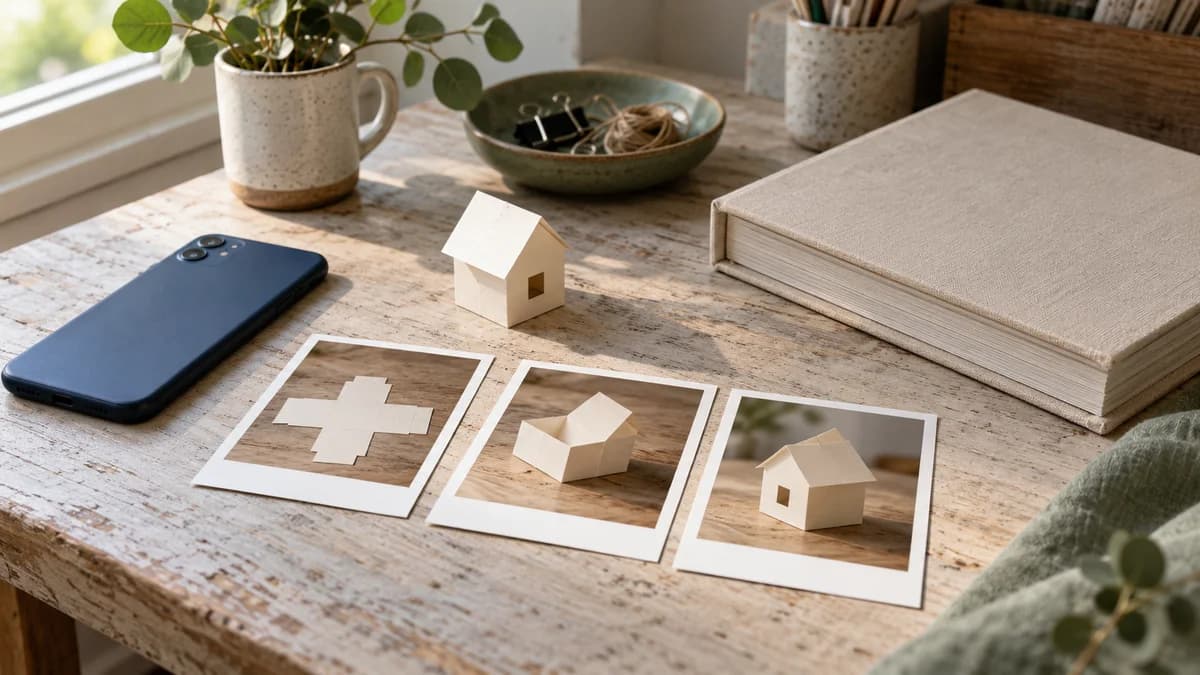
To limit photo access on iPhone or Android, choose selected-photo access when an app asks to read your library, or use the phone's system photo picker to send only the files you choose. Review any creator app that already has broad access. Keep a small set of finished photos and videos ready so you can pick the right copies without opening access to your whole collection.
Illustrative scene: a face-down phone beside three paper-craft prints and a closed photo album. Choose the files needed for the task before opening an upload screen.
Decide which files this app needs
An editor may need a camera original to make your changes. A posting app usually needs the finished photo or video you've approved. Give each app the files needed for its job, rather than using the same selection for every app.
For example, you might have three finished photos for a paper-house tutorial, several unedited takes, and family snapshots on the same phone. Select the three finished photos for the posting app and leave the rest out.
Open those three files first. Check the crop, face treatment and background, then put them somewhere you can find again. A clearly named creator album can help with selection, but it doesn't replace the phone's access controls. An app with broad library access isn't confined to an album just because that's where you keep your posts.
If you're unsure which version to choose, the finished-photo delivery guide explains the difference between a saved edit, a camera original and an exported image. Make that file choice before deciding what the app may read.
Know whether you're choosing a file or granting library access
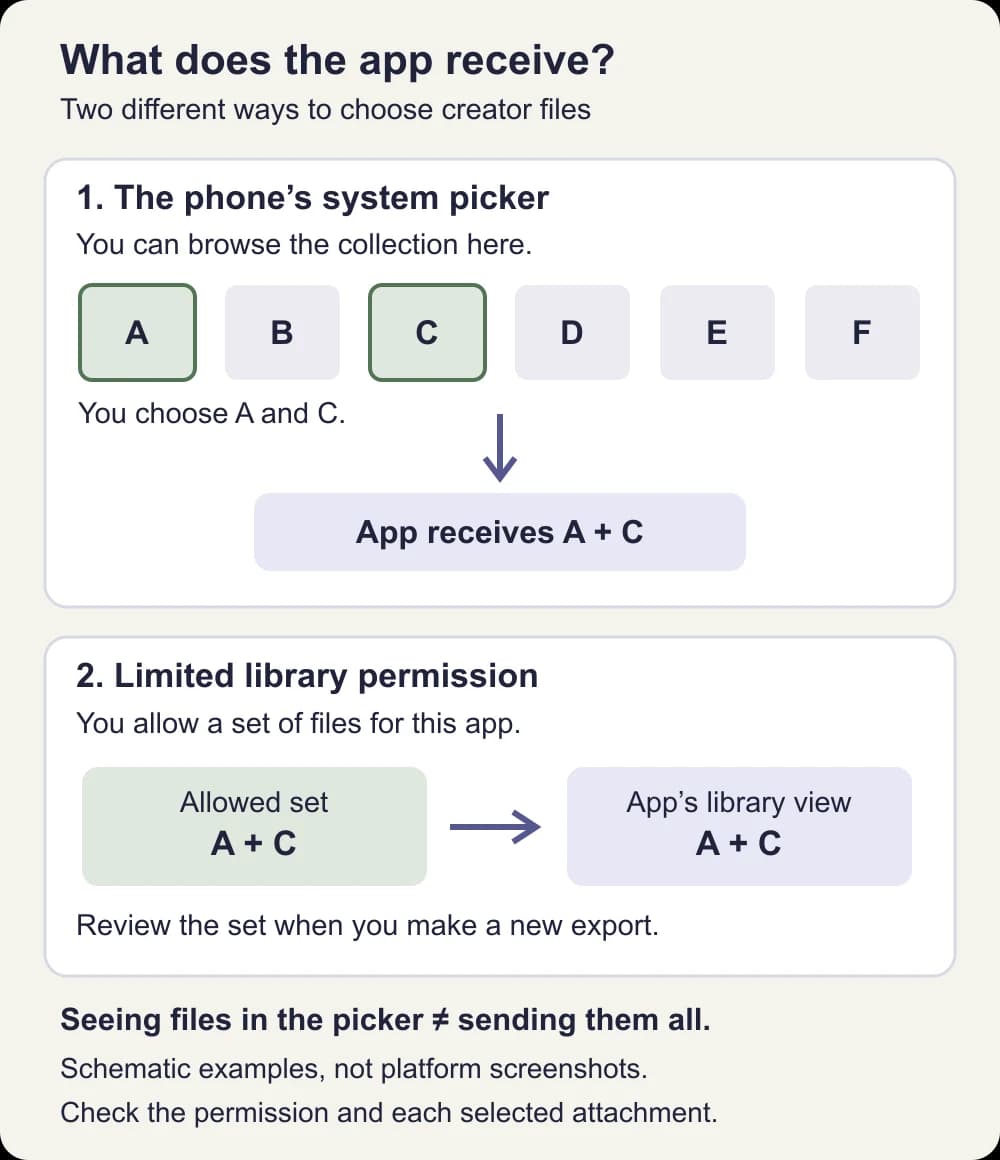
A system photo picker is a selection screen provided by your phone. It can let you browse photos and pass your chosen items to an app without giving that app broad library access. A gallery built by the app can instead depend on the library permission you've granted.
Apple explains that its system Photos picker runs separately from the app: only your selections are passed back. Android's Photo Picker help likewise says the app can access only the media you select through it.
That distinction answers a confusing situation: you've denied broad access, yet an upload screen still shows your personal photos. If it's the system picker, those thumbnails are there for you to choose from. Their appearance alone doesn't show that the app has received them. Check the app's permission separately, and inspect the files selected before confirming.
| What you're using | What it allows | A useful creator choice |
|---|---|---|
| System photo picker | Passes the items you choose to the app | Select the exact export needed for this upload |
| Limited or selected library access | Lets the app work with the library items you've allowed | Keep the selection small; add new exports deliberately |
| Full library access | Gives the app broader access to photos and videos | Use only when the feature needs it and you're comfortable with the collection it can access |
| No library access | Denies that library permission | Try a supported system-picker or file-import route if you still need to send a file |
Apple's limited-library explanation describes a selected set that you can change later. It also distinguishes saving an image to Photos from reading the library. Don't infer broad reading access just because an app saved an export.
You can't identify every app's access model from a similar-looking grid. Use the phone's permission settings and the app's current help when the screen is unclear.
Review photo access on iPhone
Apple lets you review and change app permissions after granting them. Start with apps used to edit, schedule, message or post creator media, especially ones installed long before you separated your creator work.
- Open Settings → Privacy & Security → Photos.
- Choose the app you want to review.
- If it has full access, choose the limited or selected-photo option when available. Choose no access if it no longer needs the library.
- Review the allowed photos and videos. Include only the files needed for that app's current task.
- Return to the app and try importing a harmless sample before using sensitive media.
The wording and available controls vary by iOS version and the kind of access the app requests. Follow the options shown on your phone. If an app offers a way to manage or add selected photos, use it for the next export rather than approving the entire library to find one image.
An app that uses the system picker may let you choose a photo without requesting library permission at all. A missing full-access switch isn't automatically a problem to fix. Try the supported upload action and check the chosen file.
Do this per app. Allowing a finished photo in an editor doesn't establish what a separate posting app may read.
Review photo and video permissions on Android
Google's app-permission instructions start at Settings → Apps → the app → Permissions. Open Photos and videos if that category appears, then review the access you've granted.
On supported combinations of phone and app, choose Select photos and videos instead of allowing all media. Android introduced Selected Photos Access in Android 14; availability and behavior also depend on the app. If your screen offers different choices, don't assume it has the same selected-access control.
Add the finished files needed for the task, return to the app and check that they can be imported. An app may ask you to select files again later, so don't rely on a selection made months ago.
When the app opens Android's system picker, you can preview a thumbnail by pressing and holding it. In a multiple-file selection, use View selected to inspect your choices and deselect unwanted files before tapping Add. Treat a batch as a set of individual decisions: three approved photos and one unedited take still include an unedited take.
If your device or app offers only broad access, look for another supported import method. A file picker, deliberate share action or different editor may fit the task. For recurring work that requires broad library browsing, consider a device containing only the creator media you're prepared to make available. Choose it because of the files on it, rather than assuming a second phone handles every privacy setting for you.
Check the Google Photos account shown in the picker
Android's picker can include backed-up Google Photos images when that connection is enabled. Google says you can choose the Google Photos account available to the picker, so review it if personal cloud photos appear alongside local exports.
In Google Photos, open your profile picture, then Photos settings → Apps & devices → Google Photos access → Photo picker. Choose Allow or Don't allow for that connection. Google's instructions require Android 13 or later; the available device controls can vary.
This changes the cloud collection available for picking. It isn't the same as turning off photo backup or household sharing. If originals are reaching a partner or family collection automatically, use the separate shared-library guide.
Add the new export when the app can't find it
Limited access can make a missing file a simple selection issue. Before widening permission, check these possibilities:
- You allowed the original. The edited or downloaded copy may be a new file. Select that copy separately.
- You saved it somewhere else. Check the editor's export destination. A file in Downloads may need a file-import route rather than the app's photo gallery.
- You're in the wrong collection or account. Check the library, folder and cloud account shown by the picker.
- The app is showing only one kind of media. A photo import screen may not be the video import screen you need.
Reopen the import screen after changing the selection. If the file still won't appear, read the app's current import and format help. For a specific first-launch problem, Adobe recommends relaunching Lightroom to restore a missing iOS photo-permission prompt. That example doesn't mean every missing image requires full access.
If a required feature explicitly needs broader access, decide whether you're comfortable using it with the files on that phone. You can choose another app or device rather than granting access just to dismiss a prompt.
For face-forward content, the NeoFace photo and prerecorded-video workflow explains how to select a synthetic face, upload content, review the result and download it. Keep the reviewed download easy to identify, then select that file in the app where you'll post it. Photo permission doesn't tell you whether you've picked the camera original or the anonymized result.
Check the selection with harmless photos
Use two clearly different, non-sensitive photos that the app hasn't received before, such as a paper house and an empty mug. Allow the house photo to the app's limited library and leave the mug out. Reopen the app's own gallery to see whether the allowed file is usable.
If you open the system picker, you may still see both. That's a different view with a different purpose: choose the house there and inspect the app's selected attachment afterward.
Now make a new export of the house photo. Try selecting that copy. This helps you learn where fresh files appear and how to add them without using private originals as troubleshooting material. It checks the visible import behavior, not everything the app may do with a received file.
If the app's own gallery still shows earlier imports, review copies stored inside the app separately from the phone permission. For an unwanted original you've already sent, inspect the imported, uploaded or published copy. Changing library permission doesn't establish that a saved copy has been deleted. The creator file-sharing guide helps you review a deliberate handoff and its recipient access.
Before the next import or post
- You've opened the actual photo or video the app needs.
- You know whether you're using a system picker or granting library access.
- Previously granted full access has been reviewed for this app.
- The selected set contains the needed exports, with unwanted originals left out.
- Any cloud account available to the picker is the one you intend to use.
- A new export has been selected separately when needed.
- You've checked every attachment in a multiple-file selection.
- A harmless import has helped you confirm the route after a phone or app change.
Frequently asked questions
- Can an app see all my photos if I give it limited access?
- Limited library access lets the app read the photos and videos you selected for it. A separate system photo picker can still show you other photos so you can choose what to send. Seeing a thumbnail in that picker does not by itself mean the app can read the whole library.
- Why is my edited photo missing from the app?
- A new export may be a different file from the original you previously allowed. Add that finished copy to the app’s selected photos or choose it through the system picker. Also check where it was saved and whether the app accepts its file type.
- Does removing photo permission delete photos I already uploaded?
- Do not treat permission removal as deletion. Review any imported, uploaded or published copy inside the app or service separately. Changing the phone’s library permission controls access to that library; it does not establish that a copy already sent has been removed.
- Does a creator album keep personal photos away from every app?
- An album helps you find the right files. It does not replace the app’s photo permission. Use selected access or a system picker for a small set of creator files, and check any app that already has broad library access.
- Do I need to give a posting app full photo access?
- Start with the files needed for the post. System pickers and selected-photo permissions can support narrower access, but apps differ. If a required feature will not work that way, check its current help and decide whether broader access is acceptable on that phone. A creator-only device or another import route may fit better.
Stand out while
staying anonymous.
Join thousands of creators building faceless brands with Neoface. Private by default, lifelike by design.
No credit card required · Instant access · Free plan available
- High-fidelity models
- Private and secure
- 24/7 support