Keep Creator Photos Out of Shared Photo Libraries
Keep creator photos and videos out of family photo libraries. Check iCloud camera sharing, Google Photos partner access, and where unedited originals are saved.
Before a creator shoot, turn off automatic sharing from the device you use and check where its original photos and videos are saved. On iPhone, check Shared Library camera settings. In Google Photos, check backup and partner sharing separately. Share a finished copy only after you've reviewed it.
Illustrative scene: a phone set up to film a bicycle repair, with printed photos and an envelope on the workbench.
Imagine filming a bicycle-repair tutorial. You record an introduction with your face visible, planning to anonymize it before posting. But if your phone automatically adds new videos to a shared library, someone else may see that original before you've opened your editor. The sharing settings need attention before you record, even when you've already planned the edit.
Check who receives your new photos
Open the photo apps you use. Check the signed-in account, where photos back up, and whether a partner or shared collection receives them. Include the app you use to import a camera card and the folder where your editor saves exports.
Write down what you find: “Phone photos back up to my personal account, which shares new photos with my partner.” That gives you a setting to investigate. A note saying “saved in the cloud” leaves out who can see the file.
| Where the photo goes | What to check | What to do with creator originals |
|---|---|---|
| A library on your own account | Which accounts and devices can open it | Confirm who can see the unedited files |
| iCloud Shared Photo Library | Camera sharing and photos already contributed | Keep new creator captures in the Personal Library; check earlier contributions separately |
| Google Photos partner sharing | Which backed-up photos reach your partner | Stop automatic sharing of creator photos and videos |
| A shared album or photo link | Members, link access and selected items | Add only finished copies you want those people to receive |
Also consider who can open the phone or use the account. A Personal Library doesn't prevent someone with that access from browsing your originals. If you can't keep a recording within the access you've agreed to, choose another device or place to store it.
The faceless filming guide helps you decide whether to record your face at all. Once you've chosen a shot, check where the resulting file will go.
Keep iPhone creator captures in the Personal Library
With iCloud Shared Photo Library, photos you contribute move out of your Personal Library. Other participants can add, edit and delete content in the shared collection. Camera settings can send photos there automatically when you're near participants or at home.
Before a shoot, open Settings → Apps → Photos → Shared Library → Sharing from Camera and turn camera sharing off. Apple's camera-sharing instructions explain the controls. If you keep camera sharing available for family photos, check its nearby-participant and at-home options too. Before recording creator content, make sure Camera's Shared Library button is off.
Take a harmless test photo, such as the bicycle wheel without you in view. In Photos, look at Personal Library and Shared Library separately to confirm where it landed. The library-view menu varies by iOS version; Apple's linked help gives the current steps. A combined view can make the destination easy to miss.
Repeat the test after joining a library, changing phones or restoring settings. If the sample appears in the shared collection, correct the camera setting before recording a sensitive take.
Check Google Photos backup and partner sharing separately
Google Photos partner sharing sends selected photos as they're backed up. Don't rely on a face or date filter to exclude creator photos: Google notes that both can select the wrong items.
On Android, tap your account picture, then Photos settings → Sharing → Partner sharing. Check who receives your photos and which ones are selected. To stop sending them, open the menu and choose Stop sharing your photos. The linked help also has computer and iPhone instructions.
Next, check your backup account and device folders. On Android, review Photos settings → Backup, including Back up device folders. Look at folders used for camera imports and editor exports, plus the option that automatically backs up new folders.
For the bicycle tutorial, follow both the camera video and the edited introduction. Your editor may save its export in a different folder. A folder named Creator still needs its own backup and access checks.
Turning off backup doesn't withdraw earlier uploads. Stopping partner sharing doesn't check ordinary shared albums or links, either. If you pause backup for a shoot, decide where you'll keep the originals you need afterward. Use another device or account if the current setup can't keep those files out of automatic family sharing.
Try your usual imports and exports with a harmless sample
The camera is only one way a file reaches your photo library. An import app or editor can save another copy somewhere you didn't expect.
Use a non-sensitive photo or short clip of the workbench. Import it as you normally would, make a simple edit, and save an export. Give the original and export different names. After the apps finish syncing, check where each file landed and whether either appeared in a shared collection.
If a recipient is willing to help, ask whether the harmless sample appeared in their library. When you can't check their view, choose deliberate sharing instead of relying on an automatic setting you haven't confirmed.
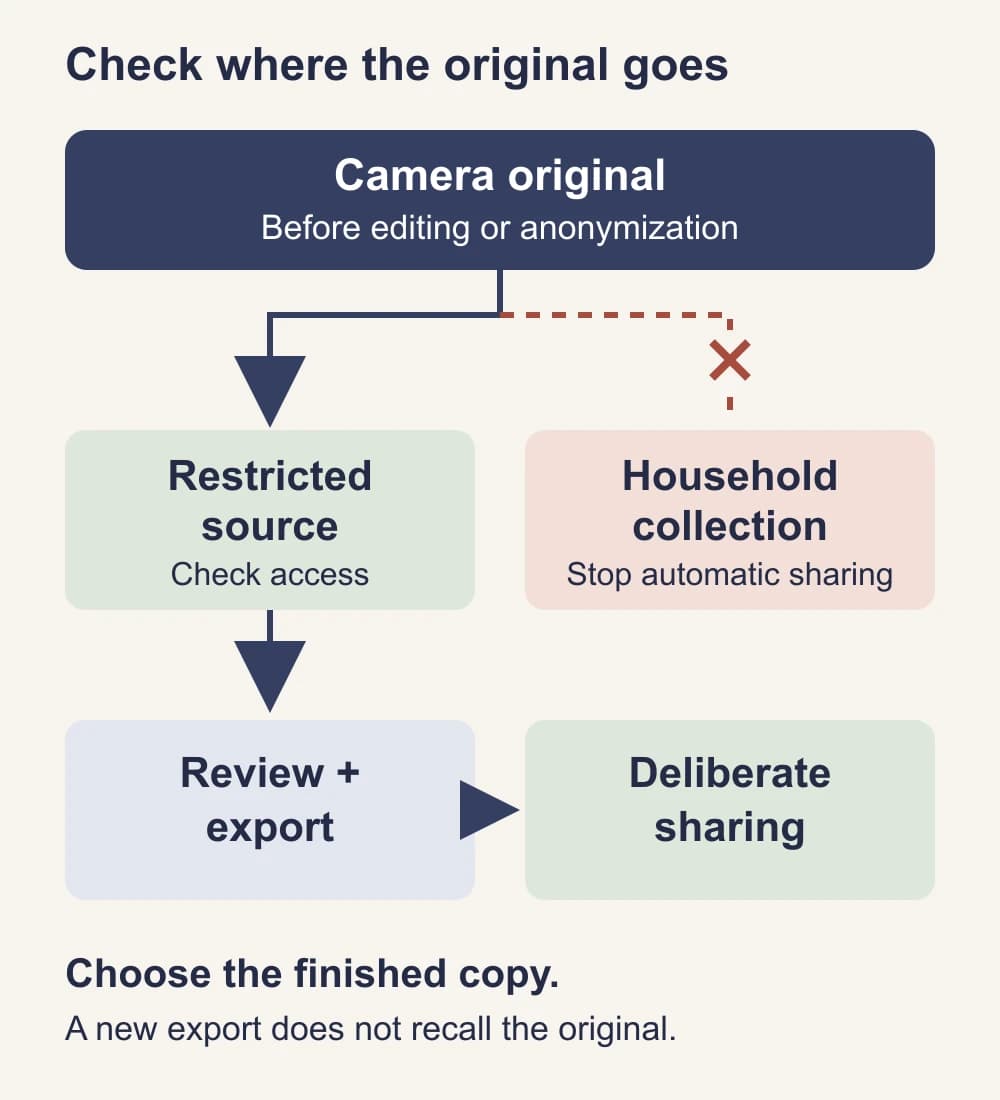
You want to know where the sample was saved, who could see it, and whether editing created another copy. Investigate any unexpected destination before using the same setup for sensitive content.
Repeat this exercise when you change an import app, export folder or photo account. Before each shoot, check the camera's sharing setting.
Share the finished copy
Keep reviewed creator media in a collection separate from the unedited originals. Open the actual file you're about to share, rather than approving only the editor preview.
If you want a visible creator face, the NeoFace photo and prerecorded-video workflow explains how to select a synthetic face, upload content, review the result and download it. Choose the reviewed download when sharing. Processing it doesn't change an original already in a shared library.
If keeping that original separate is too uncertain, consider filming without your face. For the repair tutorial, an overhead shot of the wheel might explain the task without a face-forward introduction.
Give the finished file a clear name, such as wheel-02-intro-approved.mp4, and keep camera takes out of the collection you browse when posting. The name helps you pick the right copy. Use the metadata review guide to check details embedded in the file itself.
For an editor or collaborator, the creator file-sharing guide covers sender details, recipient access and delivery folders. Send the finished copies you've chosen for that handoff.
If an original has already been shared
Stop automatic sharing first. Then identify the affected photo or video and the collection it reached, so you can correct that item without changing unrelated family photos.
For a photo you contributed to iCloud Shared Photo Library, Apple's instructions for moving photos between libraries explain how to select it, open its menu and choose Move to Personal Library. Check the destination afterward.
In Google Photos, remove the affected photo from partner sharing or stop sharing your photos. An edit, deletion or move to Locked Folder won't change a copy your partner has already saved. Ask them to remove an unwanted saved copy if that conversation is appropriate.
Check ordinary shared albums too. If you own a Google Photos album, its sharing controls let you stop access by removing members and turning off link sharing. Existing downloads remain. Apple likewise says saved Shared Album copies remain when sharing stops.
Avoid deleting a whole household library to fix one accidental contribution. Depending on how someone joined or leaves, Apple's Shared Library controls can let them keep copies. Read the choices before confirming a collection-wide change.
Before your next creator shoot
- You know which account and library receive new photos and videos.
- Automatic household sharing is off on the device you film with.
- A harmless test photo reached the intended library.
- Camera imports and editor exports have been checked separately.
- Other backup apps and shared albums have been reviewed.
- Unedited originals are separate from the collection you use for posting.
- You've opened and checked the finished file you plan to share.
- Any original shared by accident has been checked separately.
Keep your account and destination note with the shoot setup. When a phone, app or account changes, it gives you a starting point for checking where new files will go.
Frequently asked questions
- Does turning off photo backup stop partner sharing?
- Turning off backup changes future uploads. It does not withdraw photos already shared. Check partner sharing separately, then review any originals that reached the shared collection.
- Is an iCloud Shared Photo Library the same as a Shared Album?
- No. A Shared Library can receive photos directly from the camera and lets participants add, edit and delete content in a common collection. A Shared Album contains items contributed to that album. Check which feature you use before changing its settings.
- Can I keep family sharing on while making creator content?
- You can keep using family sharing if you can confirm where creator originals are saved and who can see them. Test the camera, imports and editor exports with harmless material. Share reviewed copies deliberately.
- Will anonymizing a photo fix the original already shared with someone?
- No. An anonymized export is a separate file. You still need to correct the original sharing; changing your copy does not retrieve a version someone else has saved.
- Should I delete the whole shared library after an accidental share?
- Start with the affected photo or video and the service’s correction options. Deleting a whole library can affect other people’s photos and may let participants keep copies. Stop automatic sharing before deciding what to remove.
Stand Out While Staying Anonymous
Join thousands of creators building faceless brands with Neoface. Private by default, lifelike by design.
No credit card required · Instant access · Free plan available