Live Photo Privacy: Share a Still Without Motion or Audio
Share iPhone Live Photos as still images without unintended motion or audio. Check the chosen frame, export a reusable copy, and keep originals out of uploads.
To share an iPhone Live Photo as a still, open it in Photos, tap Share, and turn Live off in the upper-left corner of the photo before choosing a destination. For a photo you'll upload repeatedly, prepare a separate still image and use that copy. Check the chosen image itself, too: removing motion won't hide a face or reflection that's already in the still.
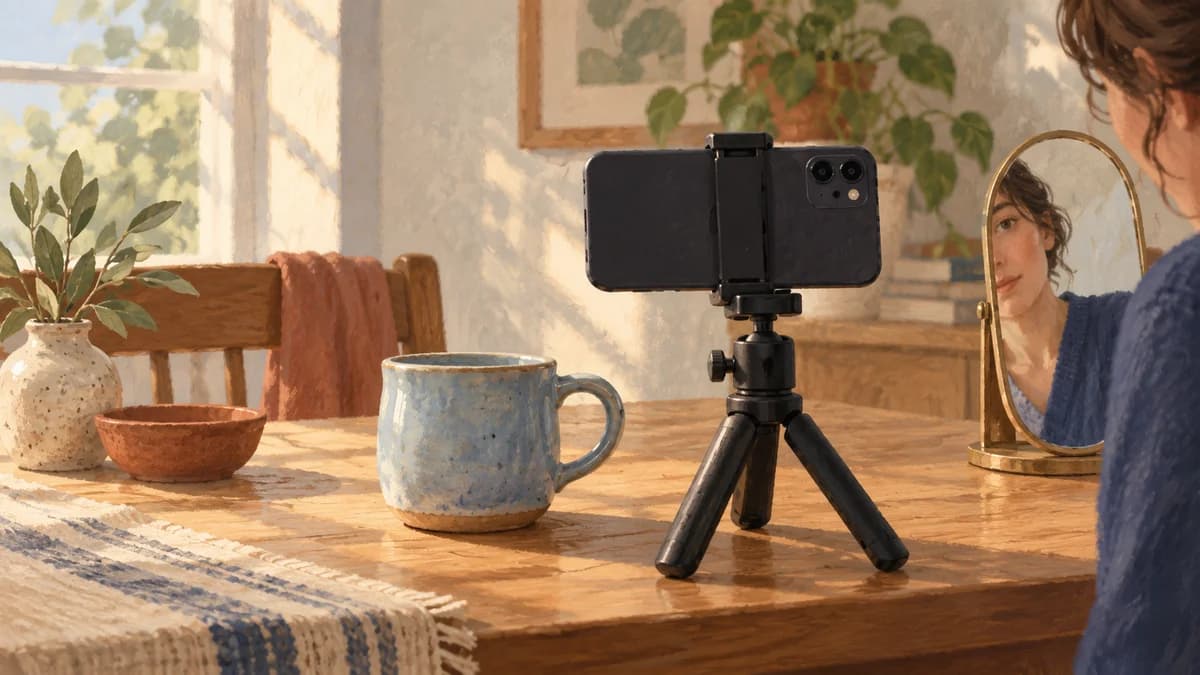
Illustrative scene: a ceramic photo setup includes a face in the mirror at the edge. A nearby moment can reveal something you didn't intend to include in the mug photo.
Imagine you're photographing a mug for your creator account. The chosen photo shows the mug and your hands. Just before it, you lean toward the table and your face appears in a small mirror. Someone also says your real name while you adjust the setup. You want to publish the mug photo, without sending those surrounding moments along with it.
Look beyond the photo you see first
Apple's Live Photo capture guide explains that a Live Photo records the moments immediately before and after the shutter press. It can contain movement and sound alongside the chosen still image, called the key photo.
Open the source in Photos and play it with sound audible. Watch what enters the frame, including mirror and window reflections. Listen for names, conversation and other details you wouldn't include in a post. If you need a closer look, use the frame viewer in the Live Photo editor to inspect the surrounding images.
In the mug example, check the mirror before approving the still. If the reflected face appears only in another frame, a still-only version may fit your purpose. If it's visible in your chosen image, select a different frame, crop it out, cover it or take another photo.
You don't need to keep motion just because it was captured. For a product photo, outfit detail or static cover, start with one reviewed still. Keep the moving version when movement is part of what you want the viewer to see, such as showing a glaze catch the light.
| What you want to publish | Practical starting point | What needs review |
|---|---|---|
| One photo sent from Photos | Turn Live off for that share | The chosen image and share settings |
| A photo reused across posts or delivered to an editor | Export a separate still image | The saved copy and which file you select |
| A short moving moment | Prepare it as video | Every retained frame and the sound |
| A still that already shows a private detail | Correct the image or reshoot | The actual result after the correction |
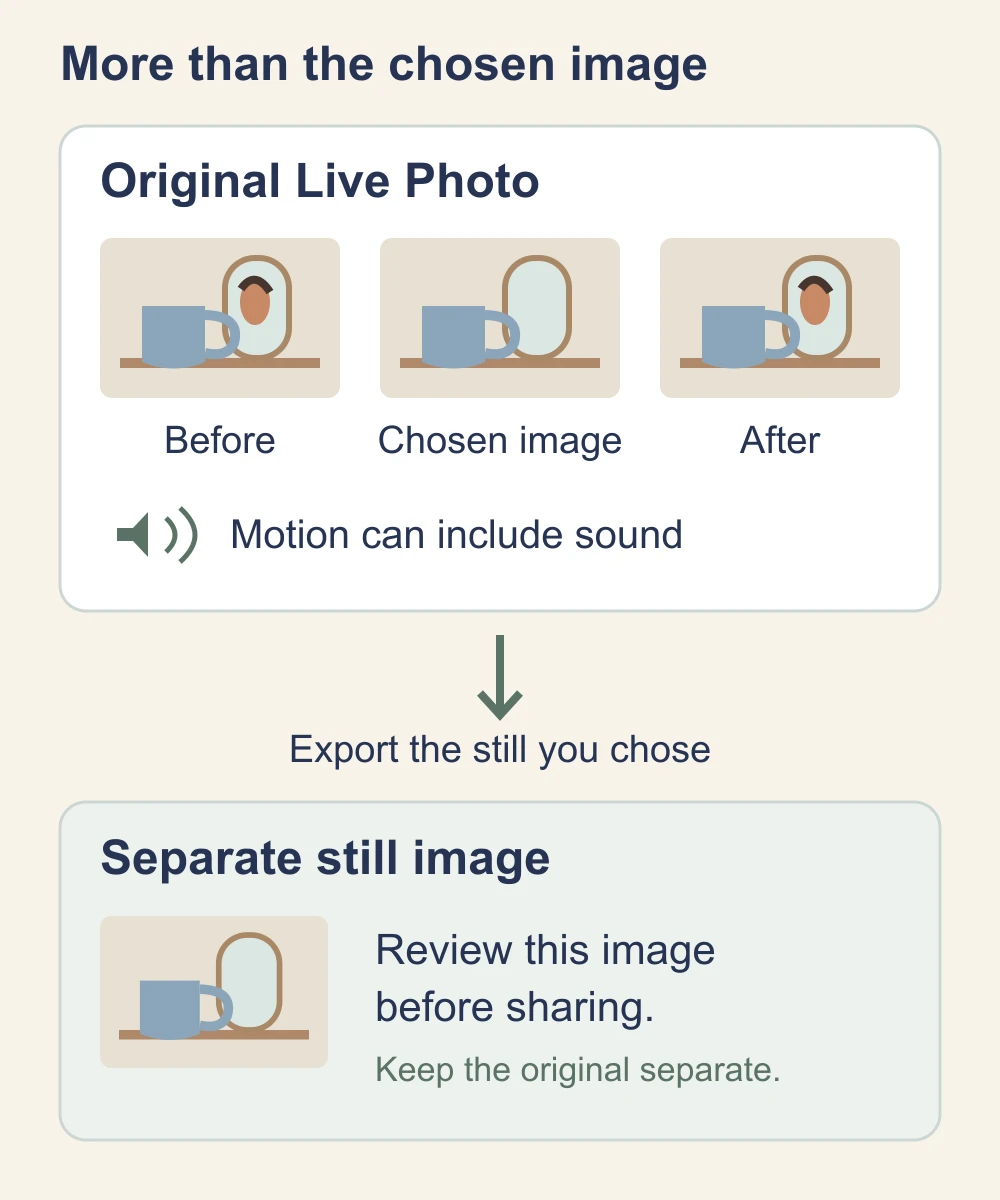
Send a still once from your iPhone
For an individual share, follow Apple's still-sharing instructions:
- Open the intended Live Photo in Photos.
- Tap Share.
- Tap Live in the upper-left corner of the photo to switch it off for the share.
- Choose the destination and confirm the selected item before sending.
Check the control rather than assuming a destination will flatten the photo for you. If your screen differs, open the linked Apple instructions for your software version. These steps are for sharing from Photos; an upload started inside another app may use a different picker.
For a batch, take a moment to inspect all selected items. Similar thumbnails make it easy to add an original beside its edited copy. Start with one non-sensitive sample if you haven't used that route before, and check the received item on a device that can play Live Photos. You can use a photo of an empty desk for this check; you don't need to send the private source as a test.
Keep original-data sharing out of a finished-photo handoff
In the share sheet, Options has a separate purpose. Apple's photo-sharing guide describes All Photos Data as sending the original file with edit history and metadata through AirDrop. Leave that option off when the recipient only needs your finished image.
Similarly, Most Compatible is a format choice, not a still-only privacy switch. Don't substitute it for choosing which content to send. If an editor needs a working original, decide on that handoff explicitly rather than including it in a folder of approved public images.
Make a separate still for repeated uploads
A reusable delivery image reduces the chance of choosing the Live source again next week. It also gives you one file to crop, anonymize and inspect before distributing it across platforms.
On a Mac, Apple's Photos export instructions support exporting a Live Photo as a still:
- Select the intended item in Photos.
- Choose File → Export → Export [number] Photos.
- Choose an image type, such as JPEG, in Photo Kind. Set the size and quality for your intended use.
- Save it into a folder containing only delivery images, then open the exported file.
For this task, avoid Export Unmodified Original. Apple says that option exports a Live Photo as two files: the still and the video. Those originals can be useful for private editing, but don't send the whole export folder when you only intended to send a photo.
If you work entirely on iPhone, use still-only sharing for the immediate handoff. If you need a reusable file, use an image editor's documented still-export option, save the resulting image, and check that copy before uploading. Don't assume that switching off Live playback in your library has permanently removed the source motion.
Name the approved copy something easy to recognize, such as mug-cover-approved.jpg. Keep the original outside the folder you use for uploads. A different filename helps you choose; it doesn't change the content by itself.
Anonymize a face in the chosen still when needed
First decide whether the face belongs in the photo at all. For a product shot, moving the mirror or taking another photograph may give you a simpler result. If the person is part of the intended presentation, prepare the selected still before processing it.
The NeoFace photo workflow lets you choose a synthetic face, upload a photo, review the result and download it. Inspect that downloaded image, including reflections and other identifying details. Don't assume that processing a still also processes the motion or audio in its original Live Photo.
Keep the reviewed download with your delivery images. When you post, select it rather than the original or an earlier export.
If you want to keep the movement
Treat the moving version as a short video. Apple's Live Photo editing guide separates choosing a key photo, trimming the motion, muting sound and turning Live off. Choosing a flattering key photo doesn't fix a face elsewhere in the clip; muting sound doesn't fix a visual exposure.
The guide also describes Save as Video in the photo's More menu. If you choose that route, review the saved video with sound and inspect the start and end. In the mug example, cutting the beginning might exclude the reflected face, while a spoken name later in the clip would need a separate audio decision.
If the movement is difficult to correct, shoot a new short clip with the mirror removed and the room quiet. You'll often have more control over that recording than over the few moments captured around a still. Use the final video privacy checklist when you're preparing the video version for release.
Choose what your camera captures next time
If your creator work mostly needs stills, turn Live Photos off in Camera before the session. Apple's camera-setting instructions explain how to keep that choice: in Settings → Camera → Preserve Settings, enable preservation of the Live Photo setting after switching Live off in Camera.
The preservation switch remembers your choice; its name doesn't mean you should leave Live capture on. Reopen Camera and check the Live control before the next shoot.
You can still use Live Photos deliberately for personal pictures or creator shots where the surrounding action helps. Make that choice before capture and check it again before sharing. Changing the camera preference is for future shots, so handle existing Live Photos individually.
Check the delivery copy before publishing
Open the file you'll select for the post, rather than going back to the camera original. Inspect the crop at full size, especially mirrors, shiny objects and the edges. Confirm that you have the intended still, with no companion movie included in the delivery folder or attachment selection.
Then handle the separate details. A still can retain location or other embedded information; use the photo metadata workflow to inspect and clean that exact copy. If you're sending a link or folder to someone else, the creator file-sharing guide covers sender details and access.
Before you publish or send:
- The chosen image excludes the face, reflection or detail you wanted to keep private.
- You've deliberately chosen still-only sharing, a separate still file or reviewed video.
- The upload picker selects the approved copy, not a similar-looking original.
- Original-data sharing is off for a finished-image handoff.
- No companion video or working original is included with the still.
- The saved image's metadata, filename and visible details have been checked.
- A new sharing route has been checked with a non-sensitive sample.
- Any retained motion and audio have been reviewed separately.
Once you've made a reusable still, keep publishing from that reviewed copy. If you change its crop, choose another key frame or make another export, inspect the new image before using it.
Frequently asked questions
- How do I send a Live Photo as a still on iPhone?
- Open the photo in Photos, tap Share, then tap the Live control in the upper-left corner of the photo to turn Live off for that share. Choose your destination afterward. For repeated uploads, prepare a separate still image so you can select that copy each time.
- Does changing the key photo remove the other frames?
- No. The key photo chooses the still you see; changing it is separate from trimming or turning Live off. If you only want to share one image, use still-only sharing or export a separate still.
- Is muting a Live Photo enough to hide an unexpected face?
- No. Muting addresses sound. A face, reflection or document can still appear in the moving picture. Choose a still that excludes the detail, or review and edit the motion as video if you need to retain it.
- Will a JPEG export remove my location information too?
- Do not assume that. Choosing a still image and removing metadata are separate tasks. Inspect the actual exported file for location and other identifying fields before publishing it.
- Can I keep Live Photos for personal use and share stills as a creator?
- Yes. You can choose still-only sharing for an individual item or prepare a separate exported image for creator use. Keep your original apart from the files you select for publishing, especially when both versions look alike in a picker.
- What if I already sent the Live Photo?
- Check which version was delivered and whether the recipient can play it. If it includes something private, use the available removal controls and explain the correction to the affected recipient. Send a reviewed still if appropriate; a new copy does not retrieve an earlier download.
Stand Out While Staying Anonymous
Join thousands of creators building faceless brands with Neoface. Private by default, lifelike by design.
No credit card required · Instant access · Free plan available