Turn Off TikTok Downloads, Duet, and Stitch
Turn off TikTok downloads and reuse on creator videos. Check new and older posts, choose an audience, and understand what happens to existing Duets and Stitches.
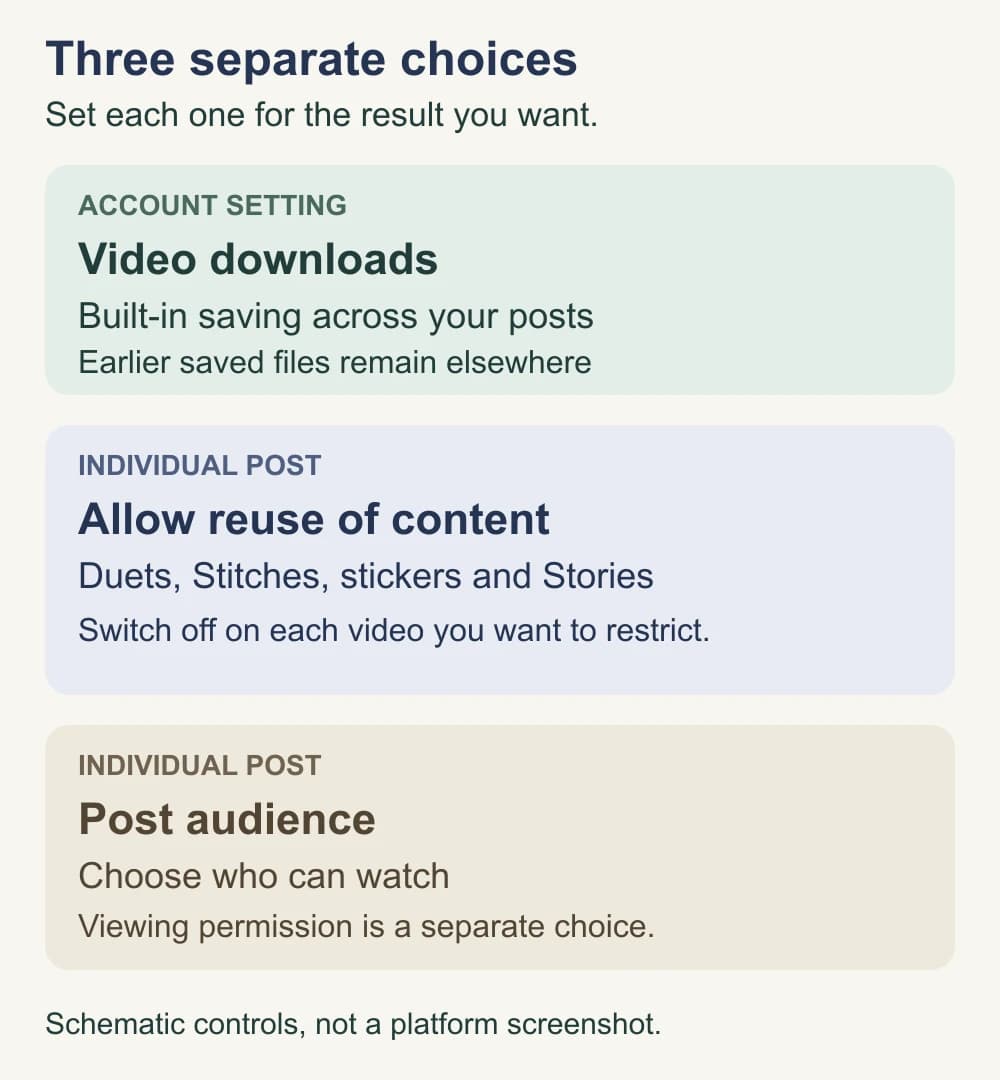
To limit built-in saving and reuse of your TikTok videos, turn off Video downloads in your account’s privacy settings, then turn off Allow reuse of content on the posts you want to restrict. Check older videos as well as the one you’re about to publish. These controls don’t retrieve previously downloaded files or remove Duets and Stitches already made, so choose the audience separately if you need fewer people to see a clip.
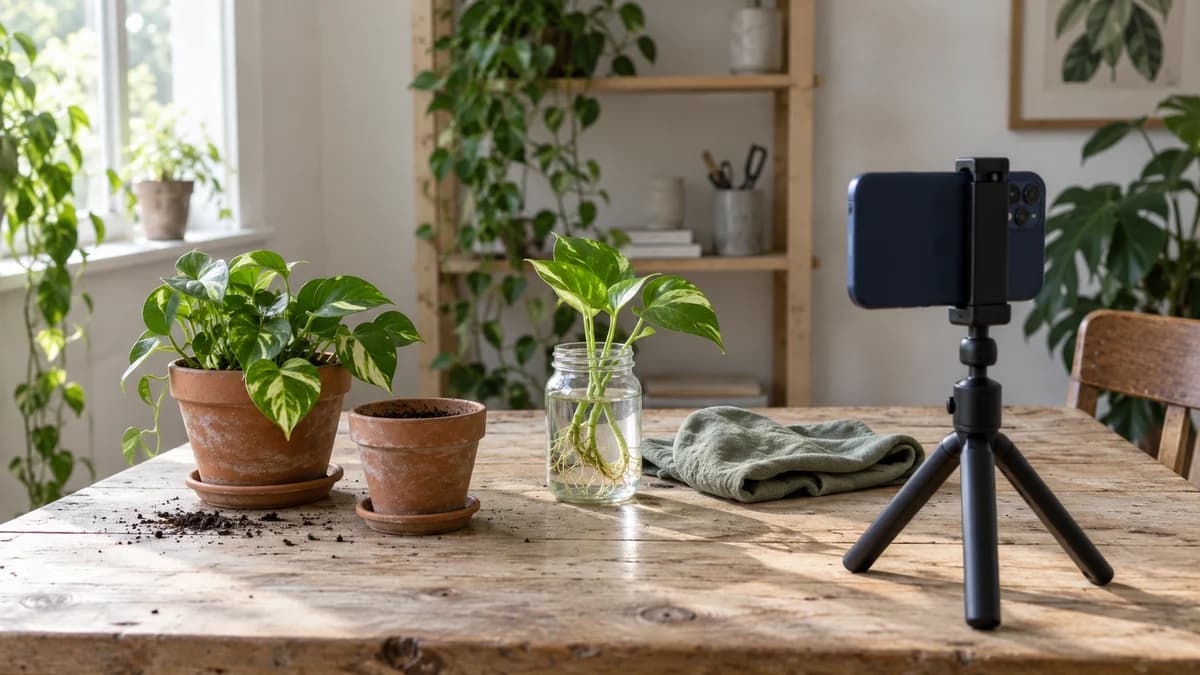
Illustrative scene: a phone on a tripod faces plant pots and a cutting. Prepare the clip you’re willing to share before choosing its TikTok permissions.
Choose what you want people to be able to do
You may want people to watch a tutorial on your profile without inviting them to save it or put it into their own post. That’s a different decision from making the video private.
A Duet puts another creator’s video alongside yours. A Stitch combines part of your video with a new video. TikTok groups these permissions with stickers and adding posts to Stories under reuse of content. Downloads have their own setting.
For example, a plant creator might welcome viewers trying the propagation method while keeping reuse off for the filmed demonstration. If they later want a collaboration, they can make a separate clip with the other creator and agree on what it may show. They don’t need to open every existing tutorial to reuse.
| What you want | Setting to check | What still needs attention |
|---|---|---|
| Keep a post watchable without TikTok’s built-in saving | Video downloads | Earlier downloaded copies remain elsewhere |
| Stop new Duets and Stitches using a particular video | Allow reuse of content on that post | Existing associated posts need a separate decision |
| Allow reuse by mutual followers | Allow reuse of content from: Friends | Friends still have reuse permission on eligible posts |
| Limit who can watch the video | The post’s audience | Saving and reuse settings answer different questions |
Turn off video downloads across your account
Follow TikTok’s download-setting instructions:
- Open your profile and use the menu in the top corner.
- Open Settings and privacy, then Privacy.
- Open Downloads and switch Video downloads off.
TikTok says the change covers videos and photos you’ve already posted, as well as future posts. You can still download your own content. If the setting was previously on, copies saved to other people’s devices remain there.
There’s another useful limit: people can still share a link to your content or send that link through messages outside TikTok. Turning downloads off doesn’t make a public post difficult to find. If unwanted account suggestions are your concern, use the separate TikTok contact and account-suggestion guide.
Turn off reuse before posting, then review older videos
TikTok’s current Duet privacy controls use Allow reuse of content for individual posts. Switching it off also affects Stitch, stickers made from the post, and adding it to someone else’s Story.
For a new video, open More options on the Post screen and switch Allow reuse of content off before publishing. Treat that as part of choosing the audience and confirming the file you selected.
For a video already on your profile:
- Open the video you want to restrict.
- Open its More options menu on the side.
- Find Privacy settings; you may need to swipe through the options.
- Switch Allow reuse of content off. Scroll within the panel if necessary.
Work through the older posts you want to restrict. Keep a small list of their titles or links so you can distinguish “checked and off” from “still to review.” Start with any clip you know is being reused, then continue through the rest of the collection you want to cover.
The account-level Reuse of content page answers who may reuse eligible posts. Under Allow reuse of content from, TikTok currently lists Everyone and Friends. Friends means followers you follow back. Choosing Friends narrows permission; use the individual post’s switch when your intention is to stop reuse of that video.
Choose a smaller audience for a private clip
If a video contains something you no longer want people to see, reducing saving and reuse isn’t enough. Open the post’s Privacy settings and change who can watch it while you decide what to do with the file.
TikTok’s post-privacy help lists Everyone, Friends, and Only you for public accounts. Private accounts have Followers, Friends, and Only you. Available choices can depend on age and location. Only you is a viewing choice here; don’t confuse it with the account’s reuse audience.
If every post needs an approved audience, consider whether a private account fits your work. TikTok says private accounts prevent other people from downloading posts or using them for Duets, Stitches, stickers, or Stories. Your name, username, and profile photo remain visible, and people can still search for the account.
For one accidental face exposure, you may prefer to restrict that post and prepare a corrected version. Changing the whole account is a broader choice that affects the rest of your audience, too.
Decide separately what to do about an existing Duet or Stitch
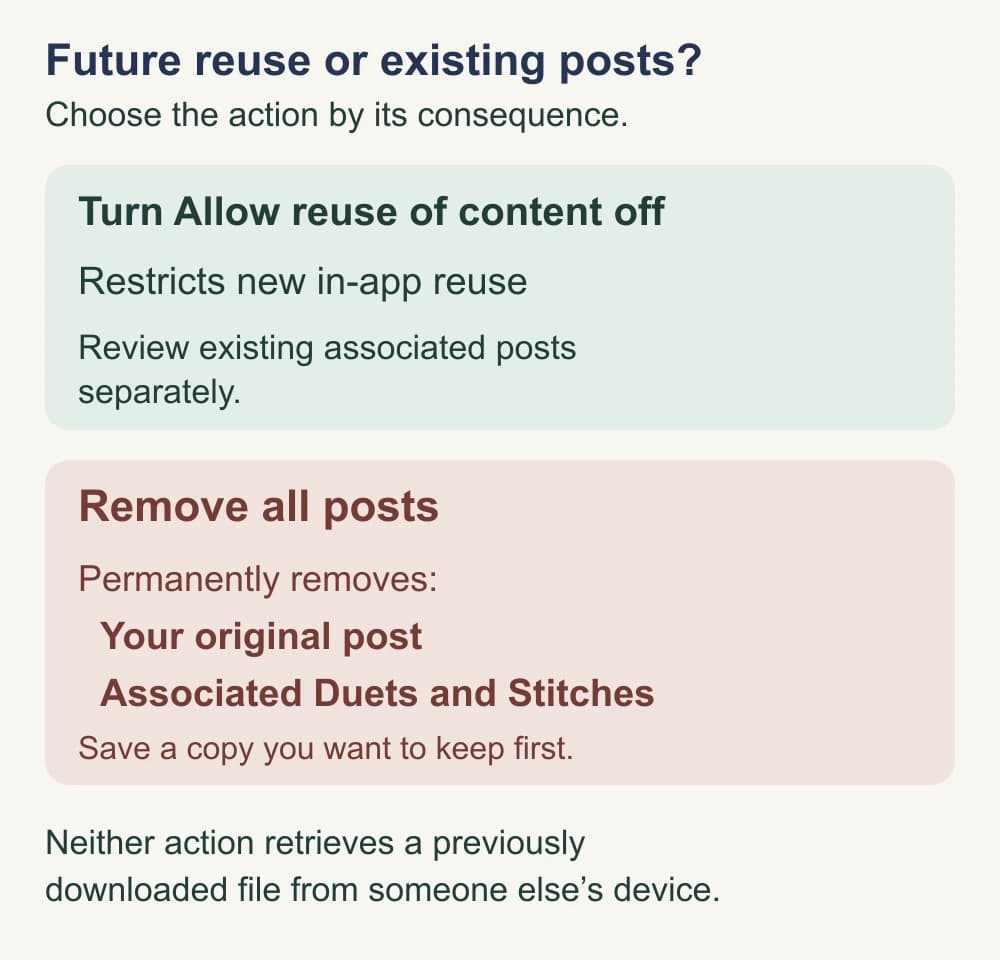
Turning off reuse controls new reuse. An already-created post needs a different action. TikTok’s Stitch privacy help describes Reuse of content history, where you can review associated videos.
To find it, open your profile menu, then Settings and privacy → Privacy → Reuse of content → Reuse of content history. Select the original video whose associated posts you want to review.
Read the removal choice carefully. Remove all posts permanently removes your original post and its associated Duet and Stitch videos. It isn’t an option for keeping the original online while clearing everything linked to it. Save a copy of your original if you want one before you confirm removal.
If one associated video violates your privacy, TikTok’s help links to its privacy-reporting form. Keep the offending post’s link and a clear description of the concern. Reporting is a separate route; don’t assume it will remove the post or return copies already held elsewhere.
For an unrelated copy you find outside this history, record where it appears. The history tool covers associated Duets and Stitches, rather than every version of a video on the internet. A reverse-image check of your own public creator photos can help with still-image reuse; it isn’t a complete video-copy search.
Publish a file you’re comfortable letting people watch
Permissions are worth setting, but prepare the media before relying on them. For the plant tutorial, a frame containing only the pot and cutting may be a better choice than a wide shot that shows the creator’s face and the room behind them. If the demonstration doesn’t need your face, framing it out avoids having to treat it later.
If you want to keep a filmed face in the presentation, the NeoFace face-anonymization workflow covers selecting a synthetic face, uploading a photo or prerecorded video, reviewing the processed result, and downloading it. Check the downloaded version before choosing it for TikTok. NeoFace doesn’t change TikTok’s sharing permissions or remove a post someone else has made.
Use the final-video privacy checklist for the clip itself, including sound and reflections. Review a separate video cover and moving preview as well. A download setting can’t correct a private detail already visible in the published file.
Before publishing or finishing an older-post review
- Confirm that Video downloads is off if you don’t want built-in saving.
- Check Allow reuse of content on the specific video.
- Choose who can watch the post, separately from reuse permissions.
- Confirm you selected the reviewed export and intended cover.
- Record which older posts you checked and which remain.
- Review existing associated Duets and Stitches separately from the switches.
- Before Remove all posts, decide whether losing the original post is acceptable and save a copy you want to keep.
- Keep any existing-copy concern separate from the settings you’ve changed for future use.
Frequently asked questions
- Can I turn off TikTok downloads without making my account private?
- Yes. Open Settings and privacy, then Privacy, then Downloads, and switch off Video downloads. Your post audience is a separate choice. Turning downloads off restricts TikTok’s built-in saving options; it does not retrieve copies people already saved.
- Does turning off downloads also turn off Duet and Stitch?
- No. Open the video’s Privacy settings and switch off Allow reuse of content to restrict Duet and Stitch for that post. Check this separately from the account’s Video downloads setting.
- Does Friends mean all my followers can reuse a video?
- TikTok defines Friends as followers you follow back. It still allows that group to reuse eligible posts. If you want reuse off for a particular video, turn off Allow reuse of content on the post.
- Will turning off reuse delete Duets people already made?
- No. Turning off reuse and removing associated posts are different actions. Review Reuse of content history for existing Duets and Stitches. TikTok’s Remove all posts action permanently removes your original post along with its associated Duet and Stitch videos.
- Can people still share my TikTok link when downloads are off?
- Yes. TikTok says people can still share your content through links or direct messages on other platforms. Turning downloads off restricts built-in saving. Choose the post’s audience separately if you want to limit who can watch it.
Stand Out While Staying Anonymous
Join thousands of creators building faceless brands with Neoface. Private by default, lifelike by design.
No credit card required · Instant access · Free plan available