Hide Your Face in Video Thumbnails and Previews
Keep your face out of video thumbnails and previews. Choose reviewed cover images, check YouTube and TikTok controls, and correct footage used in moving previews.

Illustrative scene: a food-filming setup with a dish-focused cover idea beside the camera. The subject can explain the video without a portrait.
To keep your face out of video thumbnails, use a reviewed frame or prepare a separate cover image with no identifiable face. Check the saved cover in the places viewers will see it. Review the video too: a moving preview can show footage that your still image leaves out.
For example, a dumpling tutorial could have a beautiful plate-only cover while the recording still shows you leaning toward the camera to adjust the light. The cover is ready to share; that moment in the video needs a separate correction. Choosing the plate again won't change the recording.
Choose an image that explains this video
Start with what the viewer came to see. A finished dish, a repaired bicycle part or a close view of your drawing can give the cover a clear subject without including your face. You don't need to reconstruct a portrait-based design if the activity already supplies a useful image.
Write a brief description before choosing the file: “The cover shows the finished dumplings and the folded edge we're learning to make.” That gives you a reason to reject a wider shot full of kitchen clutter, even if the wider shot looks attractive.
| What the video teaches | A useful cover candidate | Check before choosing it |
|---|---|---|
| Cooking a dish | Finished food or a clear preparation detail | Reflections in serving utensils and nearby surfaces |
| Repairing an object | The repaired part beside the tool used | Labels, engravings and unrelated items behind it |
| Drawing or making something | The project at the stage discussed | Signatures, personal notes and the edge of the workspace |
| A creator-led explanation | A reviewed masked or anonymized portrait | The full face treatment, background and final crop |
Keep the image faithful to the lesson. If the finished object doesn't appear in the video, photograph a stage that does. A short title can explain an otherwise ambiguous detail, but avoid putting a personal name or workplace into that text.
You can keep a familiar color, prop or lettering style across your covers without reusing a personal photograph. Choose the image for this video's subject first, then apply those creator details.
Make the cover from a file you've already checked
A frame from the approved video is a useful starting point because it comes from the version you intend to publish. Open that export in your editor or player, find a clear moment, and use its still-frame export option. Don't take the image from an untreated camera clip simply because it's easier to find.
Inspect the exported still at full size. A tiny reflection that was easy to miss during playback may be much easier to notice in a frozen picture. Look around the main subject, including the far corners and any shiny objects.
If no frame works, take a separate cover photo. For the dumpling example, place the dish on a cleared table and move the camera closer. You can leave your head out of the composition from the start, rather than trying to repair a wide kitchen portrait afterward.
When the intended cover includes a face
Decide whether you need the person in the picture. Cropping them out, choosing another moment or taking another photo may be simpler than editing their face. An opaque cover can fit a deliberately graphic design; a mask or anonymized portrait can fit a creator persona. The face-hiding method comparison helps with that choice.
If you want an anonymized portrait, the NeoFace photo workflow supports choosing a synthetic face, uploading a photo, reviewing the result and downloading it. Build the cover from the reviewed download. Inspect the face at full size before adding text or reducing the image, and check the surroundings separately.
Don't approve a recognizable face because the thumbnail will be small. If you can still see the detail you meant to hide, choose a different treatment or image. For a collaborator, use the appearance they've agreed to publish rather than deciding from the thumbnail alone.
Export a distinct cover file
Save the finished image with the matching video, using a clear name such as dumplings-04-cover-approved.jpg. Keep the working image and camera original outside the folder you use for uploading.
Open the saved file again. Confirm that it contains the intended crop and face treatment, then inspect its embedded details with the photo metadata workflow. A new filename helps you select the right file; it doesn't remove information inside it.
If you create alternate covers, inspect each one. A portrait-free first option doesn't approve a second design made from a behind-the-scenes photograph.
A still cover doesn't change a moving preview
Some viewing surfaces show motion before a viewer opens the full video. YouTube's video-preview help describes a three-second preview and says the clip is selected automatically from the first half of the video. The still thumbnail appears when that preview isn't active.
That gives you two separate things to prepare: the image you choose and the footage the platform can show. Don't leave an unwanted face in the opening half because you've uploaded a face-free cover. Review the rest of the recording as well, since viewers can open the full video.
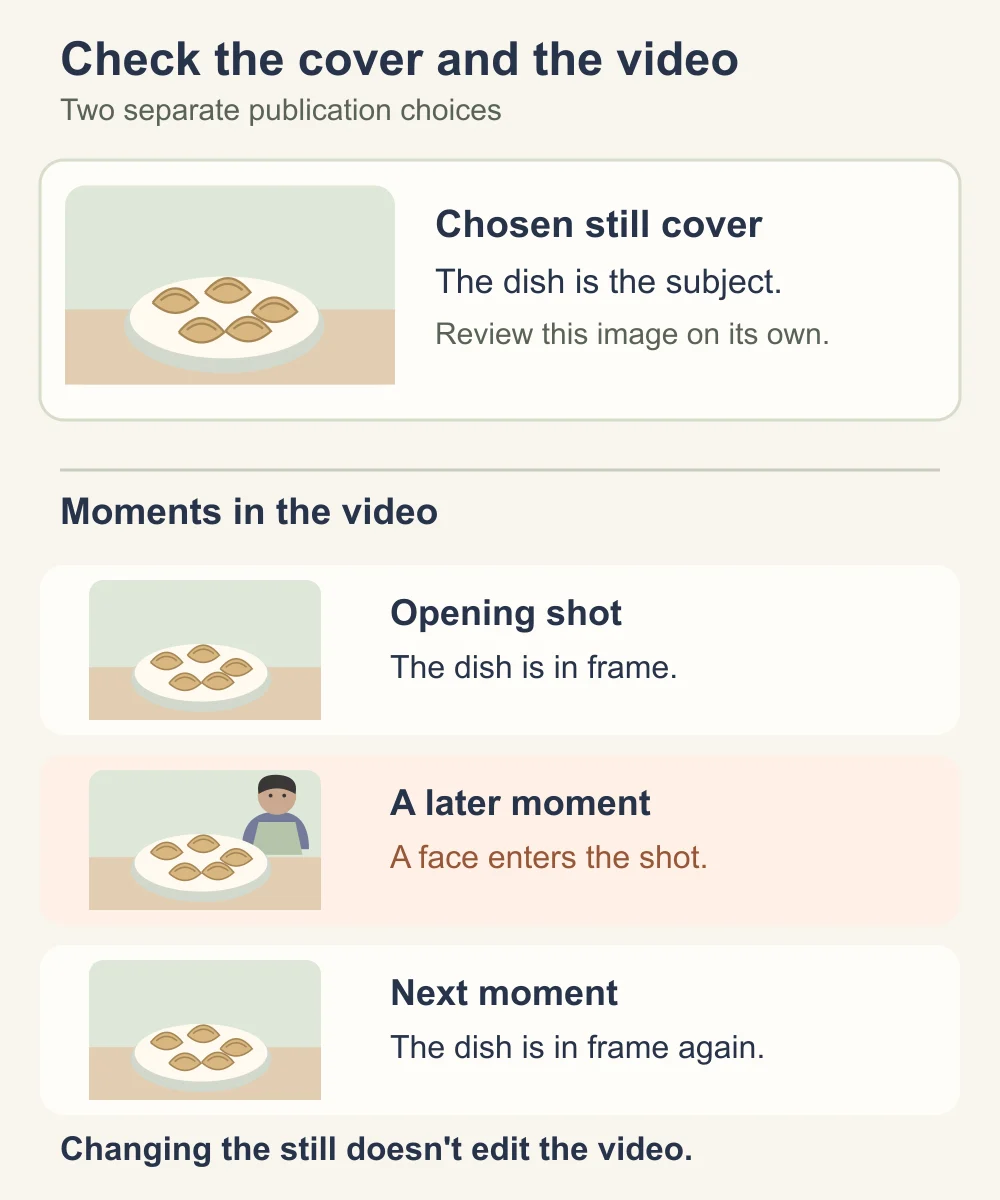
In the dumpling example, remove the light-adjustment shot or crop it so your face is outside the finished frame. If that would hide an important folding step, consider a short new take of that step. The simplest correction is the one you can clearly inspect in the resulting export.
Use the final video privacy checklist for the whole file. The cover check complements that review; it doesn't replace it. If you can't get an acceptable recording, hold the upload even when its cover is finished.
Set the YouTube thumbnail, then check the saved choice
Follow YouTube's current thumbnail instructions: on a computer, open Studio → Content, select the video, then use Thumbnail → Upload file and Save. Custom uploads require a verified account. Check the current image requirements before exporting.
For Shorts, current help describes desktop uploads: select Shorts in Content, open the item, upload under Thumbnail, and save. Check your channel’s controls; older tutorials may differ.
Some vertical-video surfaces use an automatically generated thumbnail instead of the uploaded 16:9 image. Inspect those surfaces too. Thumbnail changes can take time to appear.
After saving, reopen the item and compare it with your approved cover file. Then check the image on the watch page and other available viewing surfaces, at a useful size. If a moving preview appears, watch it too. Seeing the right still doesn't finish the motion check.
Choose the TikTok cover before posting
TikTok's cover-selection instructions describe a cover as the thumbnail used in places such as your profile and search results. Before posting, tap Select cover on the post screen, drag to the desired frame, then tap Save.
Choose that frame from the corrected video you're about to publish. If the available moments don't give you a face-free, readable cover, return to the edit before posting. A clear shot of the dumpling plate can serve both the explanation and the cover choice.
Check the saved selection rather than remembering where you dragged the selector. These steps apply to choosing a cover before a new post; don't assume the same controls will be available for changing an existing post.
Inspect crops and the covers on other posts
Open your finished cover large enough to inspect details, then reduce it to roughly the size you'll see in a feed. Use the large view for privacy and the small view for readability. A label isn't acceptable because it becomes hard to read when you shrink the image.
Where a publishing tool shows a crop, review that crop before confirming it. Keep the useful subject away from an uncertain edge. If you need landscape and vertical versions, export and check them separately instead of stretching one image.
Cross-posting adds another selection step. A teaser, a new upload or a manually attached image may use a different file from the original post. Keep a short list of the places you plan to publish and note which cover belongs to each.
You don't need an elaborate tracking system. For example: “YouTube tutorial: landscape plate cover. Short teaser: reviewed folding frame. TikTok: plate frame selected before posting.” This makes the different choices easy to check without assuming they all share one image.
If a published cover already shows a face
Restrict the affected post's visibility where you can, then identify what needs fixing: the uploaded image, a selected video frame, or the video itself. On YouTube, Private restricts viewing to you and people you choose; Unlisted links can be reshared. Confirm the saved visibility while you work.
Correct the cover separately from the recording. If the YouTube video also contains the unwanted face, the existing-upload face-blur guide covers that operation. If your platform doesn't offer the correction you need, decide whether to remove the post and prepare a new version.
Recheck the affected surface after saving. If the old image remains, first confirm the correct item and saved choice, then check again later or use the platform's support route. Keep viewing restricted while you can't confirm the correction. Changing the post won't retrieve copies someone already saved.
Update cover images attached to other posts you control, including a promotional still sent separately from the video. Ask an editor to use the corrected file for future posts rather than sending them the entire folder of working versions.
Before you share the video
- The cover explains this particular video without an unwanted face.
- It came from a reviewed export or an independently checked photo.
- The saved image's full-size details, crop and metadata have been inspected.
- Every alternate cover follows the same face rule.
- The video is approved separately, including moments a moving preview could show.
- The upload uses the approved video and matching cover files.
- The platform's saved thumbnail or selected cover matches your choice.
- Available published crops and moving previews have been checked.
- Teasers and cross-posts use their own reviewed cover selections.
Keep the approved cover beside the matching video for the next upload. If you change either file, check the changed version before using it again.
Frequently asked questions
- Does a faceless thumbnail hide my face in a video preview?
- No. A still thumbnail and a moving preview are separate. If the preview uses footage containing your face, changing the cover image does not correct that footage. Review and edit the video before relying on it for public previews.
- Can I choose which part of my YouTube video appears on hover?
- YouTube says its three-second preview uses an automatically selected clip from the first half of the video. Prepare the footage for that possibility instead of relying on a chosen thumbnail to control the moving preview.
- Can I upload a custom thumbnail for a YouTube Short?
- YouTube currently documents custom Shorts thumbnail uploads in desktop Studio for verified accounts. Check your channel’s controls and inspect the saved image.
- What should I use instead of a face in a thumbnail?
- Show the useful subject: the finished dish, a repaired part, a project detail, or a clear view of the activity. Choose a picture that matches the video and check the surroundings before exporting it.
- Why is my old thumbnail still showing after I changed it?
- Confirm the new selection was saved for the correct video. YouTube notes that changes can take time to appear. Recheck the affected viewing surface before sharing again.
- Should I take a separate photo for my video cover?
- Yes, if no reviewed video frame explains the subject clearly. Keep the photo within your usual face rule, inspect it independently, and save the finished cover beside the matching video so you can select both without returning to the camera originals.
Stand Out While Staying Anonymous
Join thousands of creators building faceless brands with Neoface. Private by default, lifelike by design.
No credit card required · Instant access · Free plan available