How Face Anonymization Works: Demystifying It, Step by Step
Follow one photo through face anonymization: the face is found and lined up, redrawn from noise, outlined and blended back into the original photo.
- face-anonymization
- creator-privacy
- ai-disclosure
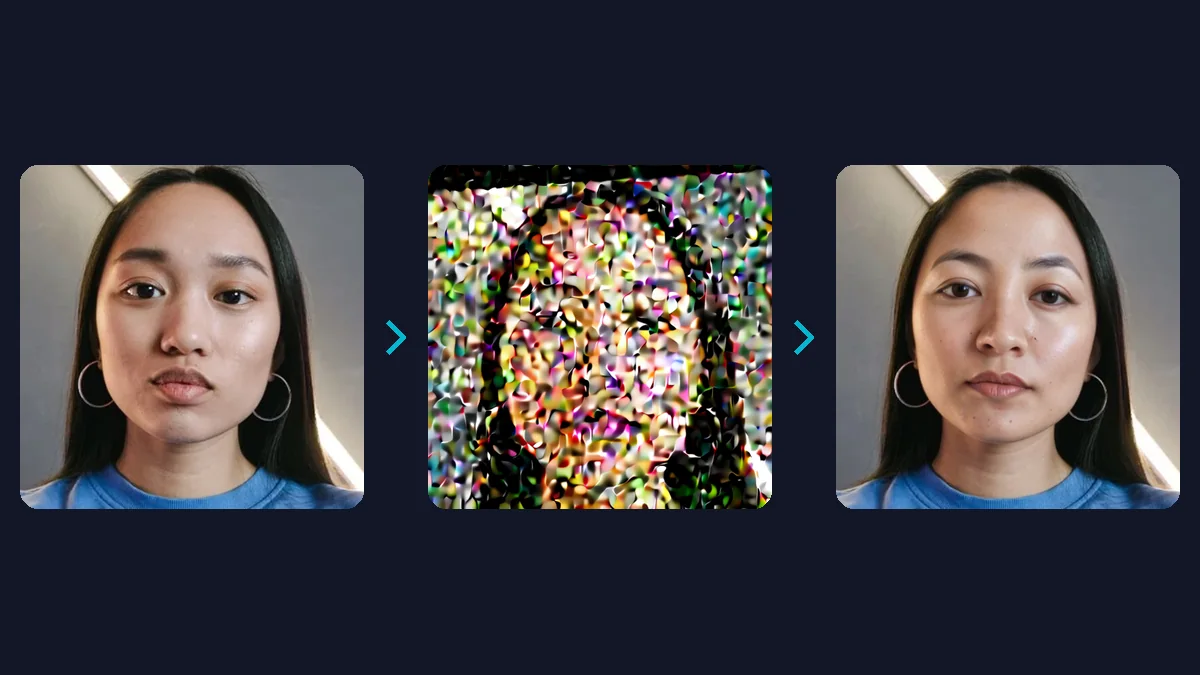
Face anonymization changes one part of your photo: the face. NeoFace finds the face and lines it up, redraws it from noise to match the persona you chose while keeping the angle of your head, your expression and the lighting, outlines exactly which pixels are face and blends only those back into your photo. Below, one photo goes through each stage, using the pictures the system made along the way.
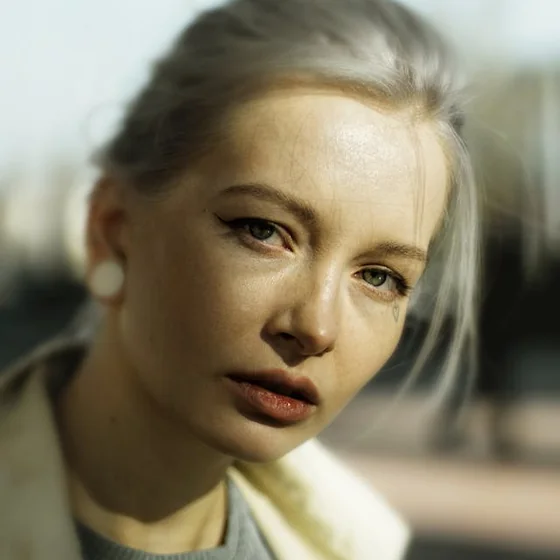 Your photo
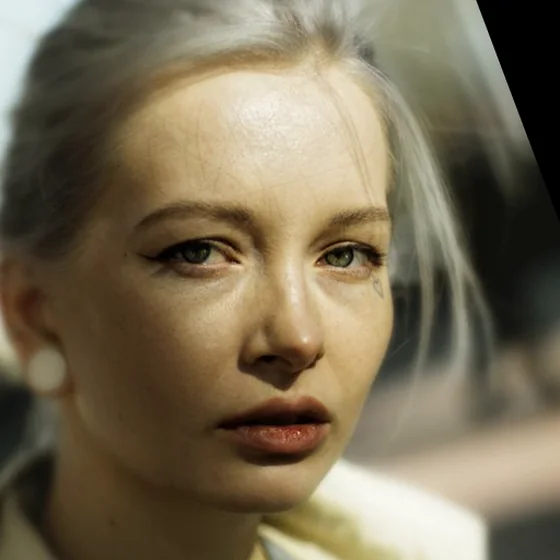 Lined up
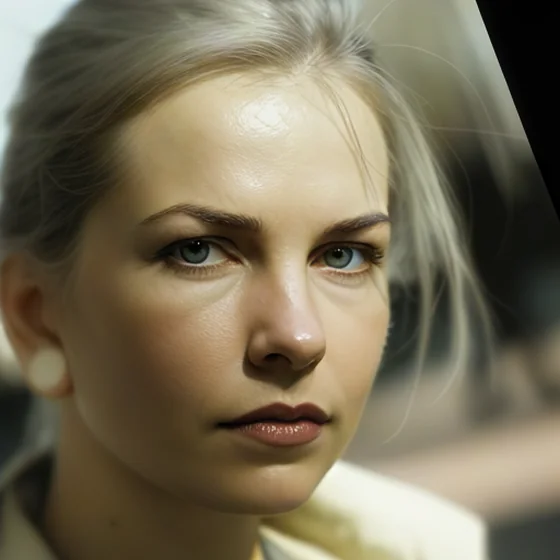 Redrawn
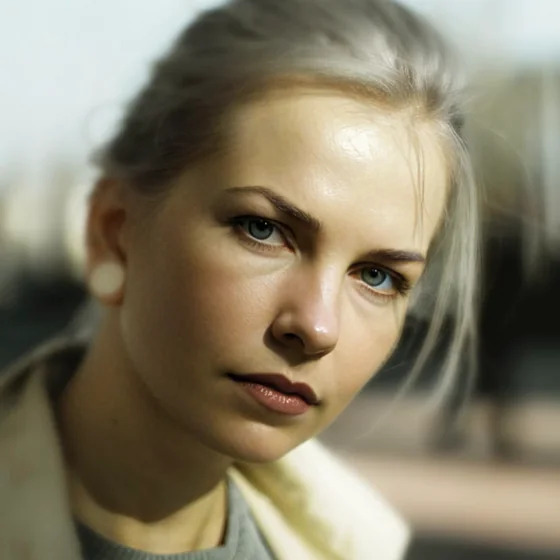 Result
If you want the short version first, Is Face Anonymization AI? explains what kind of AI this is. This guide goes a level deeper and shows what each stage does to a real photo.
What goes in?
Two things: your photo or video, and the persona you picked, one of the faces NeoFace suggests. That's the whole input. When NeoFace anonymizes your upload, its models see your file and the persona's face, and no text at all. You can't ask them to make you smile or change the background, because nothing in the process reads words.
How does NeoFace find the face?
A face detection model finds the face in your photo. NeoFace then cuts out a square around it, rotated and scaled so the eyes and mouth always land in the same place.
That's the "Lined up" picture above. The portrait's head is tilted, so the crop turns it upright, and the black wedge in the corner is simply where the original photo ends.
Lining the face up first means the next model always gets a face in the same position and at the same size, whatever the angle of your shot. NeoFace keeps the rotation it used, so at the end it can turn the new face back and put it exactly where yours was.
How is the new face drawn?
This is the diffusion step. The model works from two pictures. The lined-up crop of your photo shows it the angle of your head, your expression, the lighting and the hair and background around your face. The persona's face shows it what the new face should look like.
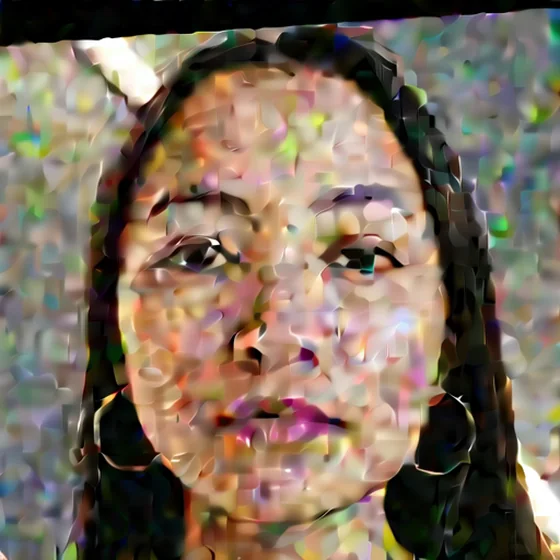
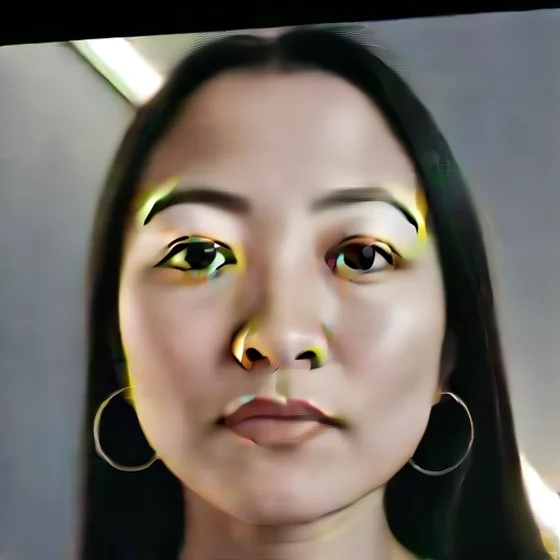
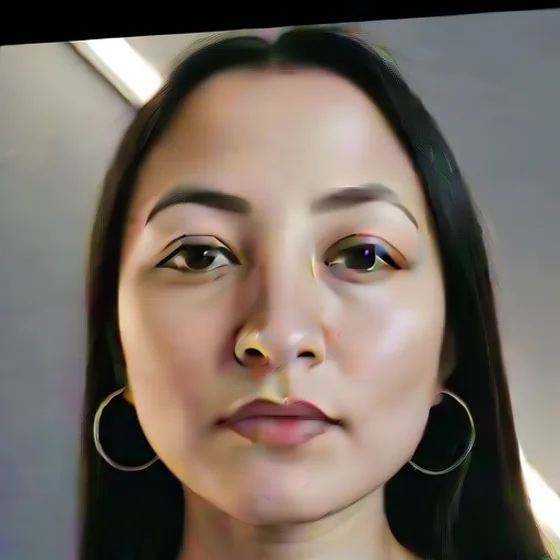
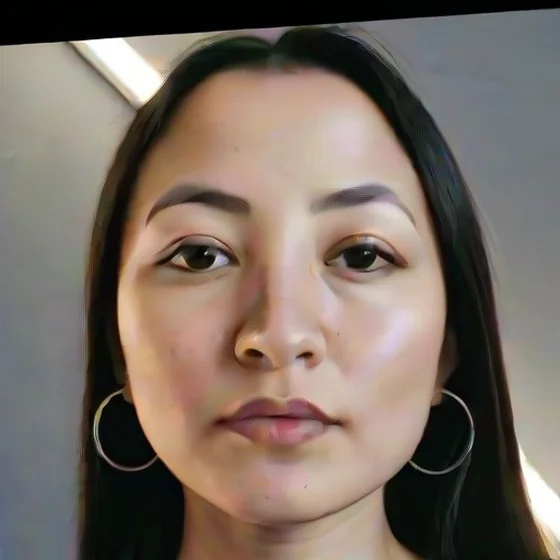
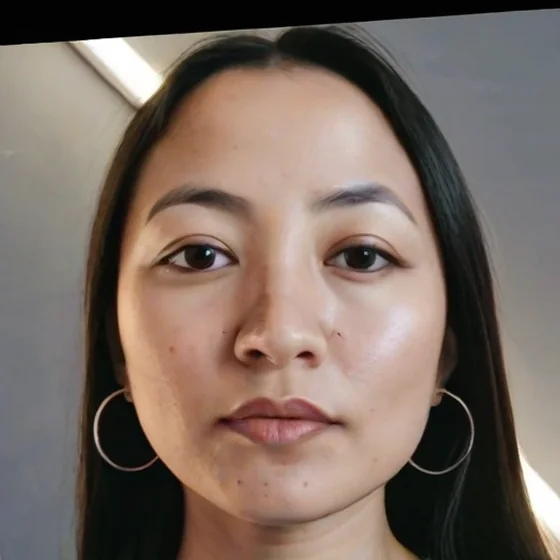
It doesn't draw the face in one go. It starts from noise that carries only the rough colors and lighting of your photo, then removes the noise over a short series of passes. At each pass it looks at the half-finished picture, predicts what the finished face should be and moves part of the way toward that prediction.
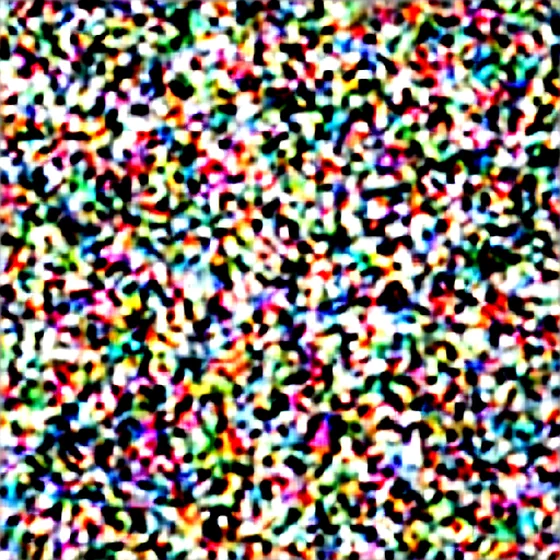 Start
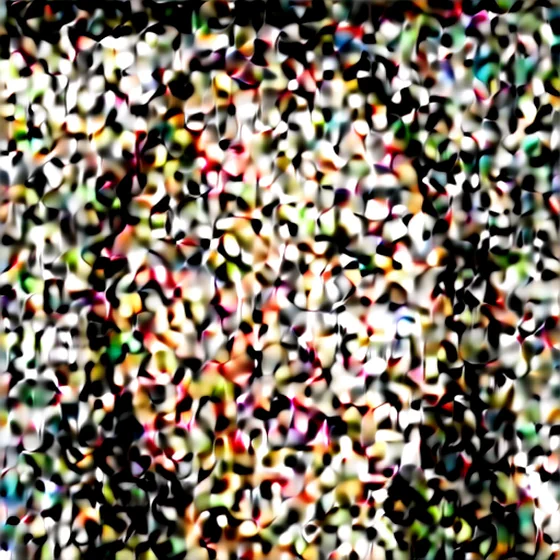 Early
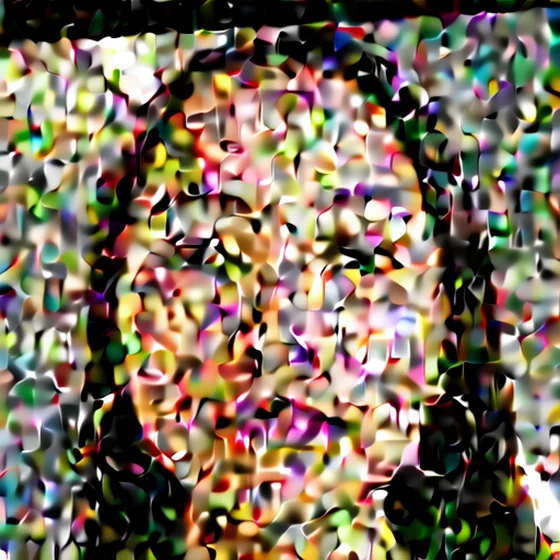 Later
 Near the end
The predictions are easier to read than the noise. Here is the model's guess at the finished face at the same four moments:
 Start
 Early
 Later
 Near the end
What decides how the new face looks?
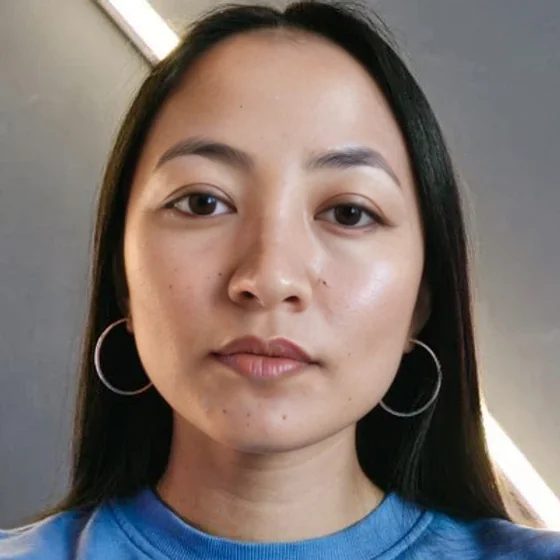
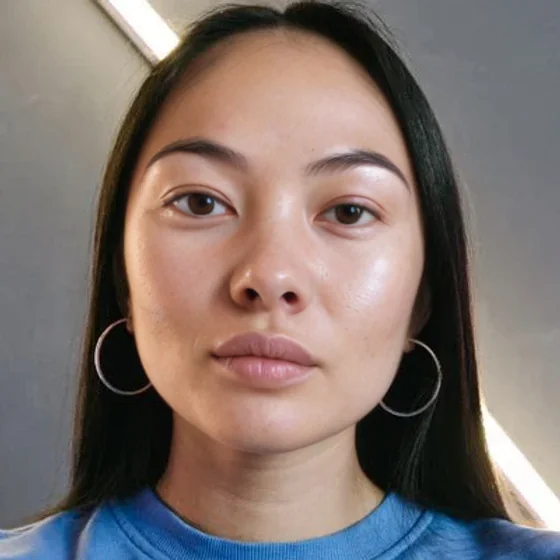
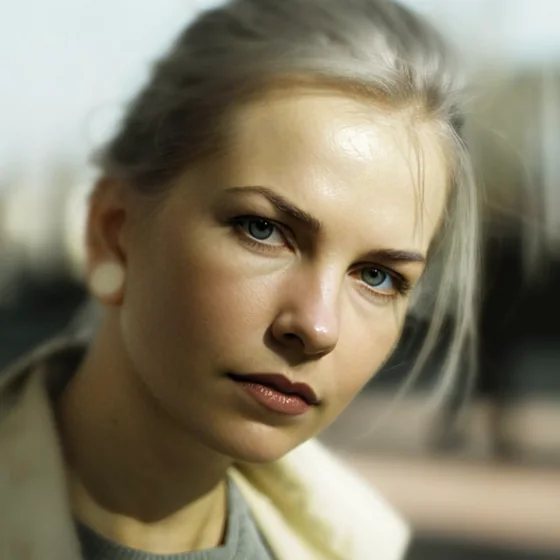
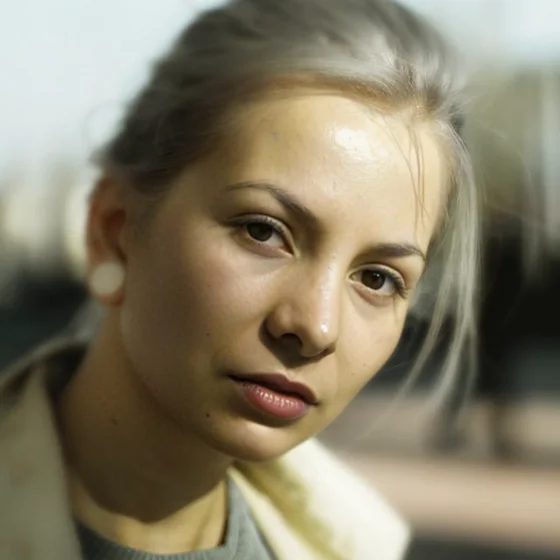
The persona. Your photo decides the pose, the expression, the light and everything around the face, and the persona guides what the face itself looks like. Anonymize the same photo with two personas and you get two different faces in exactly the same pose:
 Persona 1
 Persona 2
 Persona 3
 Persona 4
Why can the new face look sharper than your photo?
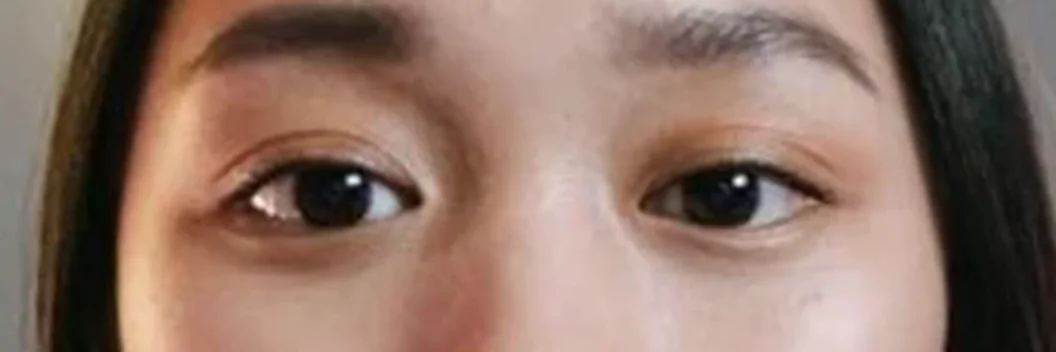
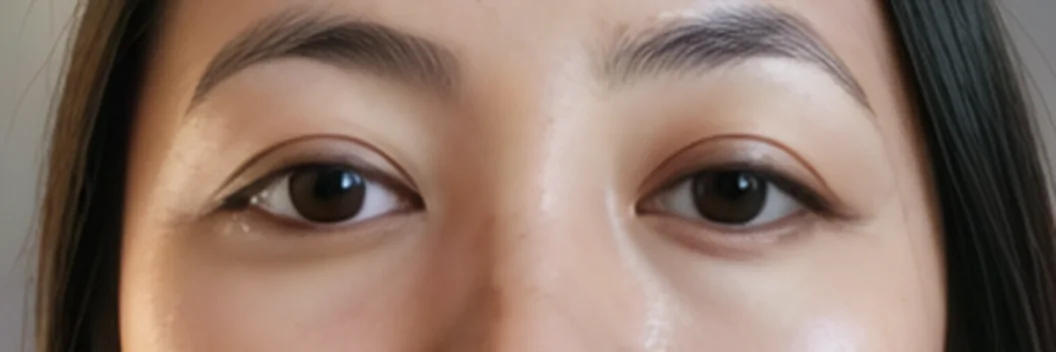
NeoFace's models were trained on high-quality images, so they sometimes make the new face sharper than it should be: single brow hairs, eyelashes and the grain of the skin come out crisper than the rest of your photo. That's what the last pass, further down, is for.
 Your photo
 New face
How does NeoFace keep your hair and background?
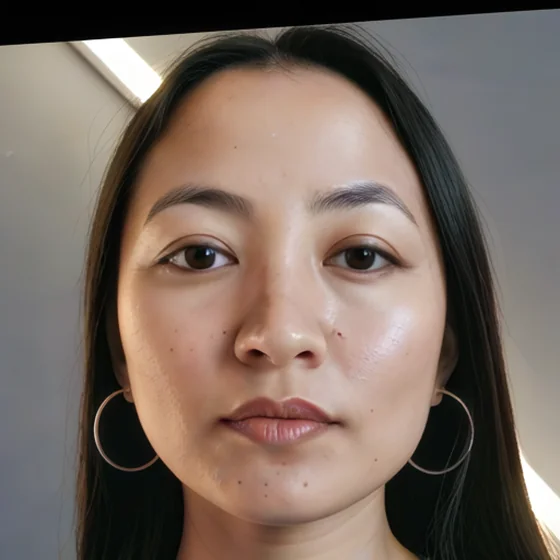
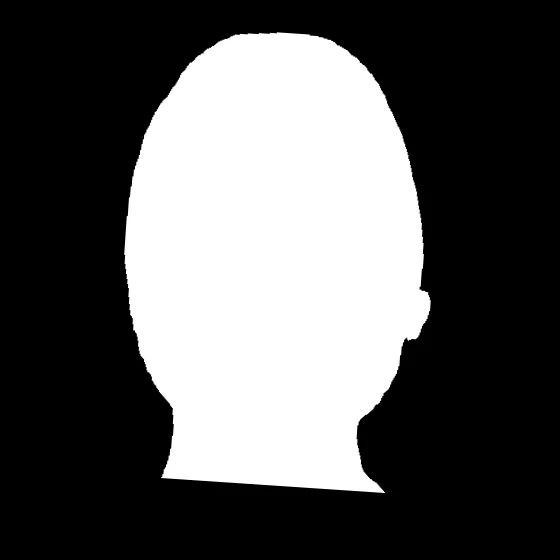
Before anything goes back into your photo, a segmentation model sorts every pixel of the new face's crop. Skin, brows, eyes, nose, lips, ears, neck and glasses count as face. Hair, clothes and background don't. Only the face pixels make it into the outline.
The edge of that outline is then softened, so the new face fades into your photo along its border instead of stopping at a hard line.
 New face
 Face outline
 Soft edge
 Result
How does the new face go back into your photo?
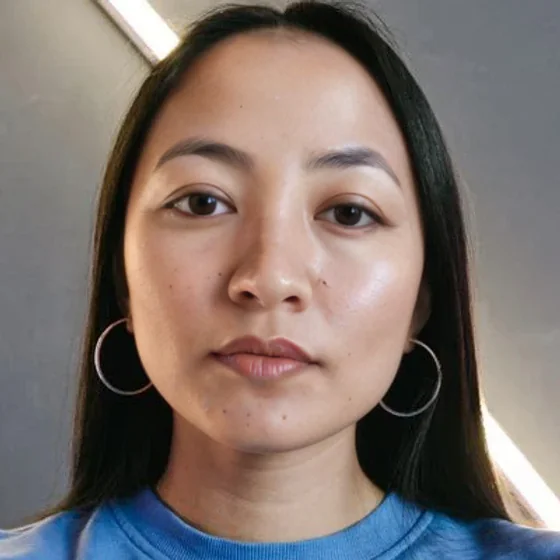
NeoFace turns the new face back to the angle and position of the original, undoing the line-up from the first step, and blends only the pixels inside the soft outline into your photo. A last pass gives the new face the softness and grain of your photo, so a crisp new face doesn't stand out in a softer or grainier picture.
That's why the rest of your photo stays as it was: the blend writes only inside the outline, and everything outside it comes from your original file.
What about videos?
Videos go through a separate, ultra-fast model made for video, but the idea is the same: find the face in each frame, redraw it, outline it and blend it back. The audio from your original file comes through unchanged.
Moving footage brings problems a single photo doesn't have, like a hand passing in front of the face or a fast head turn, so watch the whole clip rather than judging it by the first frame. If you're comparing tools, the creator's guide to AI face anonymization sets out a test you can run with your own material, and the NeoFace walkthrough takes you through the app from upload to download.
The stages at a glance
| Stage | What it looks at | What it makes | Does it change your photo? |
|---|---|---|---|
| Find and line up | Your whole photo | The face's position and a lined-up crop | No |
| Redraw | The lined-up crop and the persona's face | A new face in the crop | No, it works on a copy |
| Outline | The new face | A map of the face pixels with a soft edge | No |
| Blend back | The new face, the outline and your photo | Your photo with the new face | Only the face area |
What should you check in your result?
Because only the face changes, the places worth a close look are the edges of the face and anything that crosses it. Zoom in before you post:
- The edge along the jaw, hairline and ears blends without a visible line.
- Eyes, teeth and glasses look natural at full size.
- The skin tone of the face matches your neck, chest and hands.
- The face is as sharp, soft or grainy as the rest of the photo.
- A hand, phone or strand of hair in front of the face still looks right.
- Nothing outside the face gives you away, such as a tattoo, a birthmark or the room you shot in.
The last check is the one the models can't help with, since they only change the face area. The faceless video privacy checklist walks through the rest of the frame, and the AI labels guide covers how to label an anonymized post on YouTube and TikTok.
Frequently asked questions
- Does face anonymization edit my face or draw a new one?
- It draws a new one. A diffusion model starts from noise and draws a face that follows your head position, expression and lighting, while the persona you chose guides how that face looks. Only the face area of the drawing is blended into your photo.
- Is the persona's face pasted onto my photo?
- No. Nothing is cut out of the persona's picture. The model uses it as a guide for how the new face should look and draws that face at the angle, with the expression and in the light of your photo, so it fits the scene.
- Why does the anonymized face keep my expression?
- Because the model reads your expression, head position and lighting from your own photo while it draws. The persona guides what the face looks like, and your photo decides how it is posed and lit.
- Does face anonymization change my hair or background?
- No. A segmentation model outlines the face pixels, such as skin, eyes, nose, lips, ears and neck, and only that face area is blended into your photo. Your hair, clothes and background come from your original file.
- Can I tell the model what to change with a prompt?
- No. When NeoFace anonymizes your file, the models get your photo or video and the persona you chose, and nothing else. There is no text box and no way to ask for a different outfit, background or expression.
Create with
a face you choose.
Choose a reusable synthetic face for your photos and prerecorded videos. Start with a sample to see how NeoFace fits your content.