Best Mask App for OnlyFans: Practical 2026 Guide
The best mask app depends on your content: compare face anonymization, AR filters, tracked overlays, and blur tools for paid posts, promo, photos, and video.
- mask-app
- face-anonymization
- onlyfans
- ar-filters
The best mask app for OnlyFans depends on what you are making. For a repeatable persona across paid photos and prerecorded video, use synthetic face anonymization and review every result. For playful promo, Snapchat or TikTok effects can create a masked look, while CapCut is the better fit when you want a deliberate tracked cover or blur. Do not trust a live AR effect as your only anonymity layer unless the saved file survives a frame-by-frame check.
This guide owns the general app-selection question: which kind of digital mask fits each creator workflow. If you already know you want a synthetic face, use the dedicated AI mask evaluation guide. If video is your only concern and you want a full editor comparison, use the face-hiding video app guide. Keeping those decisions separate prevents a broad “best app” list from pretending every mask does the same job.
The quick answer: choose the app by where the content will live
Start with the consequence of a failure. A paid post, a public Reel, a private custom, and a disposable draft do not carry the same risk. The app should match both the format and the damage an exposed frame would cause.
| Your job | Best starting option | Why it fits | Main caution |
|---|---|---|---|
| Paid photos with a consistent visible persona | Synthetic face anonymization | Keeps a natural-looking face while changing the visible identity | Review edges, expression, background, and the original-file policy |
| Prerecorded paid video | Synthetic face anonymization or a heavy tracked cover | Can preserve a persona, or prioritize obvious coverage | Every frame matters; motion and obstruction are stress points |
| Short, playful promo where exposure would not be catastrophic | Snapchat Lenses or TikTok effects | Fast, recognizable AR styles made for social recording | Live tracking is a creative feature, not an anonymity guarantee |
| Reel edited inside Instagram | Instagram camera effects for styling | Convenient inside the Reel workflow | Effect availability changes and the final file still needs review |
| One-off clip where appearance is secondary | CapCut mask plus blur | Lets you place and track a covered region in post | Tracking or keyframes can wander; inspect the export |
| Live content where your raw face must never be recorded | Physical mask, careful framing, or no face on camera | Protection exists at capture time instead of after it | Eyes, hair, face shape, voice, and surroundings can still identify you |
There is no useful overall winner without that context. An app that produces a fun character effect in ten seconds may be the wrong tool for a custom clip that could be copied indefinitely. A slower post-processing workflow may be unnecessary for a low-stakes teaser where your face is already public.
What “mask app” means in practice
People use “mask app” for several different technologies. Knowing which category you are looking at makes the marketing much easier to decode.
Synthetic face anonymization detects a face and changes its visible identity to a reusable synthetic face. The goal is a natural-looking person rather than an obvious graphic. This category is meant for prerecorded photos and video that you can review before publishing.
AR face lenses and effects place a texture, character, makeup layer, object, or transformation relative to facial features while you record. Snapchat describes Lenses as augmented-reality experiences that add objects, characters, and transformations to a Snap. TikTok’s Effect House documentation describes its Face Mask object as a two-dimensional texture applied to a user’s face. Those are creative-effect definitions, not privacy certifications.
Tracked masks, stickers, and blur are post-production tools. You define the region to cover, attach an effect or opaque graphic, and make the region follow the face with tracking or keyframes. CapCut’s official instructions combine a blur effect with a mask, then use mask tracking or keyframes to follow movement.
Beauty filters and reshaping tools change skin, proportions, or makeup without trying to conceal identity. They can produce a strong visual change while leaving the person recognizable. Do not assume “looks different” means “cannot be identified.”
The broader mask, crop, and blur comparison explains how those methods trade appearance against coverage. This page stays focused on selecting and testing the software that applies them.
Best for a consistent paid-content persona: face anonymization
Synthetic face anonymization is the strongest general fit when you want the finished post to show a normal human face without publishing your real one. It works after capture, so you can shoot naturally, process the file, compare the result, and reject anything that does not pass review.
NeoFace is our product, so treat this as a worked example of the category rather than an independent ranking. The current workflow, as of July 2026, is:
- Create an account and a reusable synthetic face.
- Upload one photo or a short prerecorded video.
- Apply the selected face during anonymization.
- Compare the source and processed versions.
- Download only after inspecting the result and the rest of the scene.
The public workflow says original uploads remain available for comparison for up to 30 minutes and are then permanently deleted. That temporary comparison window is useful because output review is part of the privacy process. You can inspect the exact steps in the NeoFace face anonymization walkthrough.
Here is the visual idea on a still image:
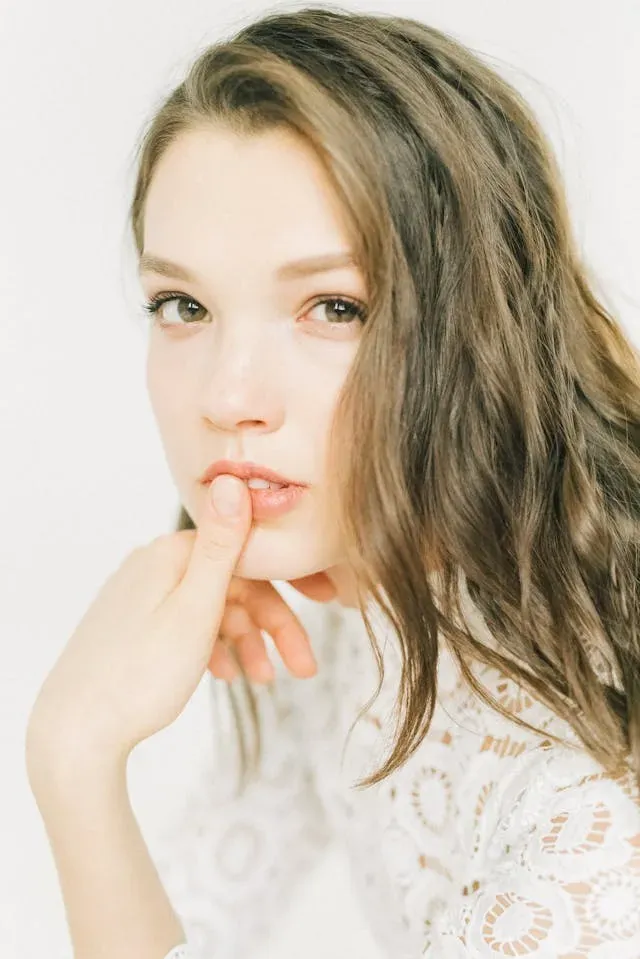
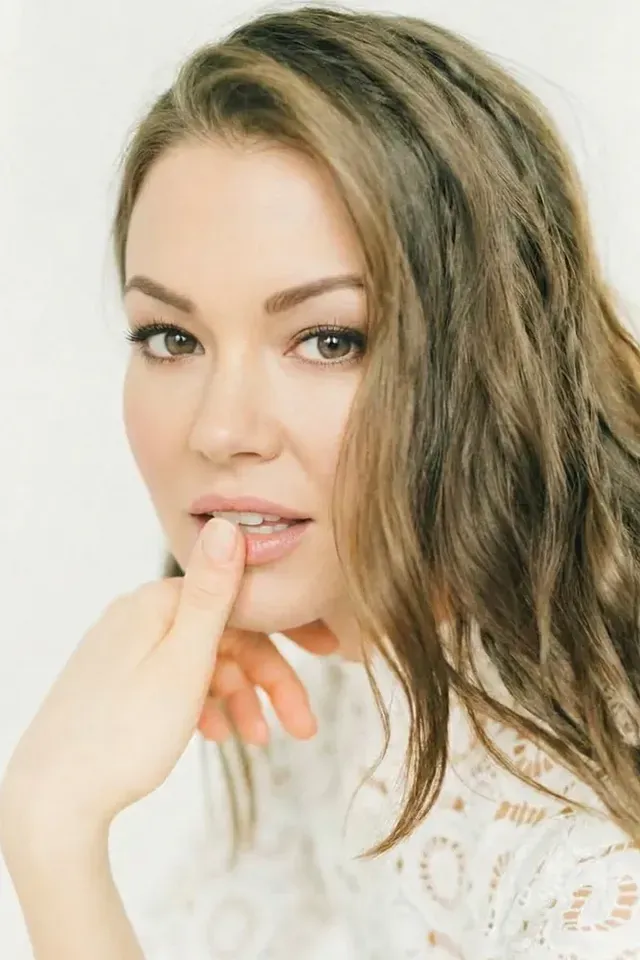
The app is only one layer. A processed face does not change tattoos, a recognizable room, reflections, voice, usernames, or file metadata. It also cannot prevent you from accidentally uploading the original. Keep raw and processed folders visually distinct, and make the processed-file review a required step rather than something you do only on the first batch.
This category also has honest limits. Extreme angles, a small face in the frame, hair or hands over the face, fast movement, several faces, and difficult lighting can create artifacts or incomplete results. Do not infer that a supported file type will work equally well on every file. Use your real shooting conditions during the test.
Best for playful real-time characters: Snapchat Lenses
As of July 2026, Snapchat is the clearest choice when “mask” means a playful character, helmet, creature, makeup look, or three-dimensional object placed on the face while recording. Snapchat’s official Lens instructions say Face Lenses can transform how you and your friends look, and that you select the Lens before capturing the Snap.
That workflow is fast. It is also live. Snap separately explains that Lens placement uses signals such as the positions of hands, eyes, and the nose to put the effect in the right place. That mechanism is why a privacy-minded creator should treat the output as a tracked render that needs verification, not as proof that the underlying face can never appear.
Use Snapchat Lenses when:
- The character effect is part of the promo concept.
- You are willing to discard any clip with a tracking or alignment problem.
- You can save the result and review it outside the recording screen.
- A visual effect makes sense for your persona rather than looking pasted onto every post.
Do not use a Lens as your sole protection for an unrepeatable take, a custom that includes your real surroundings, or any clip where one exposed frame would be unacceptable. Record a short test before the real take. Turn quickly, cover part of your face, look away, and move close to and far from the camera. Those are review cases, not promises that every Lens will fail in the same way.
Also distinguish Lenses from Snapchat Filters. Snapchat itself says they are different features. A color or location filter that changes the whole frame is not a face mask just because it sits in the same app.
Best for trend-native face effects: TikTok
TikTok is useful when the effect belongs to the content format. Its effect system supports face masks, face-mesh stickers, makeup, transformations, segmentation, and other elements designed to move with a subject.
The current TikTok Face Mask documentation, checked July 2026, describes a two-dimensional texture placed on the face. TikTok’s mobile effect editor also distinguishes a face sticker that moves with the head from a face-mesh sticker that adheres closely to the facial mesh. That makes TikTok a good creative tool for a graphic masked persona or a one-off visual theme.
It does not make every effect a privacy tool. TikTok’s own technical guidance tells effect creators to manage performance costs and warns that combining demanding features can reduce frames per second. That guidance concerns effect quality, but it reinforces the operating rule for creators: a real-time effect has a rendering pipeline, and you need to inspect its result instead of assuming it ran perfectly.
Use TikTok effects when you are creating promo for TikTok or a similar vertical-video surface and the effect fits the hook. Save a clean creator-safe export, review it, and keep it separate from your raw clip. If you plan to reuse the effect across paid posts, first ask whether a stylized social effect is consistent enough to become the face of the account. Trend participation and long-term persona consistency are different goals.
This article only covers the selection decision. The dedicated AR face-filter workflow covers effect types, failure-tolerant routing, break tests, saved-file review, and the point where a creator should switch methods.
Best for editing a Reel in place: Instagram effects
As of July 2026, Instagram’s Reel editor includes camera effects. Meta’s current Reel help describes selecting Image Effects to find and add a camera effect. That makes Instagram convenient when the Reel is being recorded and assembled inside Instagram.
Convenience is the reason to choose it. Privacy strength is not. Effects can change, disappear, or render differently across app and device versions. More importantly, recording and posting inside one app compresses the time available for a deliberate review.
Use a draft workflow:
- Record a short test with the intended effect.
- Save or preview the complete draft.
- Pause through fast movement and every moment the face is partly covered.
- Inspect the cover image and first frame separately.
- Publish only after the effect is present everywhere it needs to be.
If the account depends on anonymity, do not let the convenience of an in-app effect remove the final check. You may decide the effect is safe enough for promo but still use a reviewed face-anonymization workflow for paid media.
Best for a deliberate cover or blur: CapCut
CapCut is the practical phone-first choice when you want to place a visible cover in post rather than create a live character. You can use an opaque sticker, shape, or a blurred region and move it with the face.
CapCut’s official face-blur guide, checked July 2026, documents blur effects, masks, mask tracking, and keyframes. On desktop it describes applying a blur, limiting it with a mask, and using Track mask. On mobile it describes duplicating the clip as an overlay, applying blur and an inverted mask, then using keyframes to follow motion.
The strength of this approach is control. You can stop on the difficult frame, enlarge the covered area, correct the position, and preview before export. The cost is labor and a deliberately obscured look.
Choose CapCut when:
- A blur or obvious graphic fits the post.
- The clip is short enough to inspect carefully.
- You need a correction after recording.
- You are willing to add manual keyframes when automatic tracking wanders.
For the current mobile and desktop steps, use the dedicated CapCut face-blur tutorial. It covers multiple faces, mirrors, blur strength, mask margins, and exported-file review without turning this buyer guide into a second tutorial.
An emoji that sits over a stationary face can work for one still or a very calm clip. On real movement, give it a generous margin. Cover the whole identifying region, not just the eyes. A tiny sticker that reveals the jaw, cheeks, hairline, and most expressions is more of a style element than a disguise.
Compare privacy strength separately from visual style
“Best-looking” and “strongest privacy” are separate columns. A beautifully tracked half-mask may leave the most recognizable parts of your face visible. A heavy blur may look rough but remove more usable detail. A physical mask may prevent a raw uncovered recording while still exposing eyes, hair, voice, and body identifiers.
Use this decision table before downloading another app:
| Method inside the app | When the protection is applied | Can you review before posting? | Persona consistency | What you must test |
|---|---|---|---|---|
| Synthetic face anonymization | After capture | Yes | Designed for repeat use | Identity stability, edges, expressions, every video frame |
| Snapchat/TikTok/Instagram AR effect | During capture or in-app editing | Usually, if you save a draft/export | Varies by effect availability and style | Tracking, occlusion, first/last frames, device performance |
| Tracked opaque sticker | After capture | Yes | High if you use one deliberate graphic | Coverage margin, tracking drift, head turns |
| Tracked heavy blur | After capture | Yes | Visually consistent but intentionally anonymous | Blur strength, mask margin, missed frames |
| Beauty/reshape filter | During or after capture | Usually | Varies | Whether you remain recognizable; do not assume privacy |
| Physical mask | At capture | Yes | High if it is part of the persona | Fit, eye/face-shape exposure, reflections, movement |
If you cannot tell which category an app belongs to, run a simple test. Does the output still show your recognizable eyes, jaw, proportions, and expressions with prettier styling? That is a beauty filter. Does a graphic sit on top of your face? That is an AR or tracked overlay. Does the visible identity become a different synthetic person across the whole file? That is face anonymization.
How to stress-test a mask app before trusting it
Do not test with a straight-on selfie in perfect light. That is the easiest case for every face tool. Use one short clip that resembles the worst moments in your normal content.
Record 20 to 30 seconds with:
- A full turn left and right
- A quick look up and down
- Normal talking and a wide smile
- Hair or a hand crossing the face
- One moment close to the camera and one farther away
- A brief move partly out of frame and back
- The actual low or colored lighting you use
- A mirror or reflective object if those appear in your set
Then run this review:
- Check the first frame before motion begins.
- Check the last frame after you stop recording.
- Step through both head turns one frame at a time.
- Pause where the hand or hair crosses the face.
- Confirm the effect recovers cleanly after you return to frame.
- Inspect eyes, mouth, jaw, hairline, and the full coverage margin.
- Look for a second face in mirrors, windows, screens, or thumbnails.
- Listen for your real voice, names, location clues, or background conversations.
- Inspect the saved export, not only the in-app preview.
- Upload privately and inspect the platform-compressed copy.
- Repeat with a second clip on another day.
Reject the workflow if you cannot perform that review. Live streaming removes the opportunity to catch a bad frame before someone else does. If live content is part of your plan, use a physical cover, no-face framing, or a setup whose failure does not expose your real face.
Build separate workflows for photos, video, and promo
A single app can support more than one format, but your operating steps should still differ.
For photos, process or cover the face, zoom in, inspect the edges, check reflections, remove metadata, and move the approved version into a clearly named publish folder. One frame makes the visual review easier, but an accidental original upload can still defeat the whole method.
For prerecorded video, use a short test before a full batch, process the clip, scrub every transition and obstruction, check audio, and inspect the compressed platform copy. If your app adds a cover with keyframes, use more keyframes around rapid movement rather than trusting a long automatic track.
For public promo, decide whether the same persona must appear on every surface. A rotating set of fun AR masks may work for a character account. A creator brand built around one recognizable synthetic face needs a more consistent pipeline. Do not let a trend force you to publish a look that breaks the identity followers see on paid content.
For customs and DMs, apply the same publishing gate as feed content. “Private” delivery is still a downloadable file. Customs are also where names, voices, room details, and rushed original uploads are most likely to slip through.
Keep the raw file from becoming the real leak
Mask selection gets attention because it is visible. File handling is less interesting and often more important.
Create three locations:
- Raw: unprocessed originals, never used by social upload pickers.
- Review: processed files that still need inspection.
- Approved: the only folder used for posting or sending.
Give approved files a naming pattern that cannot be confused with the camera original. Turn off automatic cloud or app syncing for sensitive raw footage where possible. Delete failed drafts that contain uncovered frames. Check whether an app uploads media to its own cloud, whether deletion is documented, and whether drafts remain available from another device.
After visual review, run the broader OnlyFans anonymity checklist. A mask app does not separate your email or phone, disable contact discovery, clean metadata, hide a window view, change your voice, or prevent a reused username from connecting two accounts.
Common mask-app mistakes
Choosing from a demo gallery. Vendor examples show the conditions the vendor selected. Test your own phone, lighting, angles, movement, skin tone, hair, and post format.
Confusing a dramatic filter with anonymity. A person can look very different and remain recognizable. Beauty effects and stylized makeup often preserve the features people who know you use to recognize you.
Checking playback only at normal speed. A bad frame can pass too quickly for you to notice and still be easy for someone else to pause. Use frame stepping.
Covering only the center of the face. Eyes alone are not the whole identity, and a narrow sticker can drift. Use a larger margin than looks necessary during the easiest frame.
Changing the persona every week. Variety can be fun, but it weakens account recognition. If the mask is part of the brand, write simple rules for face, colors, makeup, and graphic style.
Posting from the raw camera roll. The approved export should be the only file visible in your posting routine. Separate albums or folders reduce the chance that two similar thumbnails lead to the wrong upload.
Assuming one passed clip proves the app. Each new shoot changes lighting, movement, obstruction, compression, and background. Repeat the final review on every file.
The mask-app publishing checklist
Use this before every masked post:
- The app category matches the job: anonymization, AR effect, tracked cover, or blur.
- The app’s current data and retention terms are acceptable for the raw content.
- The face is covered or anonymized in the first and last frame.
- Head turns, speech, hair, hands, and exits from frame pass review.
- Reflections and secondary faces are checked separately.
- The visible persona matches the account’s established look.
- No original file sits next to the approved export in the posting picker.
- The filename and metadata reveal nothing useful.
- Voice, names, and background audio follow your creator privacy policy.
- Tattoos, room details, screens, and window views are safe.
- The exported file was checked outside the editing app.
- The platform-compressed version was checked privately where possible.
- The cover image, thumbnail, and preview frame are safe.
- Any custom recipient details were checked before sending.
- The approved file is stored separately and the failed drafts are removed.
Which mask app should you choose?
Choose synthetic face anonymization when you need a repeatable visible persona across paid photos and prerecorded video. Choose Snapchat or TikTok effects when the creative effect is the point and an uncovered frame would not create an unacceptable privacy loss. Choose Instagram effects for convenient native Reel styling. Choose CapCut when you want to add a deliberate tracked cover or heavy blur after recording.
If none of those workflows can tolerate a software failure, change the capture method. Keep your face out of frame or use a physical mask that is present in the raw recording, then review the rest of your identifiers. The best app is the one whose failure mode you understand, whose output you can inspect, and whose process you can repeat on every file without rushing.
Frequently asked questions
- What is the best mask app for OnlyFans?
- For a consistent creator persona across paid photos and prerecorded video, synthetic face anonymization is the strongest all-around option because it changes the visible identity while preserving a natural-looking face. AR lenses are better for playful promo where a tracking slip would not expose you. Tracked blur or an opaque overlay is better when appearance matters less than full coverage.
- Can Snapchat filters hide my face for OnlyFans?
- Snapchat Lenses can transform or cover a face, but they are creative AR effects rather than a verified anonymity system. They depend on live placement over detected facial features. Use them for styling only when you could tolerate an uncovered or misaligned frame, and review the saved clip frame by frame before it enters your creator workflow.
- Are TikTok face masks safe for anonymous creators?
- TikTok face-mask effects can apply textures and stickers that move with a face, which is useful for trend-led promo. Do not make them your only privacy layer. The effect still depends on tracking and rendering while you record. Save the clip, inspect every frame around head turns and obstructions, and reject it if your real face appears anywhere.
- Is a face mask app better than blurring my face?
- It depends on the job. A heavy tracked blur is visually obvious but can be a good privacy choice for a one-off clip. A synthetic anonymized face is usually more suitable for repeat paid content because the result can support a consistent persona. A decorative AR mask is mainly a styling choice and should not outrank a reviewed post-processing method for privacy.
- Can I use one mask app for photos and videos?
- Some tools support both, but support is not the same as dependable output. Photos require one-frame review, while video requires consistent coverage across movement, speech, occlusion, reflections, and compression. Test one difficult photo and one short difficult clip in the same tool before building your whole content routine around it.
- Do I still need a physical mask if I use a mask app?
- No, but a physical mask remains useful when you need the original recording to contain no uncovered face, especially for live work. It creates its own limits: eyes, face shape, hairline, and other identifiers may remain visible, and the mask has to stay in place. Choose based on your threat model and content style.
- How do I test a mask app before posting?
- Record a short stress clip with fast head turns, talking, a hand crossing your face, low light, and a brief exit from frame. Apply the mask, then inspect the export one frame at a time. Check reflections, thumbnails, first and last frames, audio, metadata, and the platform-compressed copy before using the same workflow on paid content.
Create with
a face you choose.
Join thousands of creators building faceless brands with Neoface. Private by default, lifelike by design.
No credit card required · Instant access · Free plan available
- High-fidelity models
- Private and secure
- 24/7 support