What Is NeoFace? Face Anonymization for Creators
Learn what NeoFace does, how its face-anonymization workflow handles photos and prerecorded video, what to review, and where its privacy limits begin.
- face-anonymization
- creator-privacy
- creator-tools
- digital-identity
NeoFace is a web-based face-anonymization tool for creators. You select a reusable synthetic face, apply it to a photo or prerecorded video, inspect the processed result, and download only the file you approve. It changes the visible face; it does not promise complete anonymity, remove every identifying clue, or guarantee a business outcome.
That narrower definition matters. A creator may want a face-level composition without publishing their real face, but the file still contains a body, voice, background, metadata, and production history. The account still has usernames, recovery methods, contacts, collaborators, and payment records. NeoFace can be useful inside that system without pretending to be the whole system.
This guide explains what NeoFace does, when its workflow fits, how to test it, what to inspect, and which privacy work remains outside face anonymization.
What problem does NeoFace address?
Creators usually choose among several visual approaches when they do not want to publish their real face:
- compose the shot so the face never enters the frame;
- crop the face out during editing;
- cover it with an opaque shape, sticker, or physical mask;
- apply heavy blur or pixelation;
- use a digital effect; or
- anonymize the visible face with a synthetic identity.
None is universally best. Cropping can be simple and private when the composition still works. A physical mask may fit a live workflow that cannot depend on post-production. Heavy blur can be appropriate for documentary material where preserving expression is not the goal. Face anonymization fits a different job: keeping a face-level composition in a photo or prerecorded video while keeping the real face out of the approved export.
The method decision should begin with the file, not the tool. Ask what the composition needs, whether the content is live or prerecorded, how much review time is available, and what would happen if the method failed for one frame.
The interactive face-hiding method comparison helps route that choice without assigning a fictional anonymity score.
What does NeoFace change?
NeoFace changes the visible face in the processed photo or prerecorded video. The workflow lets you create synthetic face options, select one as the active identity, upload content, compare the source and processed result, and download the version you want to use.
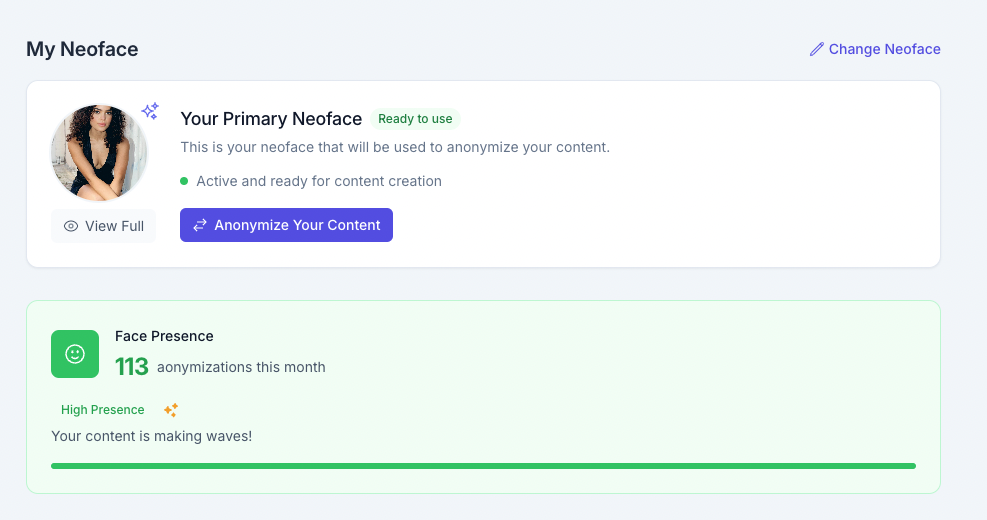
The practical output is a new review candidate. It is not automatically an approved publishing file.
What remains unchanged?
Unless you handle it separately, the rest of the source remains part of the output:
- hair, ears, neck, body shape, and movement;
- tattoos, scars, birthmarks, jewelry, and clothing;
- room layout, documents, screens, windows, and reflections;
- recognizable places, signs, vehicles, and outdoor landmarks;
- voice, speech patterns, names, and background conversation;
- filenames, timestamps, location metadata, editing history, and thumbnails; and
- the relationship between the creator account and personal accounts.
This is why “my face looks different” is not a complete privacy test. The release decision belongs to the exact exported file plus the account and publishing path around it.
What can vary between files?
Face-anonymization output depends on the source. A clear, well-lit portrait is a different problem from a small side profile in a compressed video. Motion, head angle, hair, hands, masks, glasses, shadows, multiple faces, and fast lighting changes can all affect what needs review.
Do not use one successful result as evidence that the next file will be equally stable. Keep the approval gate at the file level.
When is NeoFace a reasonable fit?
NeoFace is most relevant when all of the following are true:
- The content is a photo or prerecorded video.
- A face-level composition contributes to the visual you want.
- You do not want to publish your real face.
- You can inspect the processed output before release.
- You accept that face anonymization covers one identity channel rather than the complete privacy system.
It may be the wrong method when the content is live, the face is tiny or heavily obstructed, the source cannot be uploaded under your threat model, or a simple face-free composition already communicates everything you need.
| Content situation | Strong first option | Why | Main review burden |
|---|---|---|---|
| Static portrait with clear face | Reviewed face anonymization or crop | Both can produce a controlled approved export | Face edges, background, metadata, alternate crops |
| Prerecorded talking clip | Short face-anonymization test | Lets you inspect speech, expression, and movement before a full batch | Mouth, jaw, head turns, motion, first and last frames |
| Live stream | Physical mask, face-free framing, or a tested live effect | A post-production workflow cannot rescue a live failure | Drift, latency, platform behavior, accidental camera changes |
| Group scene | Face-free composition or deliberate per-face plan | Multiple faces create ownership and review questions | Every face, consent, background people, thumbnails |
| High-risk source that cannot leave local storage | Local crop, opaque cover, or local blur | Avoids sending the source to a cloud workflow | Missed frames, edit copies, export verification |
| Fast recurring batch | The method your approval process can sustain | A rushed review can defeat an otherwise suitable method | Naming, file state, batch consistency, release mistakes |
How the NeoFace workflow works
The public NeoFace workflow has five operating stages.
1. Create an account and a synthetic face option
Open the guided creation flow and provide the clear reference input it requests. Compare the generated synthetic face options and select the one that fits the creator presentation you want to test.
Treat this choice as a working persona asset. Record which option is active before processing a batch. If you later change it, decide whether old and new content may appear together or whether the change creates a deliberate new visual era.
2. Prepare a representative source
Your first source should resemble ordinary production. A perfect studio portrait can establish that the workflow runs, but it cannot expose the problems that appear in your usual lighting, camera distance, expressions, and movement.
For a useful first test:
- use even enough lighting to see both sides of the face;
- keep the face large enough for a full-size inspection;
- include a front-facing or moderate three-quarter angle;
- avoid heavy obstruction for the baseline;
- add ordinary speech and head movement to a short video;
- keep the original in a clearly separated source folder; and
- give the test a neutral internal content ID rather than a personal name.
Once the baseline passes, add one difficult condition at a time. Test a sharper head turn, a hand near the face, stronger expression, different light, glasses, hair crossing the cheek, or faster movement. When everything changes at once, a failed result tells you less about the cause.
3. Upload and process a short test
Use one image or a short clip before committing a complete batch. Confirm that the correct synthetic face is active and that the source belongs to the intended creator package.
The current NeoFace privacy policy states that an original upload may remain available for before-and-after comparison for up to 30 minutes and is then deleted. Read that controlling policy when source-file handling affects your decision. Your own local copy, browser download, cloud backup, collaborator share, and published copy remain outside that policy.
4. Compare the source and processed result
Open both versions at full size. For video, do not rely on normal-speed playback alone. Pause through motion and inspect individual frames.
Review:
- eye shape and alignment;
- mouth movement during speech and strong expression;
- jaw, chin, ears, and hairline;
- edges where hair, hands, glasses, or clothing cross the face;
- head turns and changes in camera distance;
- frames near cuts, transitions, and lighting changes;
- mirrors, windows, screens, and water;
- cover frames, thumbnails, and the first and last frames; and
- every face in a group scene.
If the result fails, change the source, framing, lighting, or chosen method. Do not publish a weak output because the processing job technically completed.
5. Finish the non-face privacy review
After the face result passes, inspect the rest of the export. Use the interactive creator privacy checklist for the account and publishing system, and use the metadata checker and removal guide for file-level metadata.
The final approved package should include only the export and supporting copy needed for publication. Keep raw sources, working files, rejected outputs, and approved files in clearly different locations or states.
How does NeoFace compare with blur, crop, and masks?
The useful comparison is operational, not a universal quality ranking.
| Method | Keeps a face-level composition | Works live | Needs frame-level review | Changes expression visibility | Source handling question |
|---|---|---|---|---|---|
| Crop outside frame | No | Yes, with stable framing | Yes for moving video | Removes it | Can remain local |
| Opaque cover | Partly | Sometimes | Yes | Removes it | Can remain local |
| Heavy blur | Partly | Tool-dependent | Yes | Reduces it heavily | Local or cloud, depending on tool |
| Physical mask | Yes | Yes | Fit and movement review | Limits part of it | No cloud processing required |
| Reviewed face anonymization | Yes | No for the documented NeoFace workflow | Yes | Attempts to keep a face-level visual | Read the cloud provider’s current policy |
Do not interpret the table as an anonymity probability. Every method has a failure mode. A crop can reveal a reflection. Blur can miss a frame. A physical mask can move. Face anonymization can produce an unstable edge or leave a different identity clue untouched.
Choose the failure mode you can detect and manage for the format you are making.
What privacy work sits outside NeoFace?
Voice
A recognizable natural voice can connect content to someone who already knows the speaker. Recordings may also contain names, locations, notifications, television audio, or another person speaking in the room. Decide whether each format uses natural, altered, synthetic, or no voice. The voice identification guide helps frame that decision.
Metadata and filenames
Images and videos may contain timestamps, coordinates, device or software fields, authorship labels, comments, and other metadata. A neutral visible image can still carry an identifying filename or embedded field. Inspect the final export independently instead of assuming the processing path removed everything.
Background and body clues
Room details, mail, uniforms, badges, screens, views, tattoos, jewelry, and repeated locations can identify a creator without a face. Review still frames at full size and treat the background as its own evidence surface.
Account separation
Reused usernames, profile photos, biographies, phone numbers, email addresses, contact syncing, linked accounts, and recovery methods can connect creator and personal identities. Face anonymization cannot repair an account graph that already exposes those links.
Collaborators and copies
Every collaborator, editor, cloud folder, messaging attachment, and backup adds another copy and another access path. Agree on who can see sources, which files may leave the controlled workspace, how approvals are recorded, and when temporary copies are removed.
NeoFace final-review checklist
Use this checklist on the exact export, not on the source or an editor preview.
- The intended synthetic face was active for this content package.
- The processed face is present everywhere it should be.
- Eyes, mouth, jawline, ears, and hairline pass at full size.
- Speech, expression, head turns, and fast movement pass frame by frame.
- Hair, hands, glasses, masks, and other obstructions do not expose unstable edges.
- The first frame, last frame, thumbnail, cover, and alternate crop pass.
- Mirrors, windows, screens, water, and other reflections pass.
- Every visible face is accounted for and used with appropriate permission.
- Voice and background audio match the format’s privacy decision.
- Tattoos, body marks, jewelry, documents, and room details pass.
- Metadata and filenames have been inspected on the final export.
- The creator account does not reuse personal identity details.
- Raw, working, rejected, and approved files are clearly separated.
- The exact approved file is the one placed in the publishing package.
- A second review is required when the consequence of a mistake is high.
Common mistakes when evaluating NeoFace
Treating a sample as a guarantee
A polished example shows what is possible under its own conditions. It does not prove that your camera, lighting, motion, compression, and editing pipeline will produce the same result. Test representative files and keep failure cases in the review set.
Looking only at normal-speed playback
Brief source-face fragments or unstable edges can disappear during ordinary playback. Scrub difficult sequences and inspect the frames around cuts, turns, speech, and obstructions.
Calling the whole account anonymous
A changed face does not separate emails, phone numbers, contact graphs, recovery methods, usernames, voices, collaborators, or payment records. Use precise language so you do not skip the controls that remain.
Assuming face visibility guarantees performance
There is no universal engagement or earnings lift that NeoFace can promise. A creator’s results depend on the content, offer, audience, distribution, pricing, and operations. If the visual method matters to performance, compare your own matched releases and record the outcome.
Losing track of file state
Names such as final2-new-real.mp4 are not an approval system. Use content IDs and explicit states such as source, working, review, approved, rejected, and published. Keep only approved exports in the release folder.
Ignoring the current policy
Product behavior, plan limits, and policies can change. Read the current privacy policy and live plan cards when your decision depends on retention, price, or a feature. Do not rely on an old review, screenshot, or search snippet.
How to decide whether NeoFace fits your workflow
Run a bounded trial instead of making the decision from a landing page.
- Choose one representative photo and one short prerecorded clip.
- Record the conditions that matter: light, angle, motion, expression, and obstruction.
- Select a synthetic face option and process the test set.
- Review the face result at full size and frame by frame.
- Complete the non-face privacy checklist.
- Record the failures and the time required to correct or reject them.
- Compare the result with crop, blur, a mask, or face-free framing for the same content job.
- Decide which method and review burden you can sustain.
The answer can vary by format. You may use face anonymization for planned photo sets, crop for quick promotional clips, and a physical mask for live content. Consistency means applying a documented rule, not forcing one tool into every situation.
Where NeoFace fits
NeoFace is a creator-focused face-anonymization workflow for photos and prerecorded video. Its useful promise is bounded: select a synthetic face, process a representative source, inspect the result, and keep the real face out of the approved export when that review passes.
Everything beyond that needs its own control. Keep expectations precise, read the current data-handling terms, measure business results from your own work, and use the method only where its output and review burden fit the content.
Frequently asked questions
- What is NeoFace?
- NeoFace is a web-based face-anonymization tool for creators. You create and select a synthetic face option, apply it to a photo or prerecorded video, inspect the processed result, and download only the version you approve. It changes the visible face in the file; it does not make the rest of the content or account anonymous.
- Does NeoFace make a creator completely anonymous?
- No. Face anonymization reduces one identity signal. Voice, tattoos, body marks, background details, reflections, metadata, filenames, usernames, contact discovery, account recovery, collaborators, and source-file copies can still identify a creator. Use NeoFace inside a broader privacy workflow and review every exported file before publication.
- Can NeoFace process photos and videos?
- The current public workflow supports photos and prerecorded video. Start with one clear photo and one short clip that resemble your ordinary content. Lighting, head angle, motion, expression, obstruction, and multiple faces can affect the result, so a supported file type does not guarantee that every image or video frame will process equally well.
- What happens to an original NeoFace upload?
- The current NeoFace privacy policy states that an original upload may remain available for before-and-after comparison for up to 30 minutes and is then deleted. Read the controlling policy before uploading sensitive material. Copies you download, store, share with collaborators, or publish elsewhere remain your responsibility.
- What kind of source file works best with NeoFace?
- Begin with even lighting, a face large enough to inspect, a front-facing or moderate three-quarter angle, and limited obstruction around the eyes, mouth, jaw, and hairline. For video, use a short test with ordinary speech and head movement. Difficult files can still be tested, but they require closer frame-level review.
- Does NeoFace guarantee more engagement or income?
- No. NeoFace does not guarantee reach, engagement, subscribers, conversion, retention, or earnings. Those outcomes depend on the creator offer, content, audience, distribution, pricing, and operations. Choose face anonymization because its reviewed visual and privacy tradeoff fits the content, then measure your own results instead of relying on a universal performance claim.
Create with
a face you choose.
Join thousands of creators building faceless brands with Neoface. Private by default, lifelike by design.
No credit card required · Instant access · Free plan available
- High-fidelity models
- Private and secure
- 24/7 support