Sharper Photos and Steadier Video in v2, Plus Batch Uploads
v2 photos now hold up in close-ups, and v2 video is sharper and steadier while v3 is in development. Plus batch uploads, bulk download and delete, and a new Home.
- Neoface
- Product Update
- Batch Uploads
- Face Anonymization
- Creators
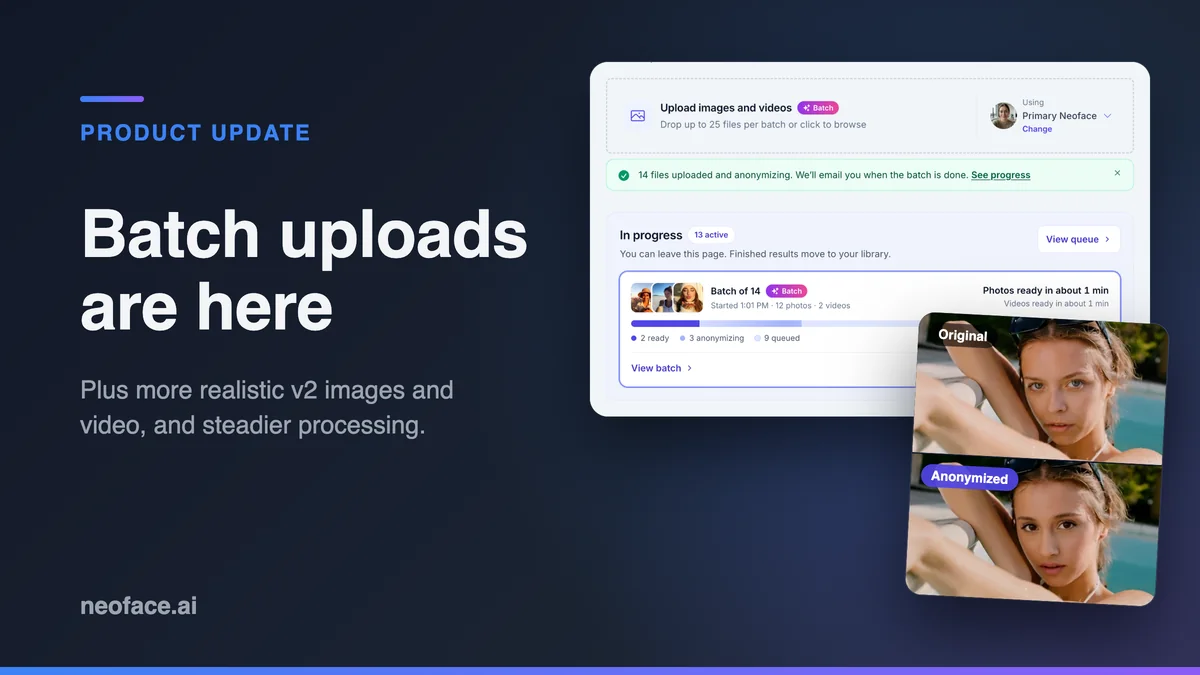
v2 looks better as of this release, in photos and in video. Photos hold up when someone zooms in, and video has more detail in the face and less jitter from one frame to the next. It's live now, while v3 is still in development.
The same release brings batch uploads to every paid plan, so you can anonymize a whole shoot in one go. You can also download or delete several files at once, Home shows what's in progress and what just finished, and uploads no longer get stuck in Processing.
Better photos and video without waiting for v3
v3, our all-in-one model for photos and video, is still in development, and the roadmap has the latest on where it stands. We didn't want your content to wait for it, so v2 got better for both photos and video. There's nothing to switch on. It applies to whatever you anonymize next.
Photos that hold up close
v2 images now look more natural up close. Eyes, brows and lips are sharper, skin is more even, and your Neoface holds up when someone looks closely.
Each example below is the same photo before and after the update: a close-up of the face first, then the full photo. Click or tap any image to open it at full size.




Video that's sharper and steadier
v2 video got the same attention. Faces carry more fine detail, like lashes, brows, skin texture and the light in each eye. There's less jitter from one frame to the next, and your Neoface stays consistent through the whole clip, including when a hand, a brush or a bite of food passes in front of it.
Here are six sample clips, each with the original next to the anonymized version. Pick one to play it.
Here's the pool clip again, zoomed in on the eyes, with the original on top and the anonymized version below. Watch the lashes and eyelids as she squints and turns her head. They keep their shape from frame to frame, and the squint lands at the same moment in both.
Batch uploads: a whole shoot at once
Until now, paid plans could add up to four files at a time. For example, if you shot 30 photos for the week, that meant coming back to the upload page eight times. Now you can drop the whole set onto Anonymize Content, pick your Neoface once, and let it run.
| Plan | Files per batch | Longest video clip |
|---|---|---|
| Free | One file at a time | 10 seconds |
| Alias | 25 | 30 seconds |
| Incognito | 50 | 60 seconds |
| Phantom | 100 | 90 seconds |
You don't have to wait for one batch to finish before starting the next. You can have two batches' worth of files in progress at once, so 50 on Alias, 100 on Incognito and 200 on Phantom.
How a batch works
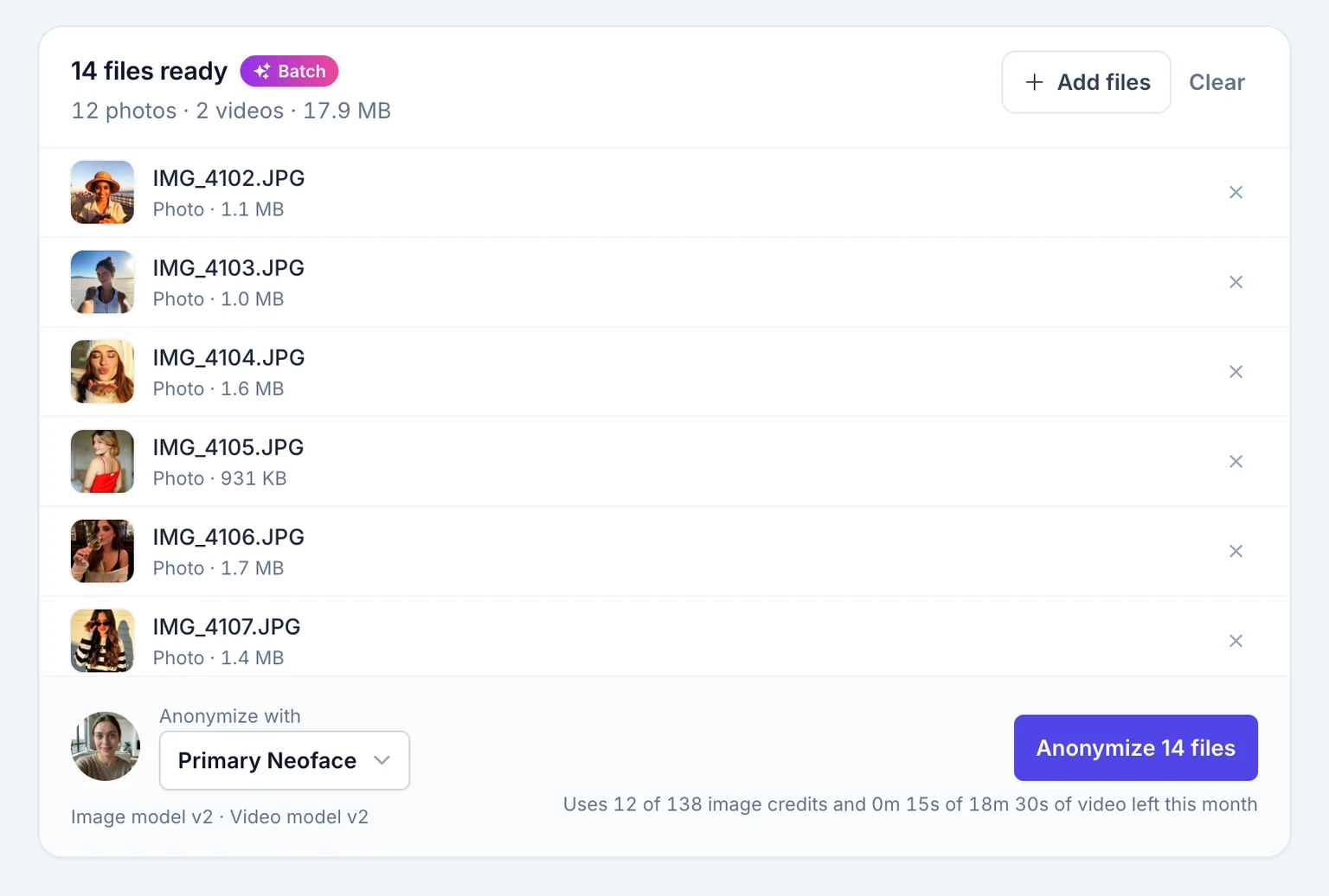
- Drop your files. Photos and videos in JPG, PNG, WEBP, MP4 or MOV. You see every file and its size before anything uploads, and you can remove any you don't want.
- Pick your Neoface. The batch uses the one you choose at the bottom of the list. If you have more than one Neoface, switch it there.
- Check what it'll use. The uploader adds up the image credits and video time the batch needs. Clips longer than your plan allows are flagged and skipped up front, so they don't fail halfway through.
- Start it. Three files upload at a time, and each one starts anonymizing as soon as it lands. If your connection drops, retrying picks up where the upload stopped.
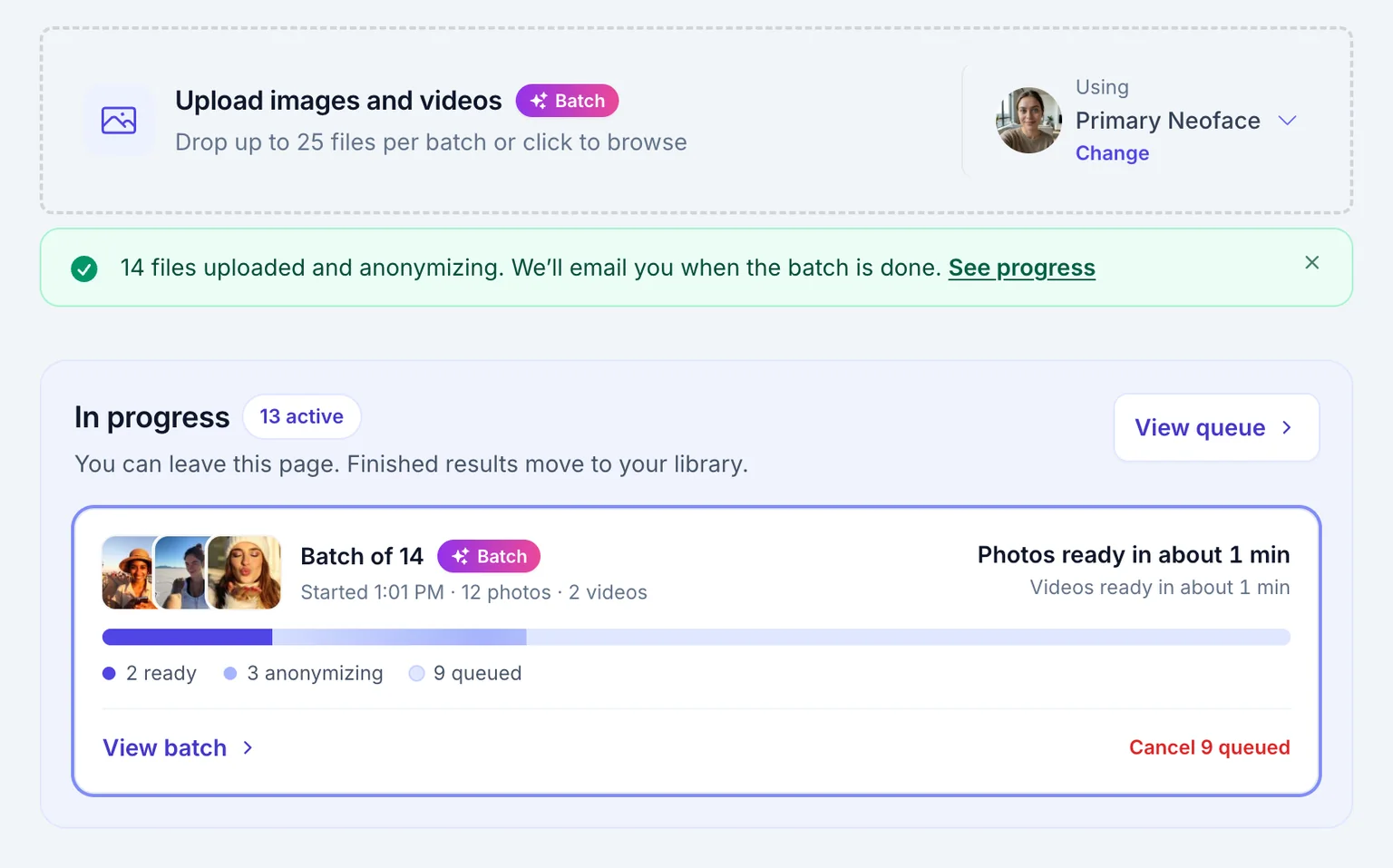
When the last file lands, the batch moves to In progress and gets its own card, with a progress bar and an estimate for when your photos and videos will be ready. You can close the tab at that point. Finished files go to your library, and if you have completion emails turned on, we'll email you when the batch is done.
On Free, uploads still go one file at a time, and the uploader shows how big a batch the next plan up allows. You can compare plans in the pricing section.
Download or delete several files at once
A batch of 50 photos used to mean 50 downloads. Now Your library on Anonymize Content has a Select button. Tick the photos and videos you want, or use Select this page to take everything on the page, then choose Download or Delete. Your picks stay selected as you move between pages.
- Download. One file downloads as usual. Two or more arrive as a single zip named for the day, like neoface-2026-10-08.zip, with the files numbered newest first. A very large selection is split across more than one zip. On a phone, the files save a few at a time: tap the button, choose where they go, then tap again for the next group.
- Delete. The items are removed from your library once you confirm. It can't be undone, so check the count on the button first. Failed items can be selected too, which makes them quick to clear out.
Both work on every plan, Free included.
A Home that shows where things stand
Home now opens on the things you'd otherwise go looking for:
- Anonymize your next post. A shortcut to upload, next to the Neoface it will use.
- Left this month. The images and video minutes left on your plan, and when they reset. On a wide screen the sidebar already shows your usage, so Home only brings this up when you're running low.
- In progress. What's queued or anonymizing right now, including batches and when they should be ready.
- Latest results. Your six newest finished photos and videos, with a link to the full library.
If you're new, Home walks you through creating your Neoface and anonymizing your first post instead.
No more uploads stuck in Processing
Before, if something went wrong on our side partway through, an upload could sit in Processing indefinitely. Now every photo and video ends up either ready or marked failed with a reason, and files that hit a problem on our end are retried automatically.
- 1Uploaded
Your file is in. If your connection drops, the upload picks up where it left off.
- 2Queued
It waits its turn under In progress, and you can cancel it until it starts.
- 3Anonymizing
Your Neoface is applied to the photo or video.
- 4Ready
It’s in your library. Credits are only used once a file is ready.
Retrying
If something goes wrong on our end, the file is tried again automatically.
Failed
If a file can’t be anonymized, for example because there’s no clear face in it, you see why. No credits are used.
Busy times are fairer too. Your single photo doesn't wait behind someone else's 100-file batch, and your batch doesn't hold anyone else up. Items under In progress show an estimate, and anything that hasn't started yet can be cancelled.
When you create a Neoface, your options now start generating as soon as your photo is ready.
Try it today
The v2 update covers everything you anonymize from here on, and selecting files and the new Home are there on every plan. Batch uploads are live on Alias, Incognito and Phantom. Open Anonymize Content in the app and drop in your next shoot. New to Neoface? The step-by-step workflow covers creating a Neoface, uploading, and reviewing your results.
Frequently asked questions
- Do I need to change anything to get the v2 quality update?
- No. It applies to the photos and videos you anonymize with v2 from now on. Files already in your library stay as they were. To get the newer look on an older file, upload the original again, which uses credits like any other upload.
- Which plans include batch uploads?
- Batch uploads come with the Alias, Incognito and Phantom plans. Alias batches hold up to 25 files, Incognito up to 50 and Phantom up to 100. The Free plan uploads one file at a time.
- Does a batch use more credits than uploading files one at a time?
- No. Each photo uses one image credit and each video uses video time, the same as a single upload. Before anything uploads, the batch uploader adds up what the batch needs and tells you if it's more than you have left this month.
- Do I have to keep the page open while a batch processes?
- Only until your files finish uploading. After that you can close the tab. Finished files move to your library, and if completion emails are turned on, we email you when the batch is done.
- What happens if my connection drops during an upload?
- The upload stops where it was. When you retry, or when your connection comes back, it continues from that point instead of starting the file over. Files that already uploaded keep anonymizing.
- What happens if one file in a batch fails?
- The rest of the batch keeps going. Temporary problems are retried automatically. If a file still can't be processed, for example because there's no clear face in it, it shows as failed in your library with the reason, and it doesn't use any credits.
- Can I use different Neofaces in the same batch?
- No. Each batch uses one Neoface, which you choose before it starts. To anonymize other files with a different Neoface, start a second batch and pick that Neoface for it.
- Can I download or delete several files at once?
- Yes, on every plan. In your library on Anonymize Content, choose Select, tick the photos and videos you want, then choose Download or Delete. Two or more files download as one zip. Deleting removes them from your library and can't be undone.
Stand out while
staying anonymous.
Join thousands of creators building faceless brands with Neoface. Private by default, lifelike by design.
No credit card required · Instant access · Free plan available
- High-fidelity models
- Private and secure
- 24/7 support