Customize Your Neoface: New Eyes, Brows, Lips and More
Two new things when you create a Neoface: rate each face and replace the ones you don't like, then customize the closest one with new eyes, brows, lips and more.
- Neoface
- Product Update
- Face Anonymization
- Creators
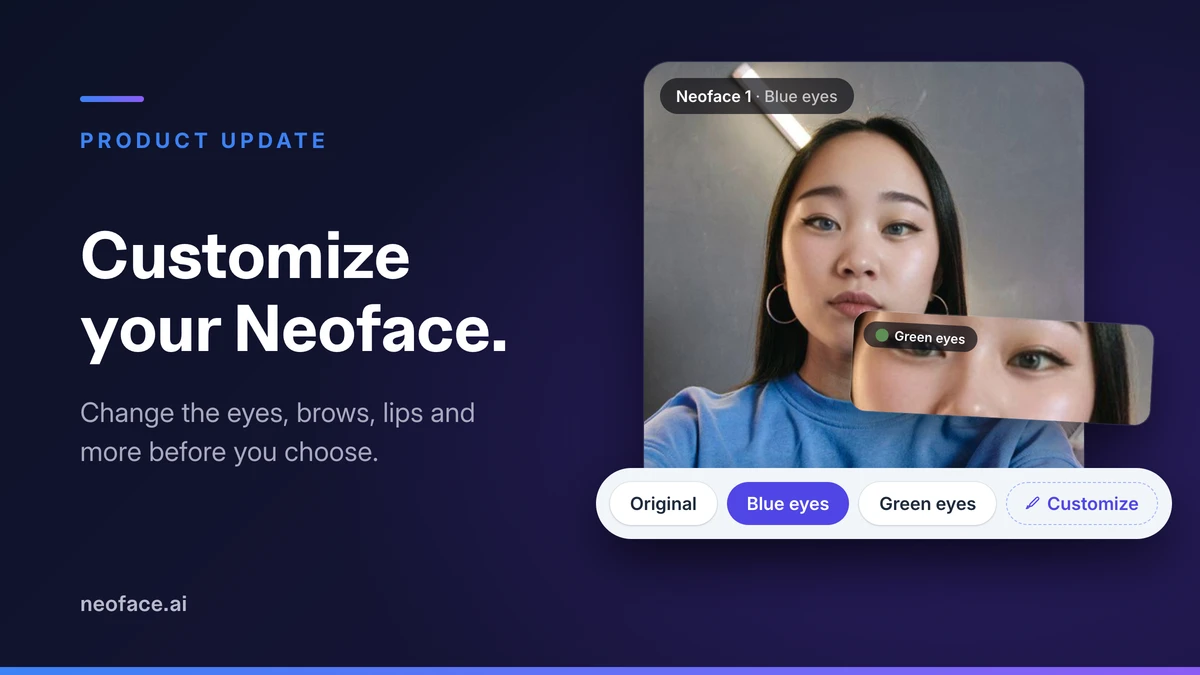
When you create a Neoface, you get eight faces to try on your photo. Until now that was the whole choice. You took one as it came, or you started over with a new photo.
Two things are new. You can rate each face with a thumbs up or a thumbs down, and swap the ones you don't like for new ones. And when a face is close but the eyes or the brows aren't quite you, you can customize it: a different eye color, fuller lips, thicker brows, a beauty mark. Each change shows up on your own photo as a new version of that face, so you can flip between them before you choose.
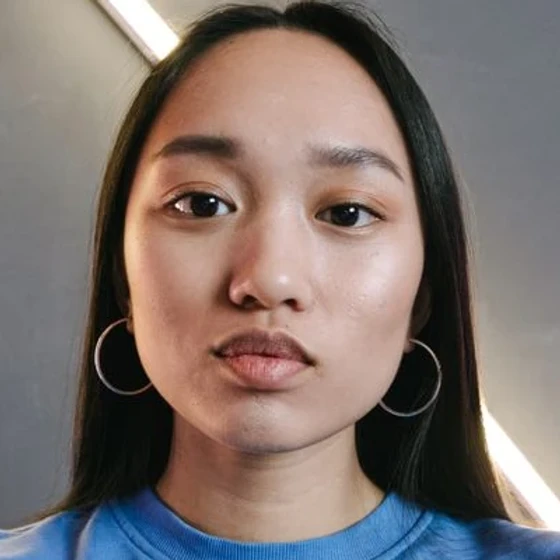 Your photo
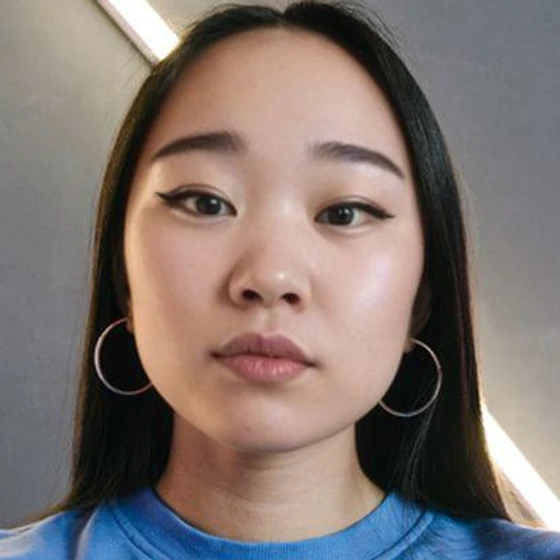 Neoface 1
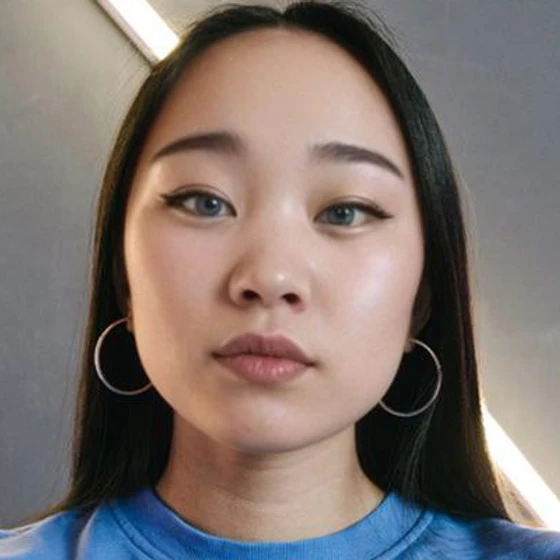 Blue eyes
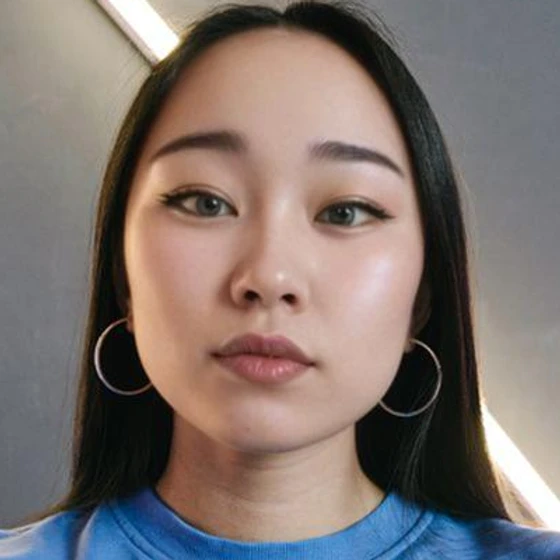 Green eyes
Rate each face with a thumbs up or down
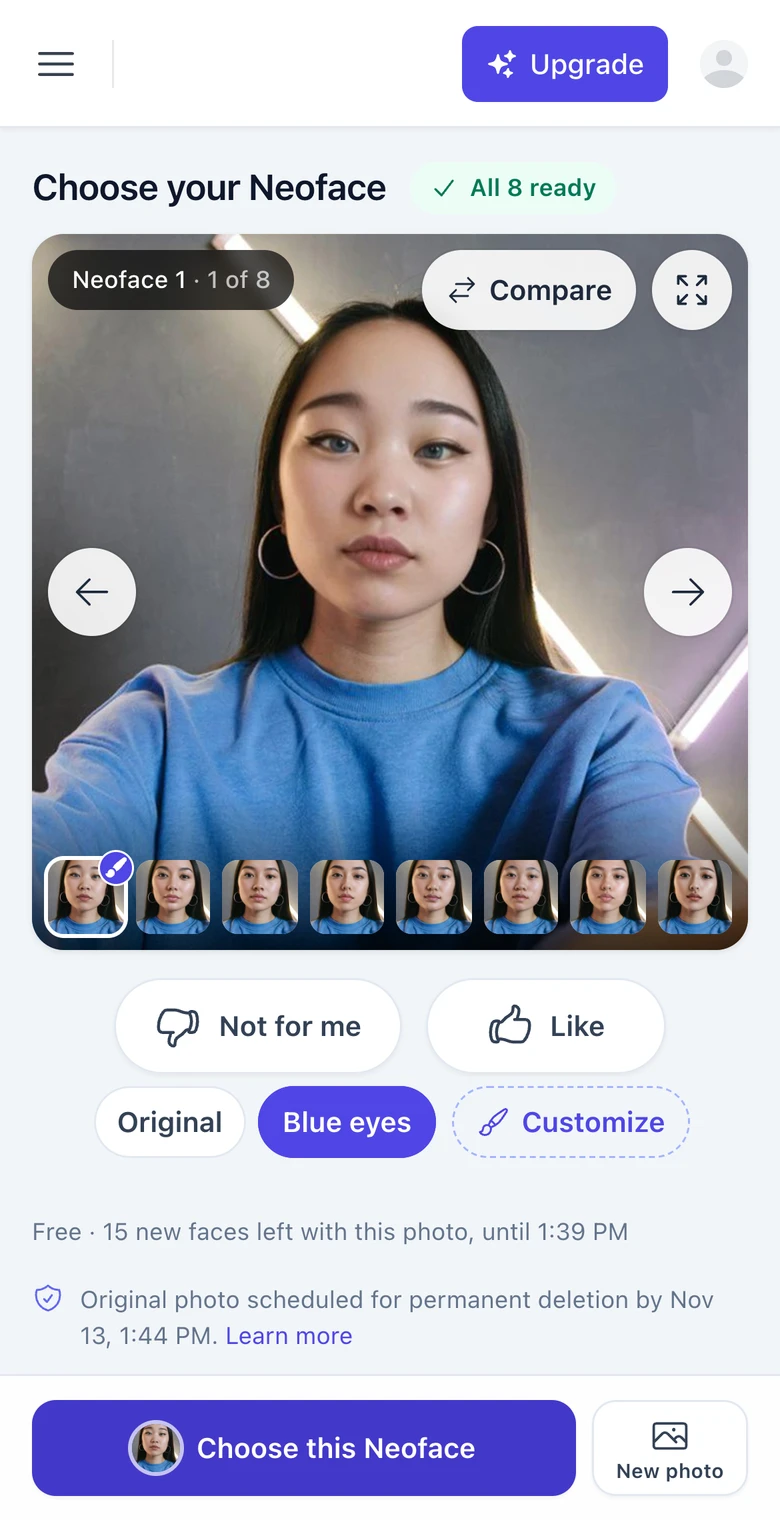
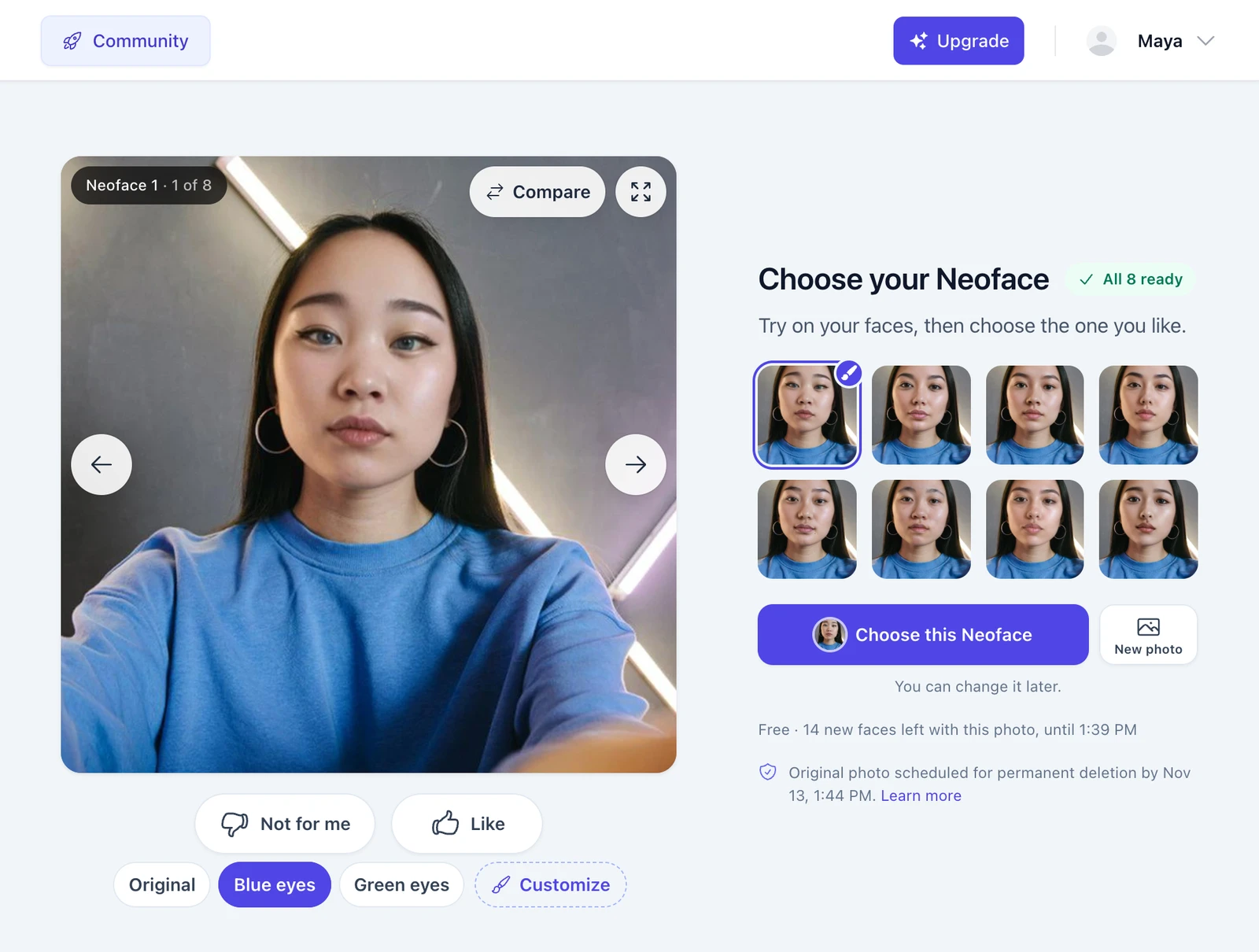
Open Create Neoface and upload a photo or take one. Your eight faces appear on it one by one. Under the photo there are two buttons, Not for me and Like, so you can rate each face as you step through them.
- Like marks the face with a thumbs up in the row of faces. By the time you've seen all eight, the ones worth a second look are easy to find.
- Not for me marks it with a thumbs down and offers to replace it with a new face.
- Your ratings steer what comes next. New faces lean toward the ones you liked and away from the ones you didn't.
You can change a rating at any time.
Replace the ones that miss
After a thumbs down, a bar under the photo asks Replace with a new face? and shows how many new faces the photo has left.
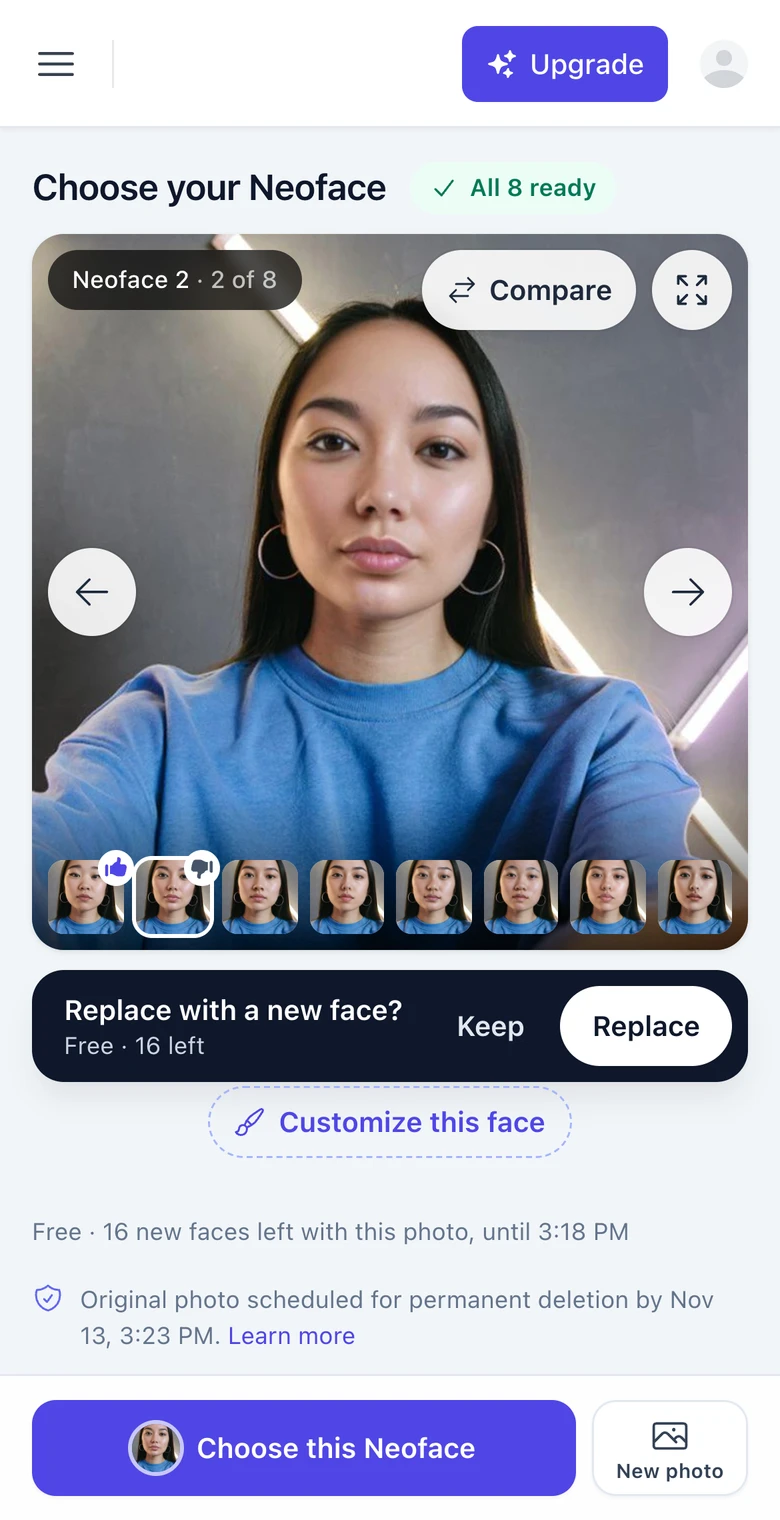
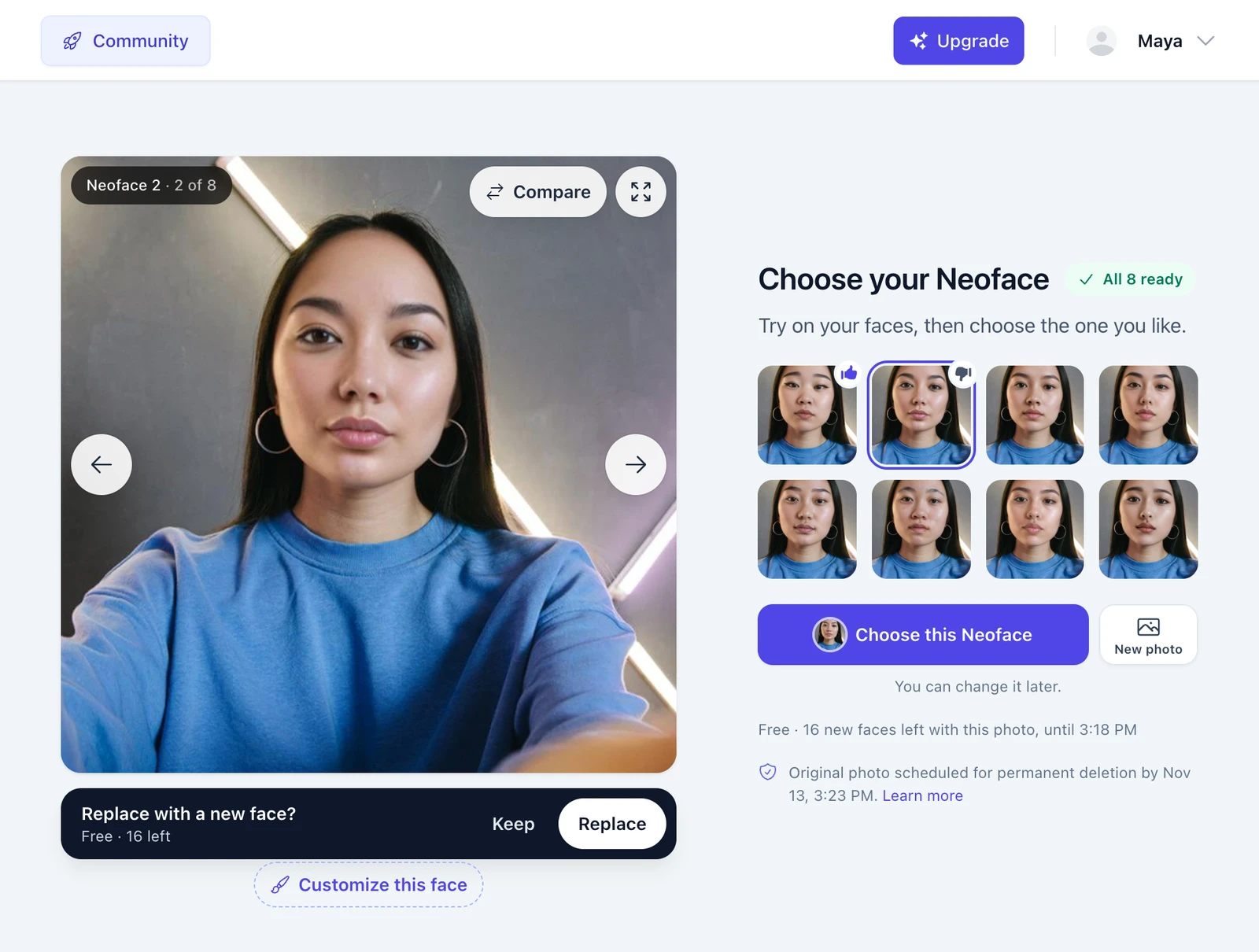
- Replace starts a new face in that spot. The photo moves on to your next face, so you can keep rating while it's made.
- Keep leaves the face where it is, thumbs down and all.
When the new face is ready it takes the old one's place in the row and gets the next number. Your first replacement is Neoface 9.
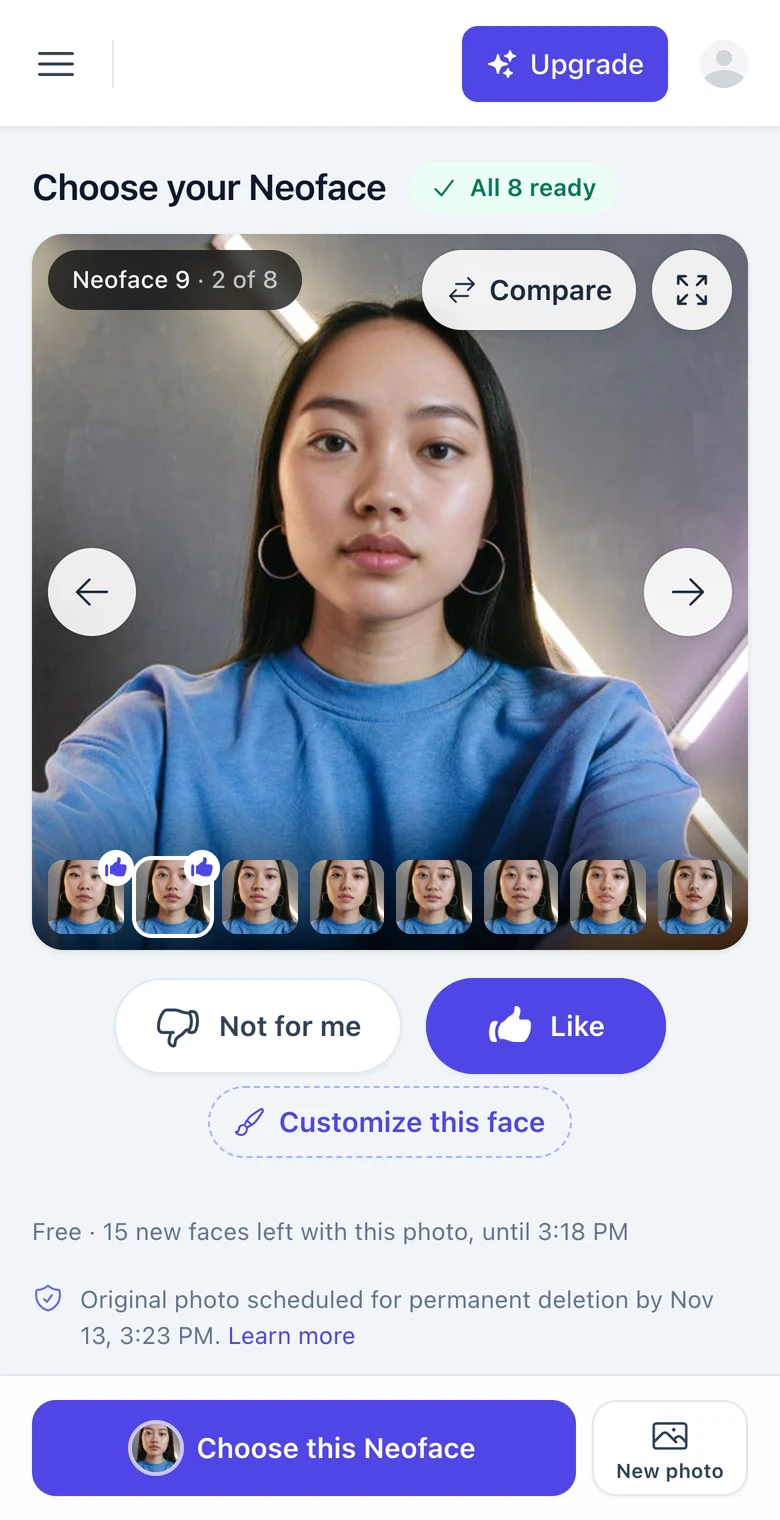
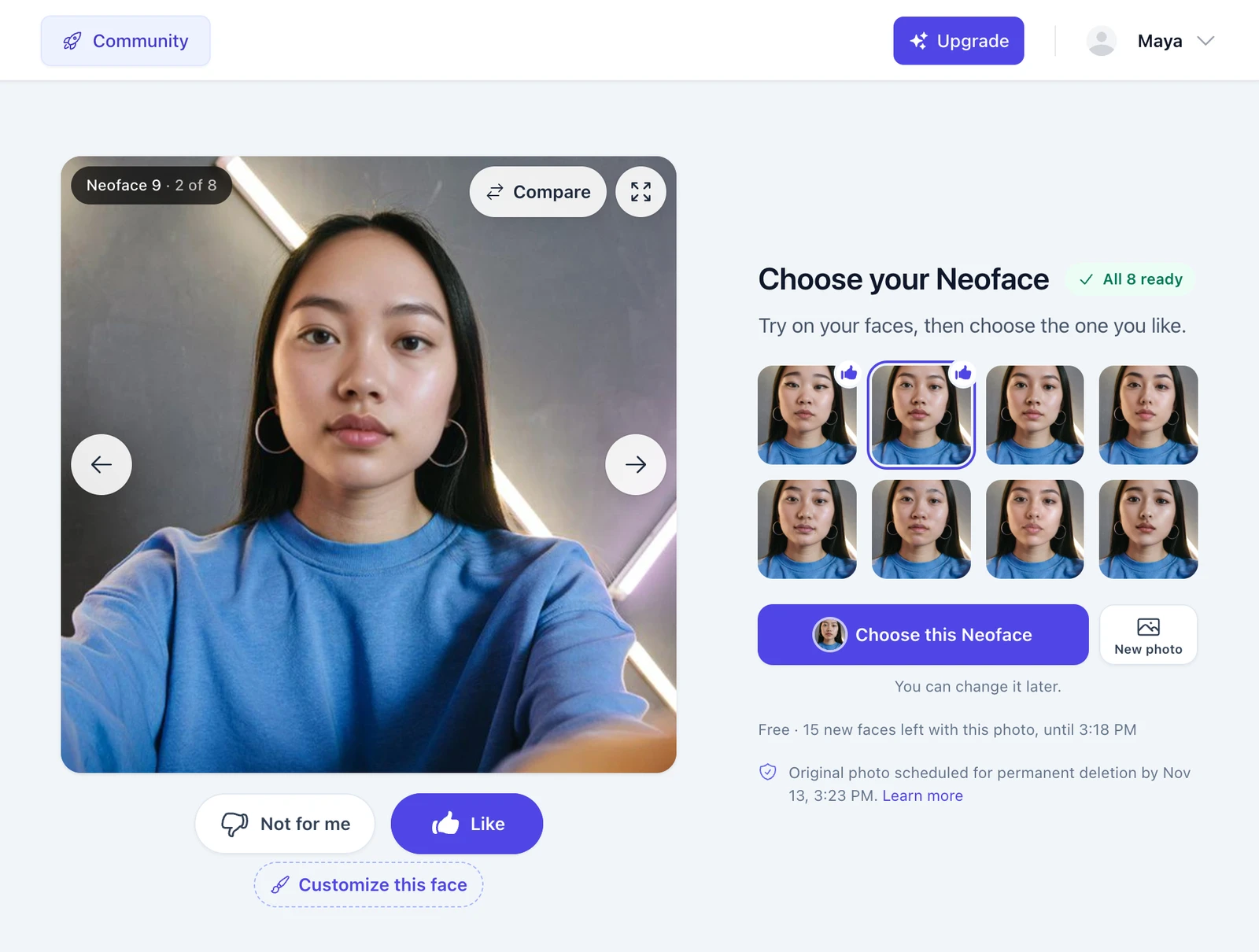
Each photo can make 16 new faces, free. Ask for several and they're made one after another. A replaced face doesn't come back, so choose Keep if you're not sure about one.
Customize the face that's close
Replacing gets you a different face. Customizing keeps the face and changes one or two things about it.
- Find the closest one. Your thumbs-up faces are the place to start. Use Compare to see a face against your own photo, or open full screen for a closer look.
- Tap Customize this face. It's under the Not for me and Like buttons.
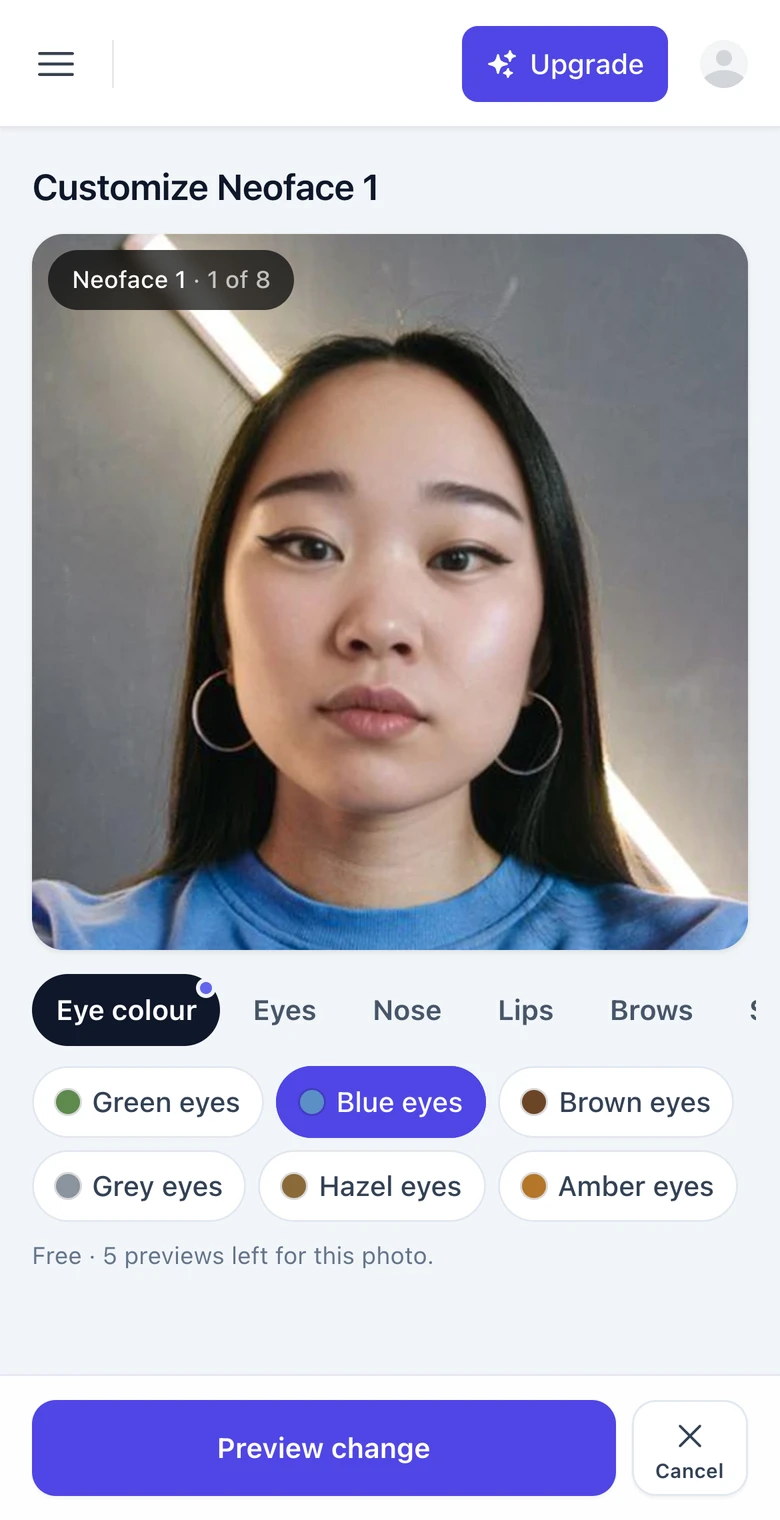
- Pick your changes. Choose up to three, then tap Preview change.
- Look at the result. When it's ready, the changed face goes onto your photo as a new version.
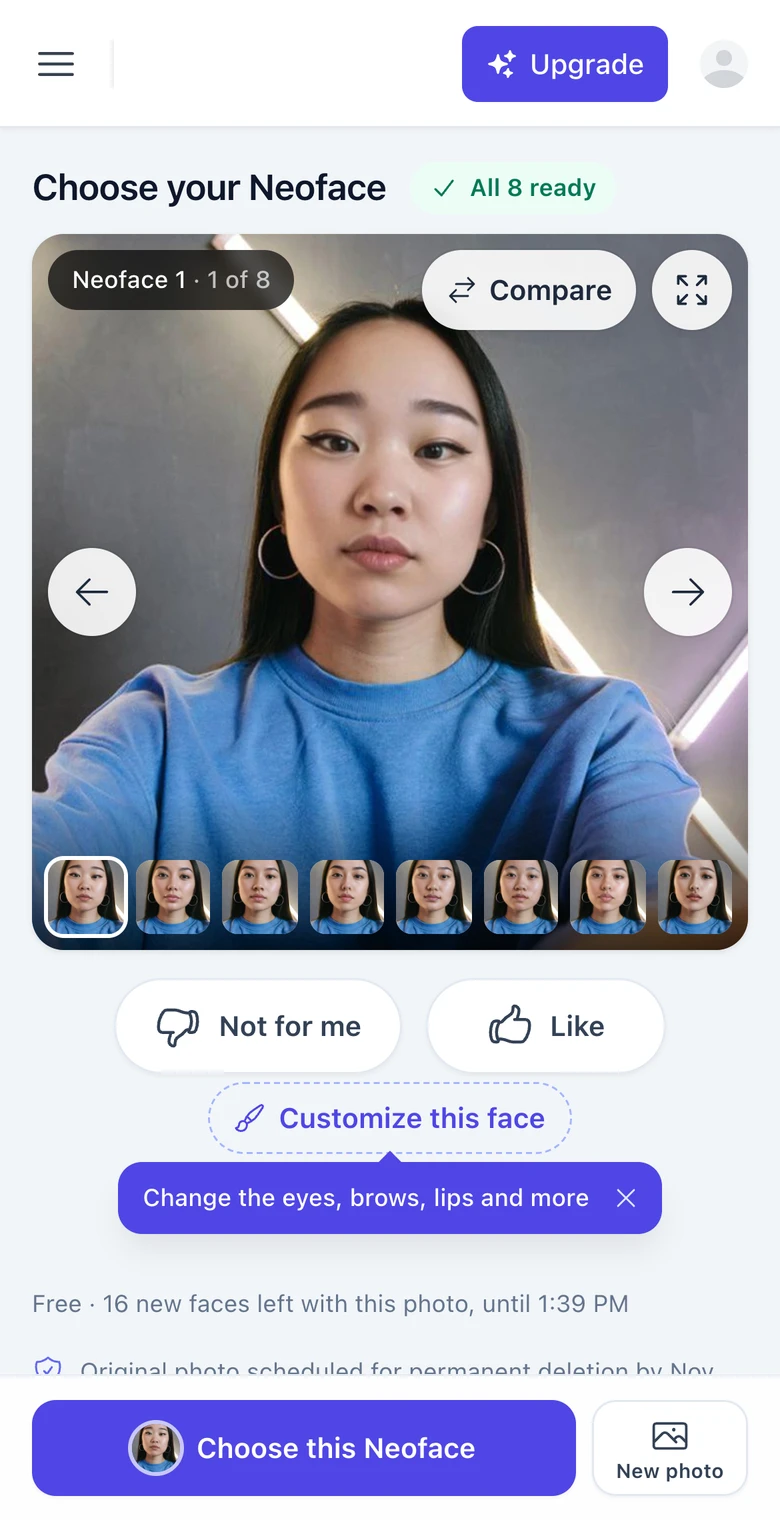
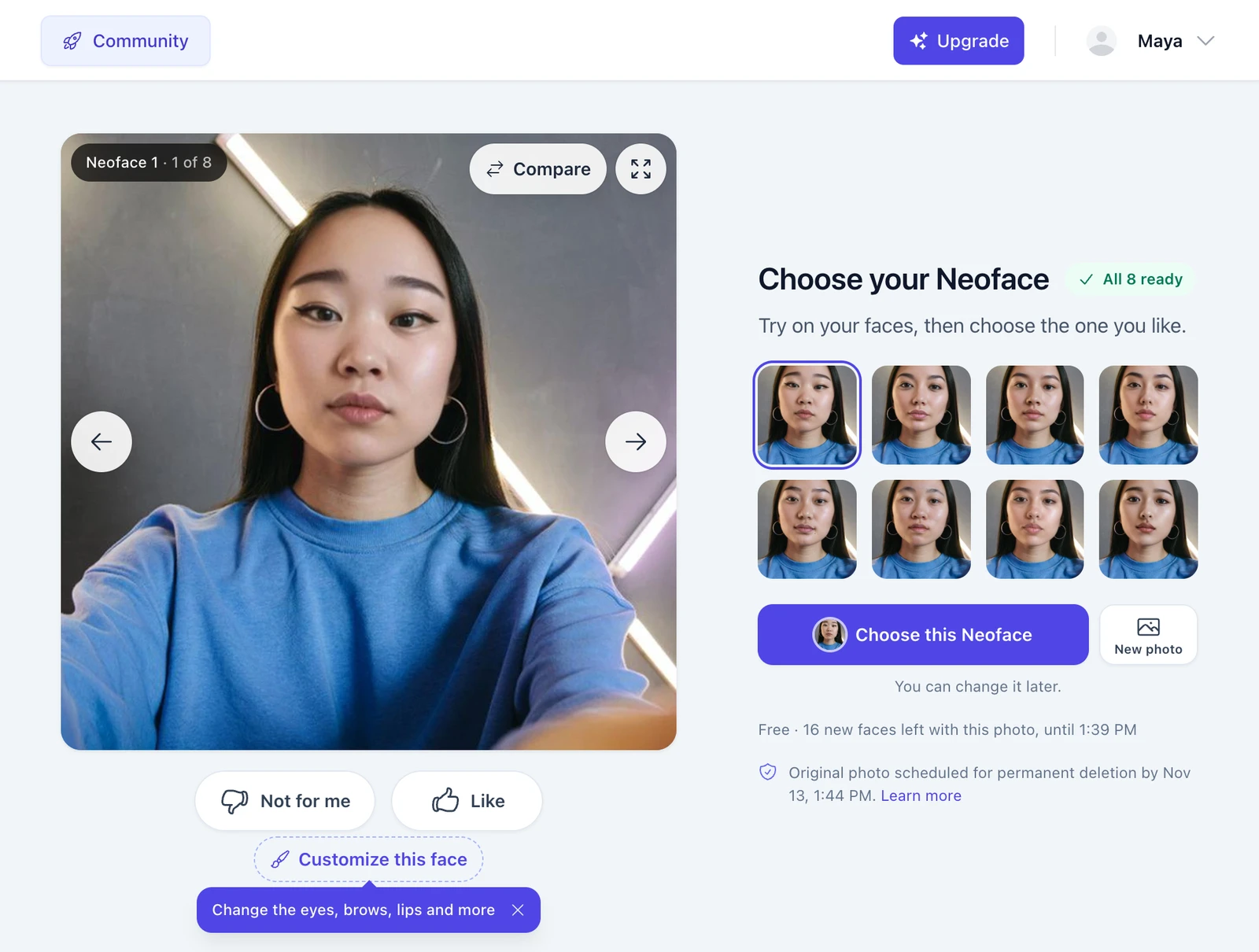
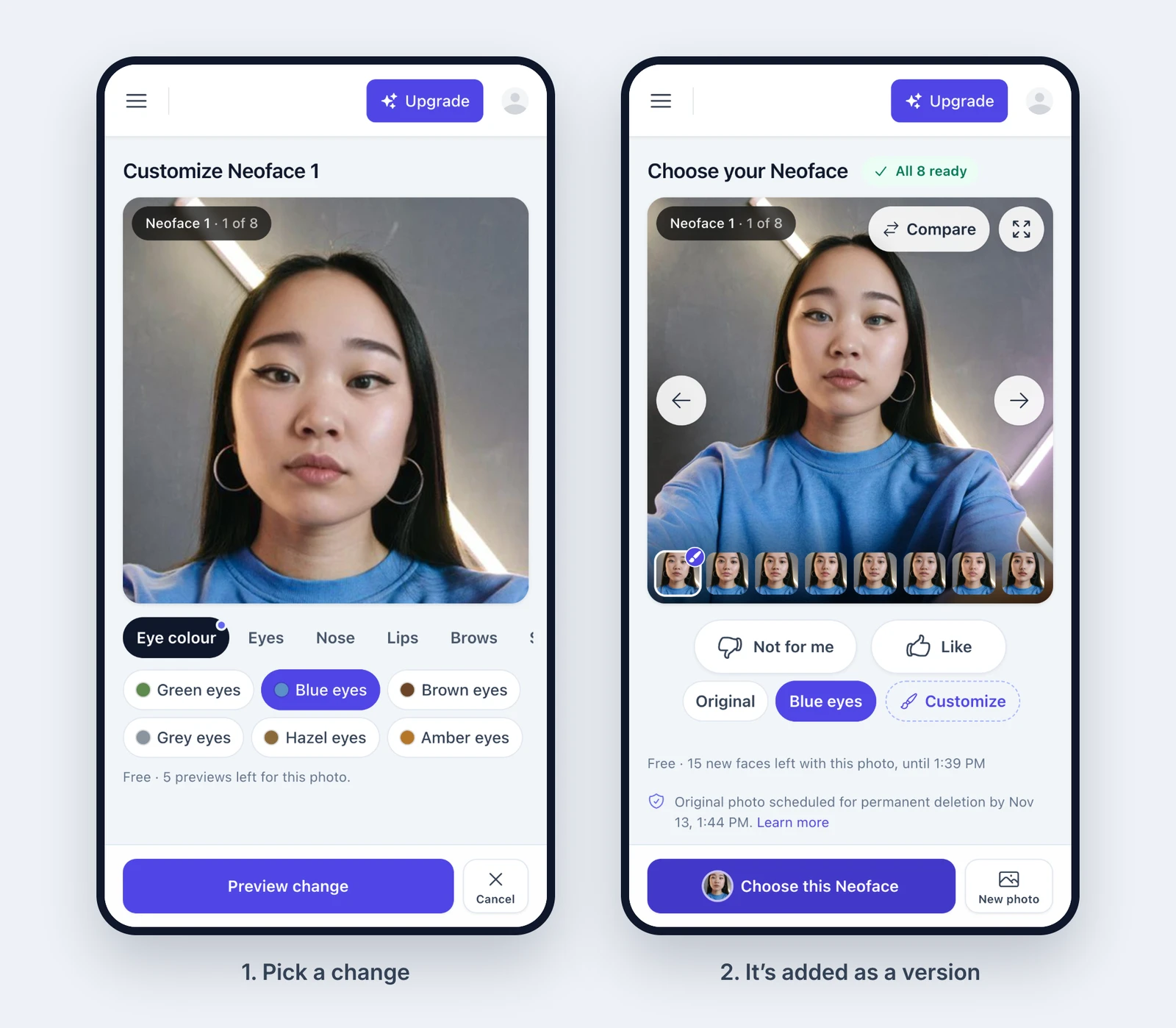
The choices open beside your photo on a computer and under it on a phone, so the face stays in view while you pick. There's nothing to type and no prompt to write.
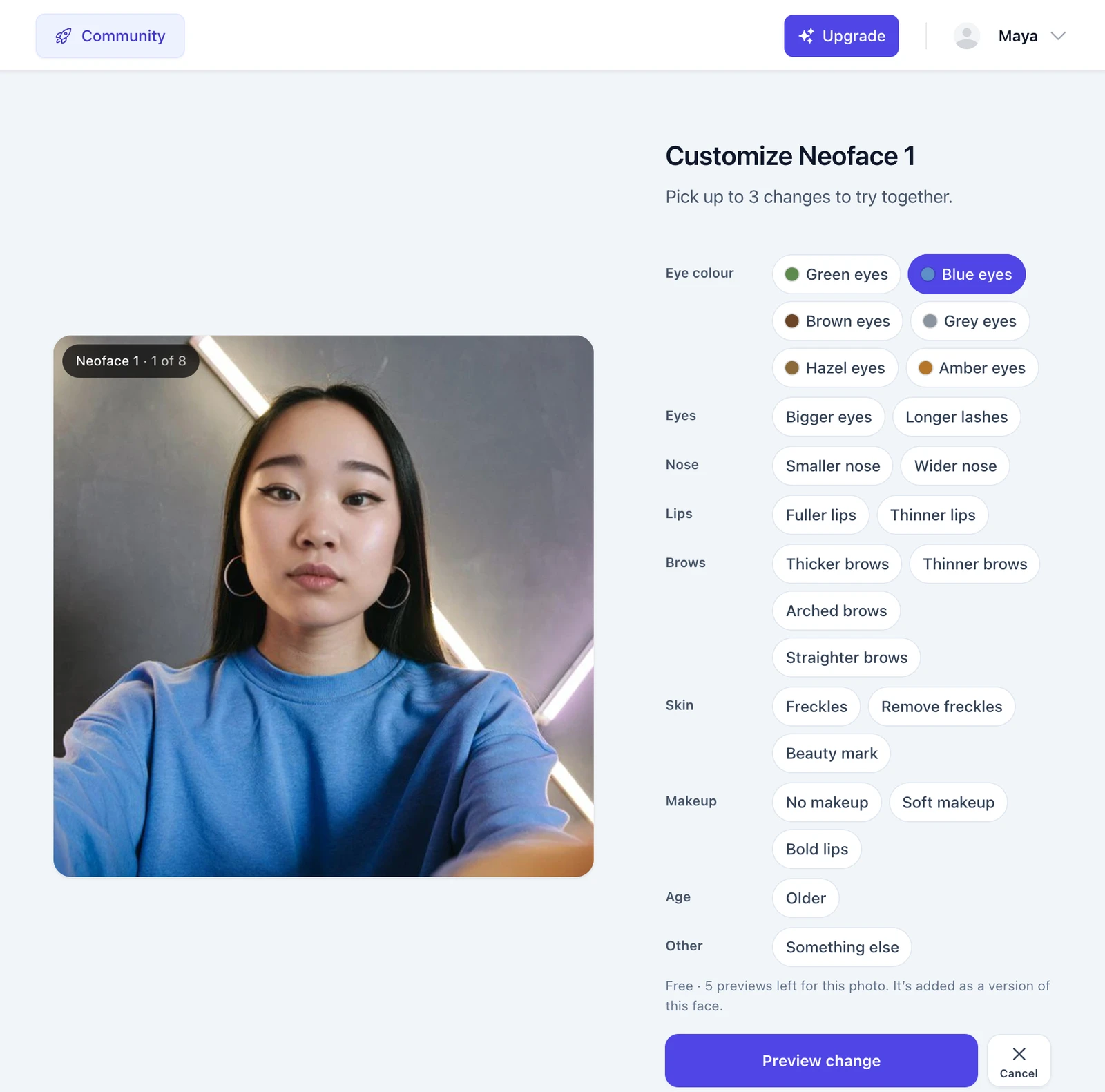
What you can change
| Feature | Choices |
|---|---|
| Eye color | Green, blue, brown, grey, hazel, amber |
| Eyes | Bigger eyes, longer lashes |
| Nose | Smaller, wider |
| Lips | Fuller, thinner |
| Brows | Thicker, thinner, arched, straighter |
| Skin | Freckles, remove freckles, beauty mark |
| Makeup | No makeup, soft makeup, bold lips |
| Facial hair | Stubble, clean-shaven, moustache, short beard, goatee |
| Age | Older, younger |
You only see the choices that fit the face in front of you. Facial hair is offered on male faces, for example, and Younger only on older faces.
You can combine up to three changes in one preview, one per feature. Blue eyes with fuller lips and thicker brows is fine. Blue eyes with green eyes isn't, so picking a second eye color replaces the first.
Here's the eye color change up close on the sample face.
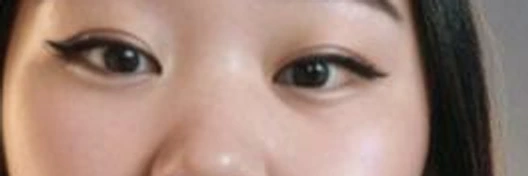 Original
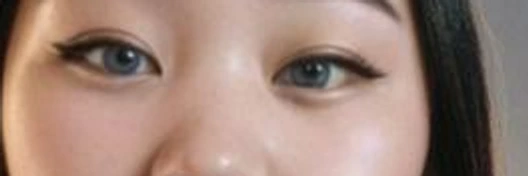 Blue eyes
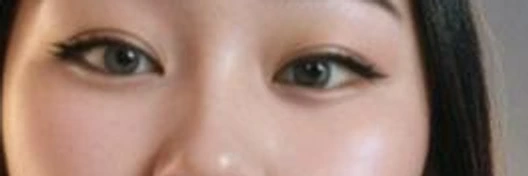 Green eyes
Two things to know before you start:
- The list covers the face, not the whole photo. Your hair, your face shape and your expression come from your own photo, which is why they aren't on it.
- Some changes are quieter than others once they're on your photo. Open full screen and flip between versions before you decide whether one is worth keeping.
If the change you want isn't there, Something else at the end of the list lets you tell us. It goes to our team as a suggestion. It isn't made, and it doesn't use a preview.
Every change is saved as a version
A change never overwrites the face. It's added as a version, in a row under your photo: Original first, then one chip for each change you've made.
- Tap a chip to put that version on your photo. Compare, full screen and the rating buttons all work on whichever version is showing.
- Making a change doesn't choose anything. You choose when you tap Choose this Neoface, and it takes the version that's on the photo at that moment.
- A version keeps its face's number. Neoface 1 with blue eyes is still Neoface 1, and its thumbnail gets a small brush mark so you can find it again.
- Want to go further? Tap Customize again while a version is showing. It starts from that version's choices and makes another one. The earlier versions stay.
One change is made at a time for a photo. While it's being made you can keep looking through your other faces.
It works the same way on a phone. The photo zooms in on the face while you pick, and the features sit in a row of tabs under it.
The limits
| Limit | How much |
|---|---|
| New faces per photo | 16, free. Replacements and customization previews both count. |
| Customization previews per photo | 5 |
| Changes in one preview | Up to 3, one per feature |
| Changes in progress | One at a time per photo |
| How long you have | About 25 minutes after you add the photo. The screen shows the exact time. |
If a change can't be made, you're told why and nothing is used. When the time for a photo is up, you can still choose from the faces and versions you have. You just can't make new ones from that photo.
If you made faces before and never chose one
That's the situation this update is for. Your earlier faces came as they were, and the time for changes on that photo has passed. Start again with New photo on Create Neoface. You'll get eight fresh faces, and this time you can rate them, replace the ones you don't like and adjust the one you nearly do.
Once you've chosen a version, it's your Neoface for every photo and video you anonymize. If you haven't done that part yet, the step-by-step workflow walks through uploading and reviewing your results, and the v2 quality update shows what the finished photos and videos look like.
Frequently asked questions
- What do the thumbs up and thumbs down do?
- They're how you rate each suggested face. Like marks a face with a thumbs up so it's easy to find again. Not for me marks it with a thumbs down and offers to replace it with a new face. Your ratings also steer the new faces, which lean toward the ones you liked and away from the ones you didn't.
- Can I get a replaced face back?
- No. A replacement takes the old face's place for good. If you're not sure, choose Keep when you're asked. The face stays where it is with its thumbs down, and you can still replace it later while the photo has new faces left.
- Does customizing a face cost anything?
- No. Previews are free. Each photo gets up to five customization previews, and they count toward the 16 new faces you can make from that photo. If a change can't be made, it doesn't use one.
- Can I make more than one change at a time?
- Yes. You can pick up to three changes for one preview, as long as each is for a different feature. Blue eyes, fuller lips and thicker brows work together. Two eye colors don't.
- Can I type in my own change?
- Not as a change that gets made. Something else, at the end of the list, sends what you type to our team as a suggestion. It isn't applied to the face and it doesn't use a preview.
- Can I customize a Neoface I made a while ago?
- Customizing is part of creating a Neoface, and it stays open for about 25 minutes after you add the photo. For faces you made earlier, choose New photo on Create Neoface. You'll get eight fresh faces and can customize any of them.
- Why is Customize greyed out?
- Hover over it or tap it and it tells you why. Usually your faces are still being made, another change is in progress (one is made at a time), you've used the five previews for this photo, or the time for changes to this photo is up.
- Does a customized Neoface work on videos too?
- Yes. Once you choose a version, it's your Neoface. It's used for the photos and videos you anonymize from then on, like any other Neoface.
- Is my own photo edited to make the change?
- No. The change is made to the suggested face. The changed face is then tried on your photo the same way the first eight were.
Create with
a face you choose.
Join thousands of creators building faceless brands with Neoface. Private by default, lifelike by design.
No credit card required · Instant access · Free plan available
- High-fidelity models
- Private and secure
- 24/7 support